
You can easily mark your device as returned in Moon HRM by following the steps below.
- Open the Moon HRM application on your device or tap on this link.
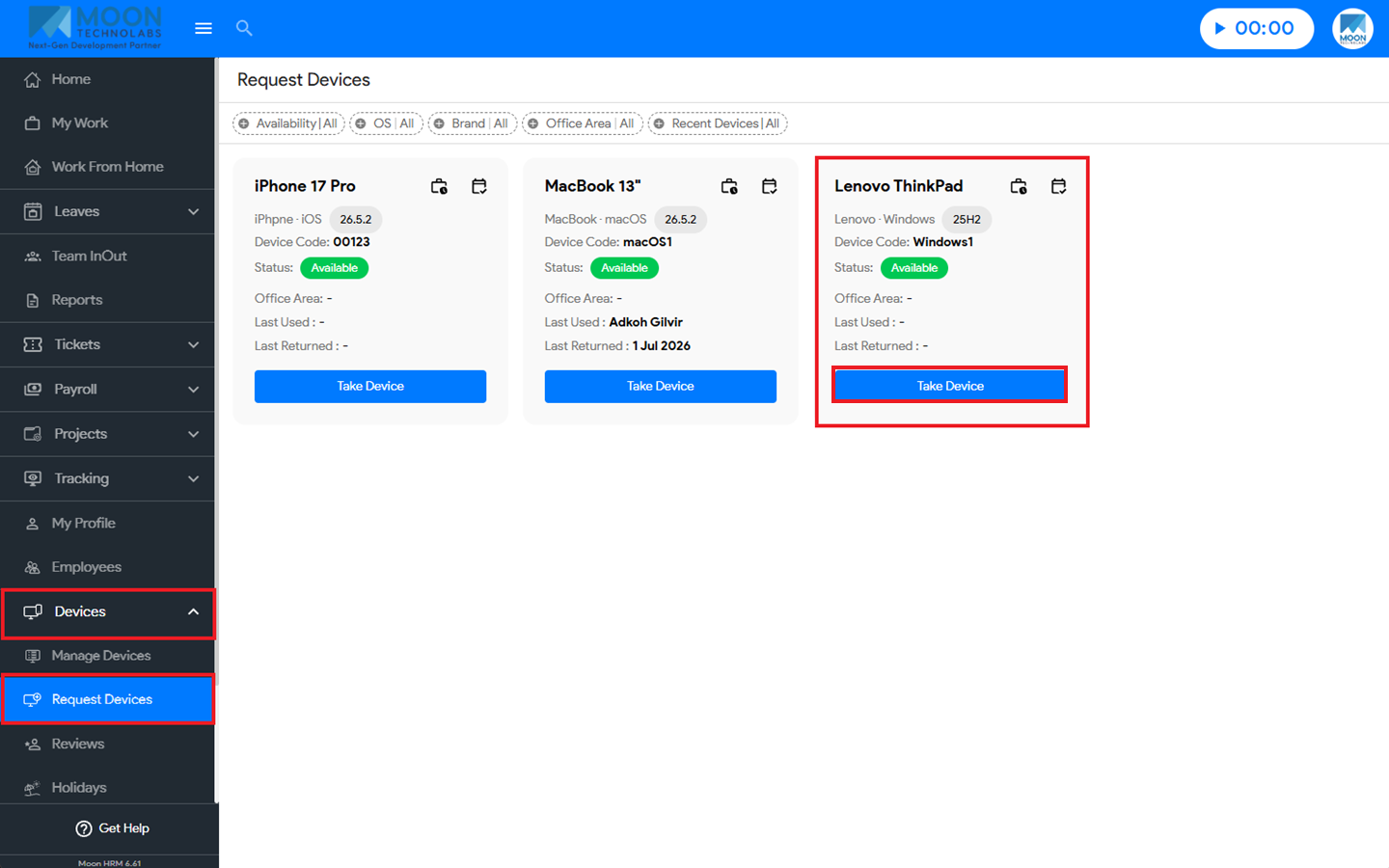
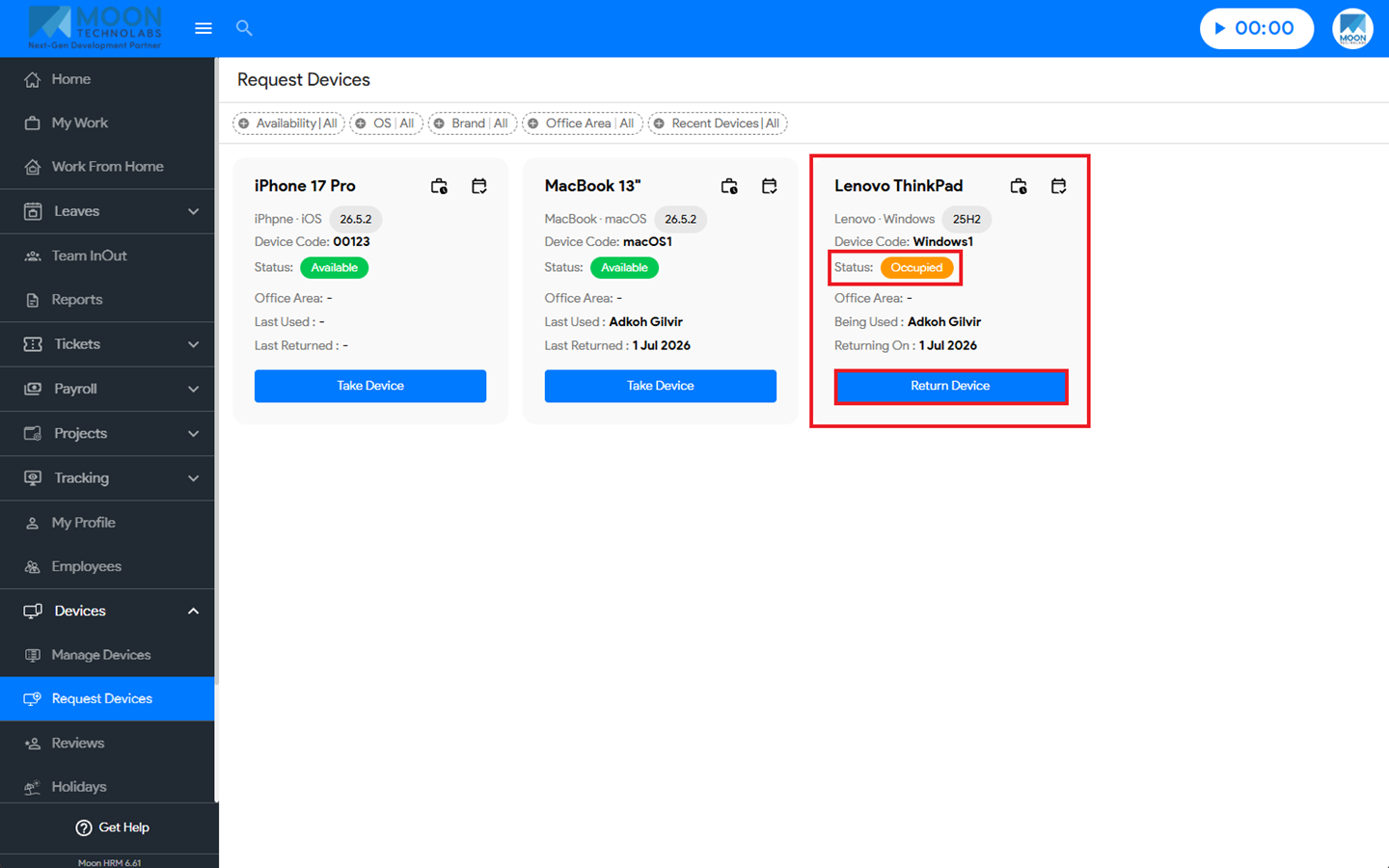
- Go to Devices → Request Devices.
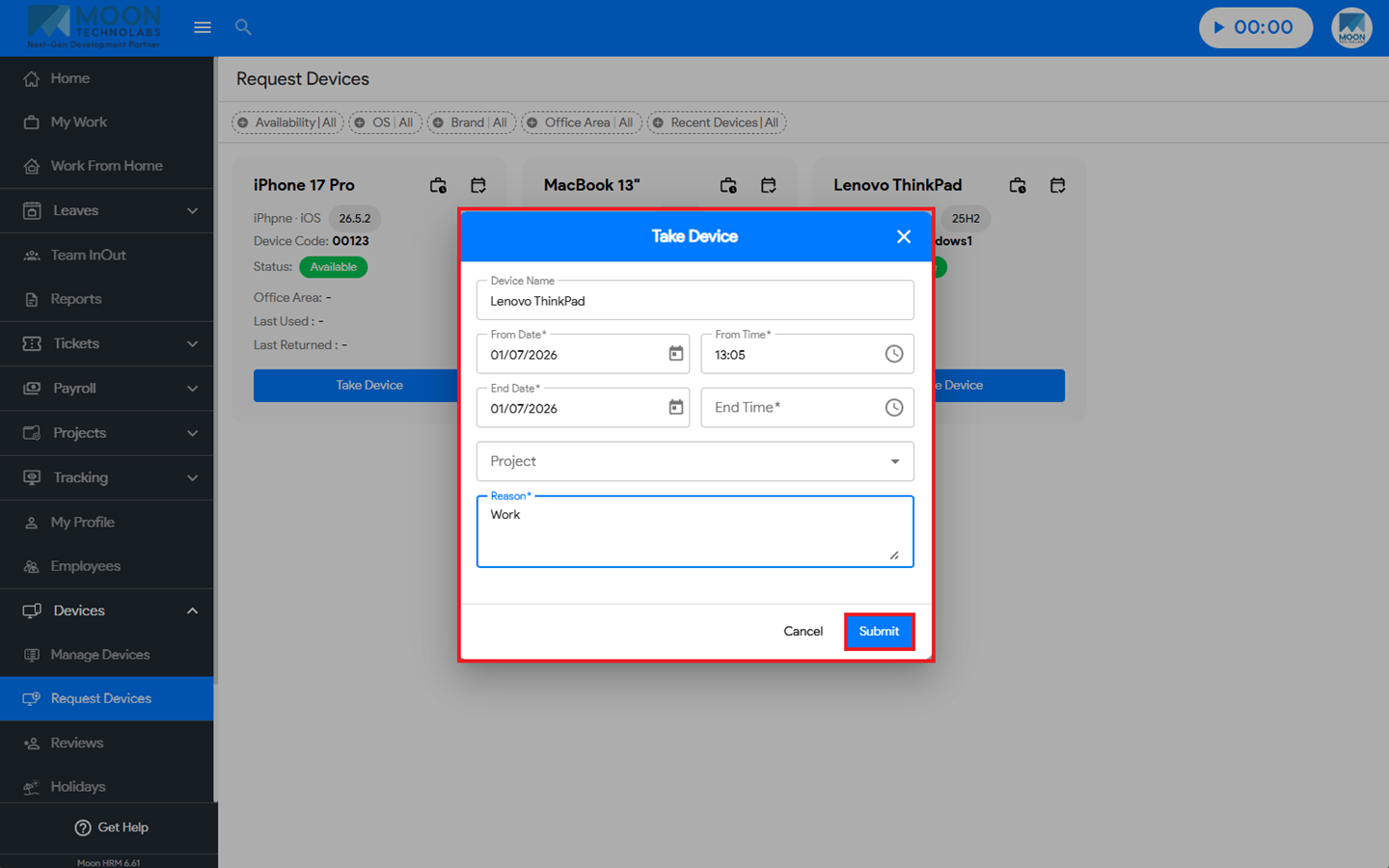
- If the device has not been assigned yet, click Take Device, enter the required details, and click Submit. The device status will change to Occupied.
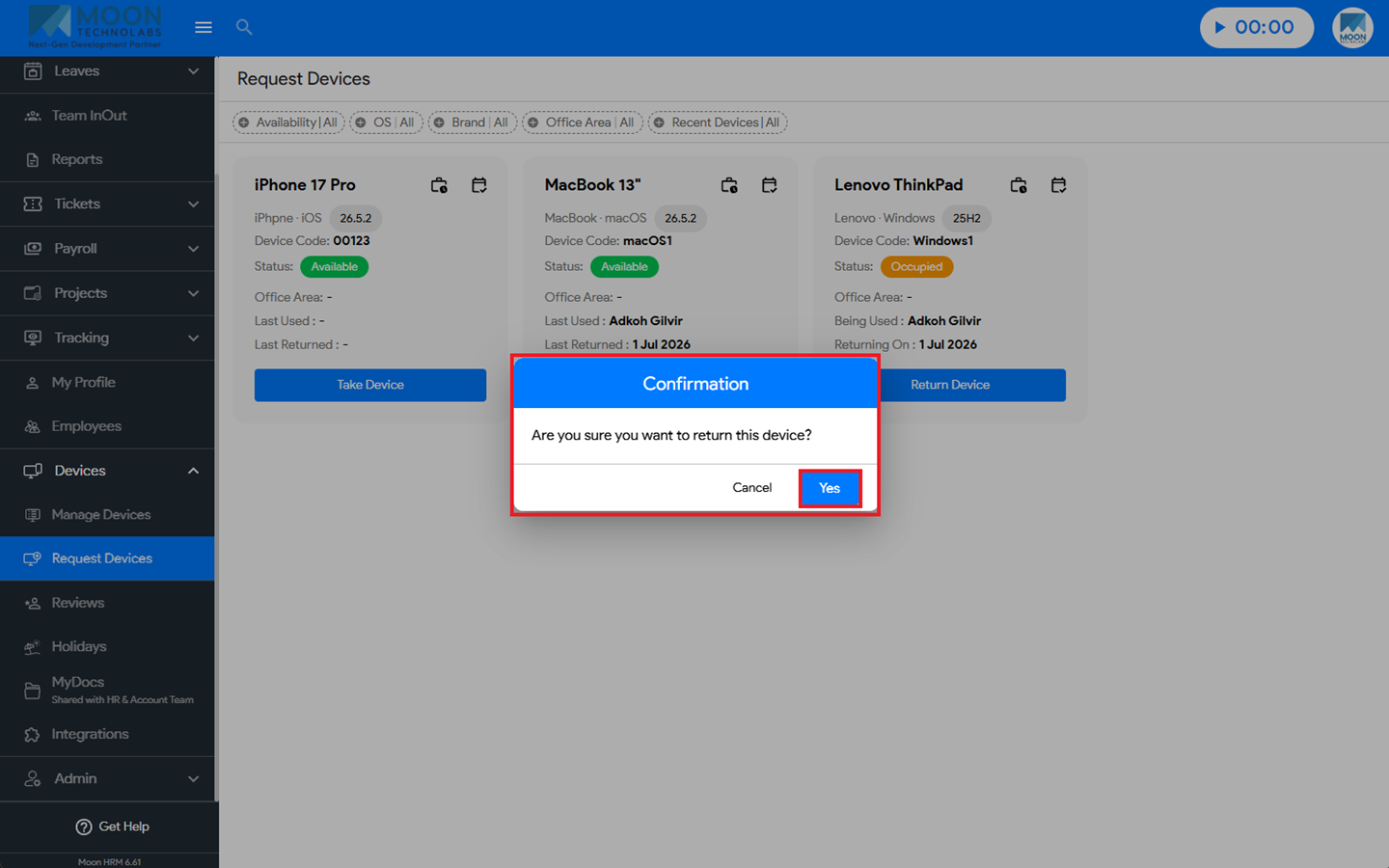
- To return the device, click Return Device and confirm by selecting Yes.
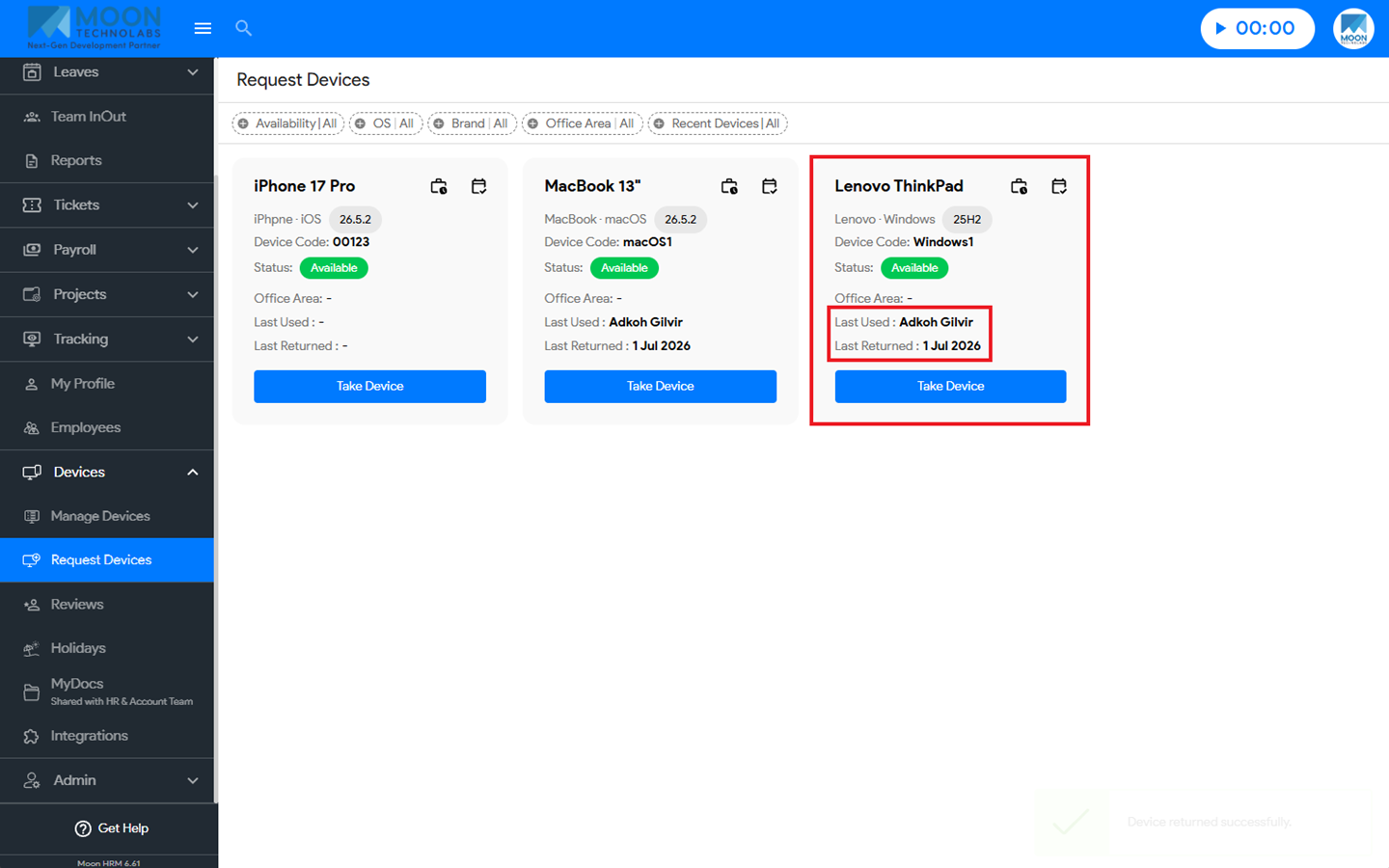
- After the device is returned, the Last Return Date and the Returned By employee details are displayed.
Note:
Administrators can also return a device on behalf of an employee.
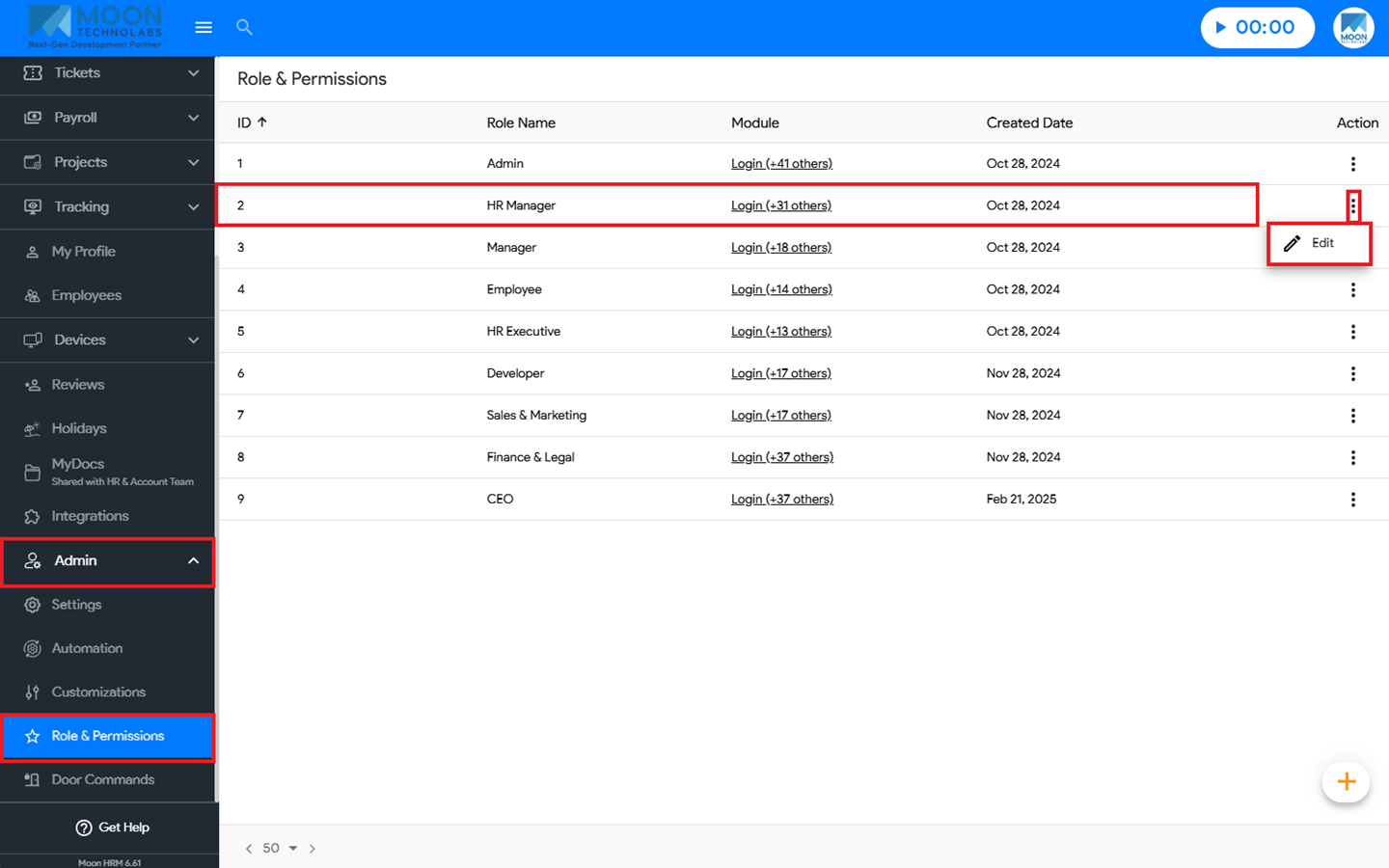
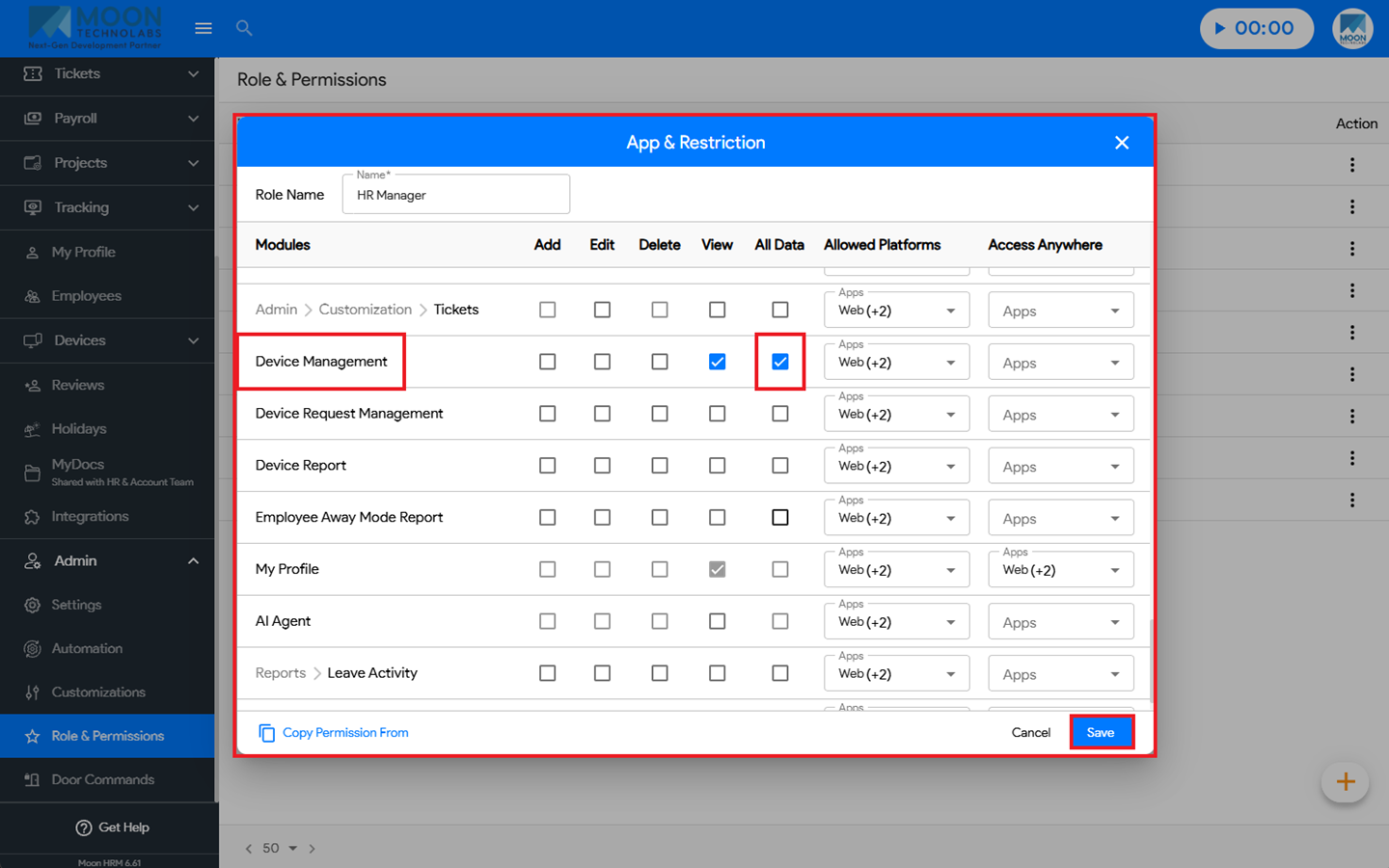
The Device Management → All Data permission must be enabled for the role. To enable it, go to Admin → Role & Permissions → Edit Role → App & Restriction → Device Management → All Data.