
You can easily enable away mode in Moon HRM by following the steps below.
- Open the Moon HRM application on your device or tap on this link.
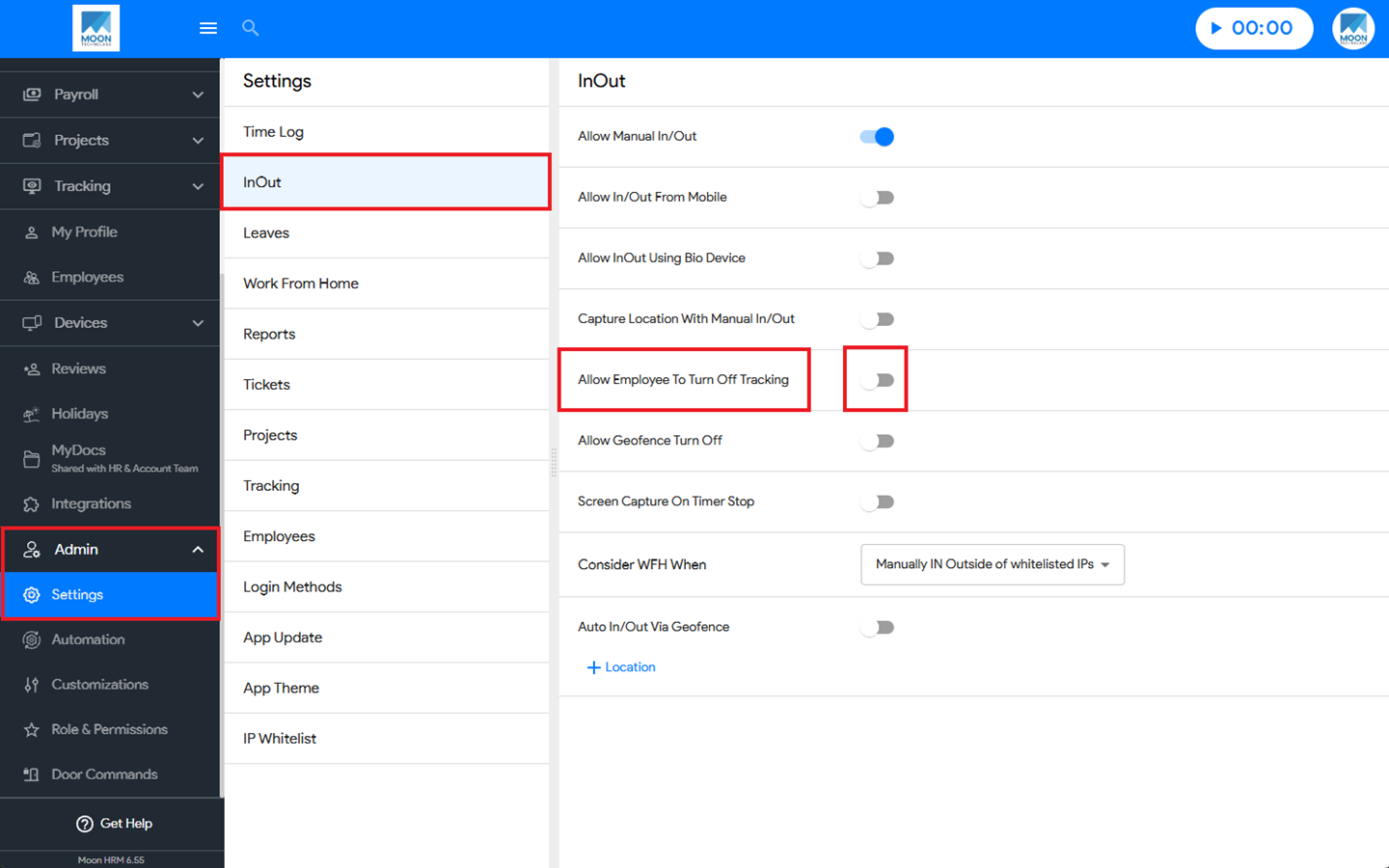
- At the Company Level, go to the main menu and navigate to Admin ➜ Settings.
- Under InOut, enable the Allow Employee to Turn Off Tracking option.
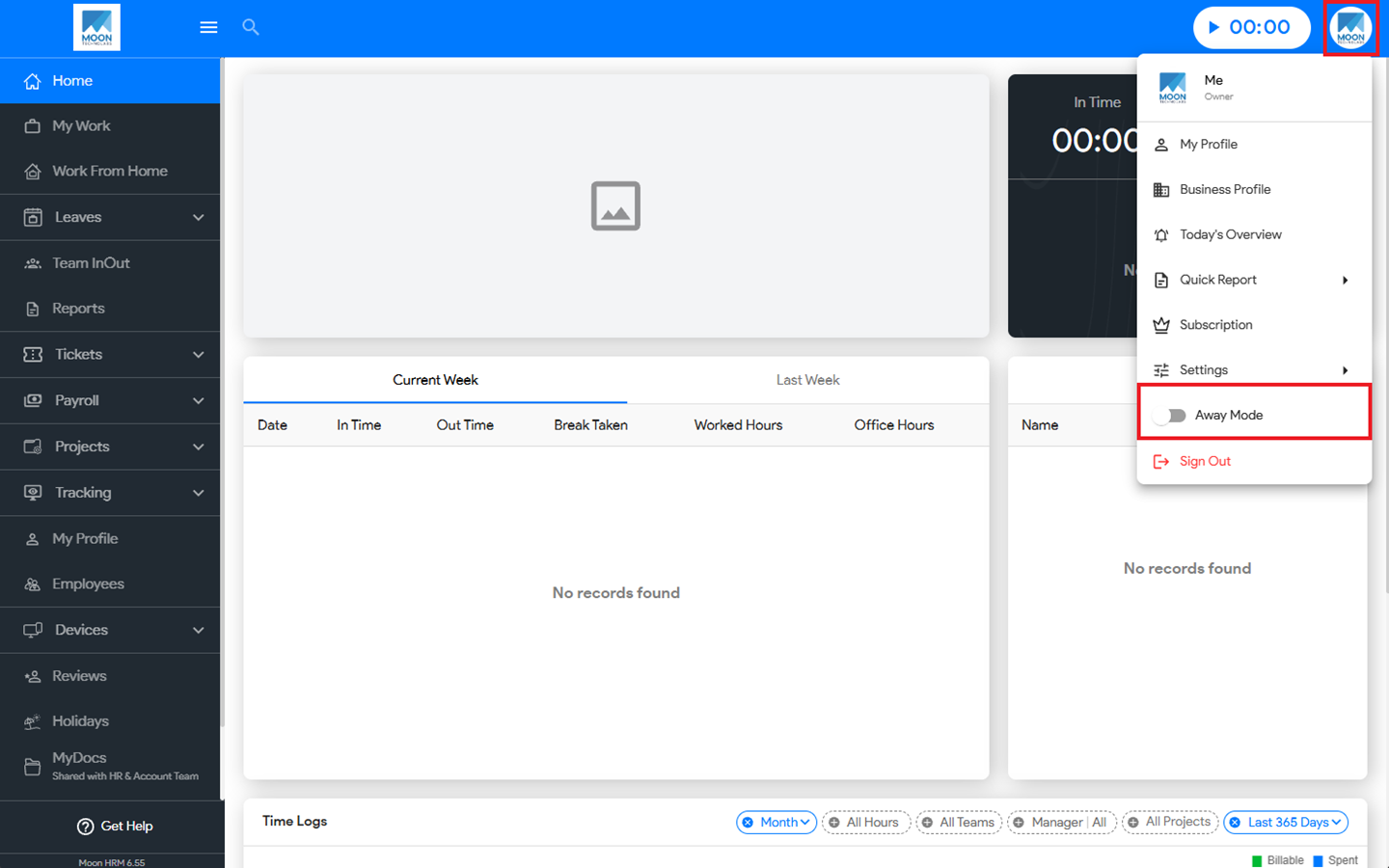
- Next, click on your Profile Icon, where you’ll find the Away Mode option.
- Click on it to enable the feature.
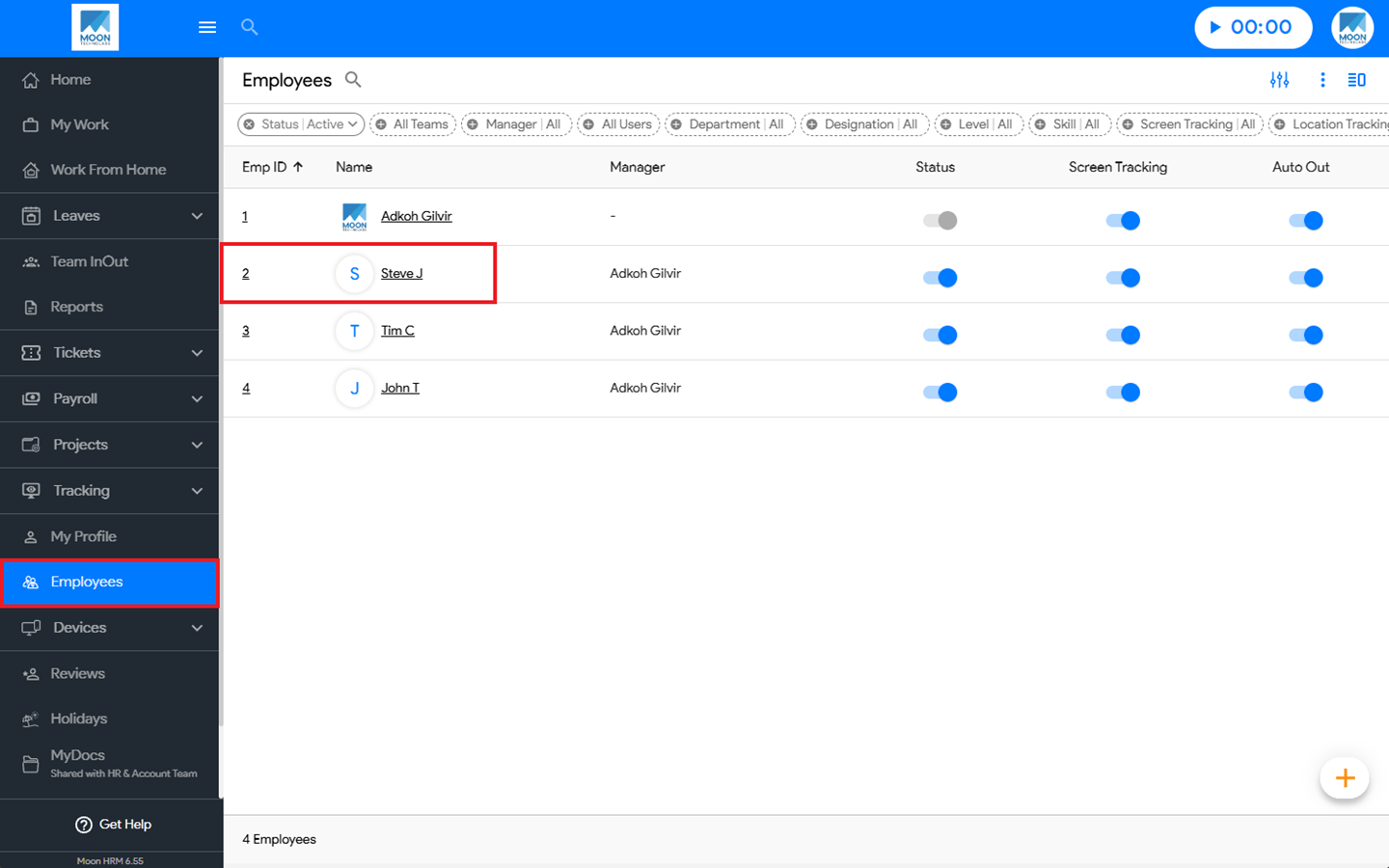
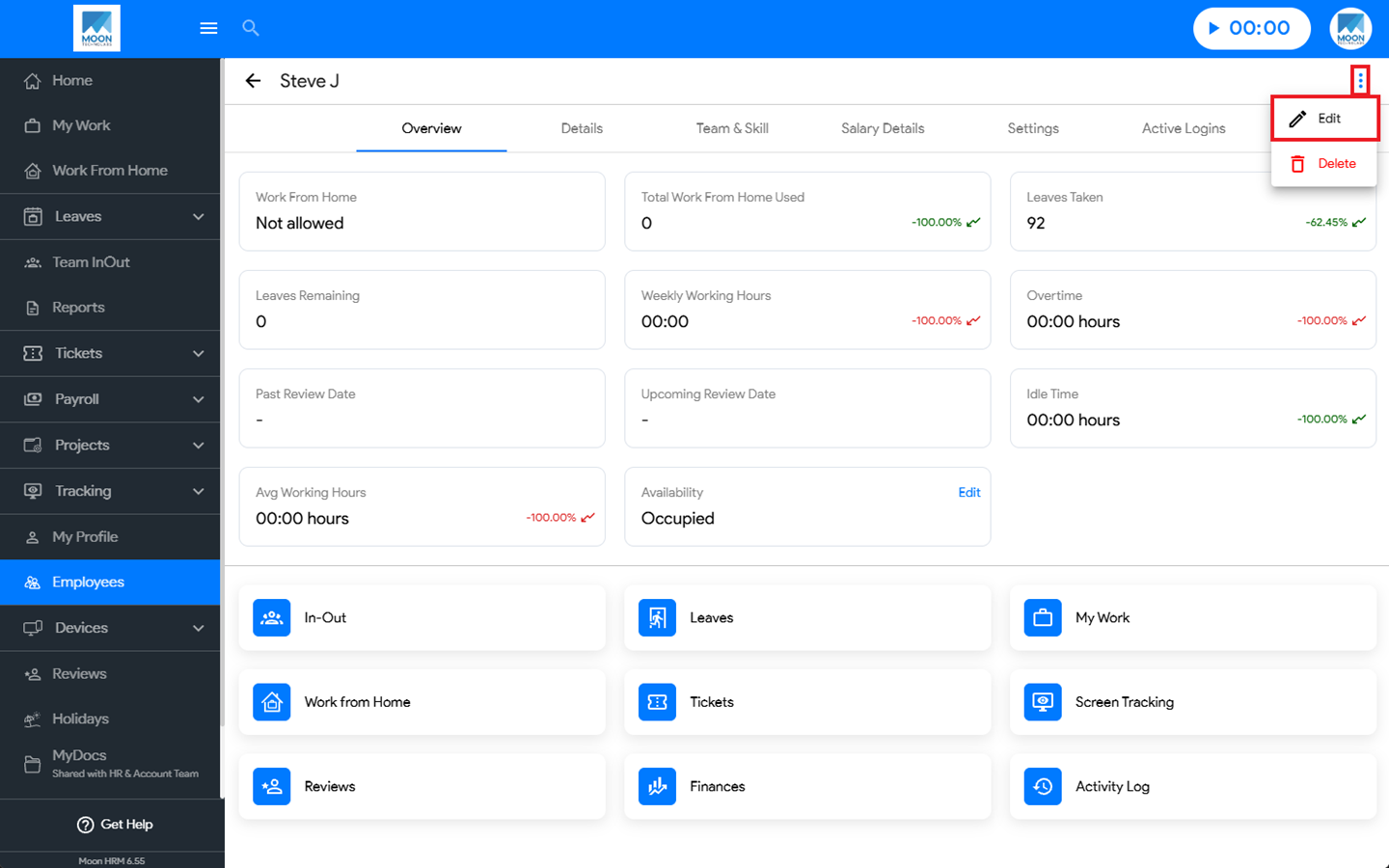
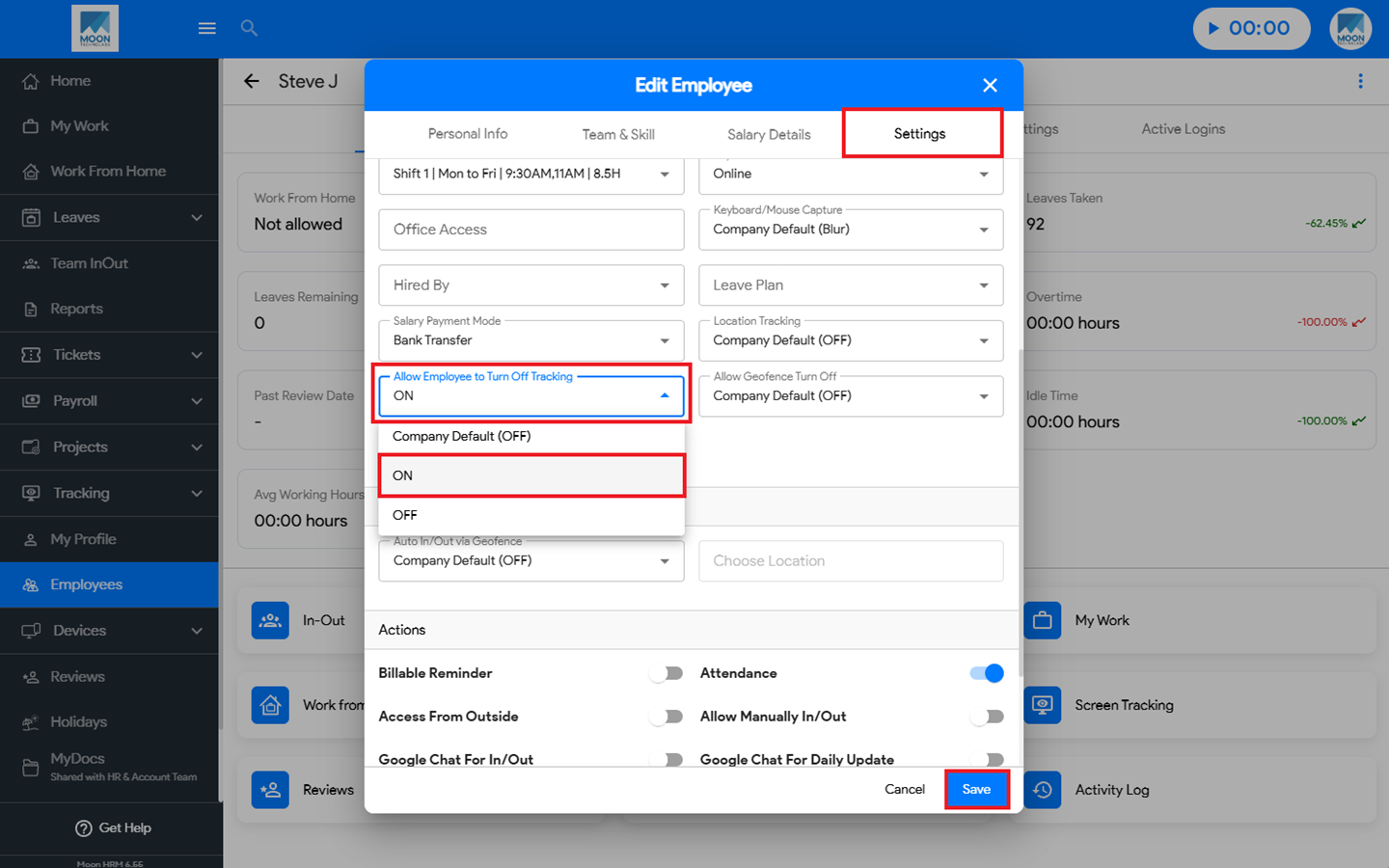
- At the Employee level, from the main menu, navigate to Employees, select the employee, tap on the employee name, click the three-dot icon (⋮), and select Edit.
- Go to Settings, then under Allow Employee to Turn Off Tracking, turn the option ON, and click Save.