You can easily add additional time for work from home (WFH) in a shift by following the steps below.
- Open the Moon HRM application on your device or tap on this link.
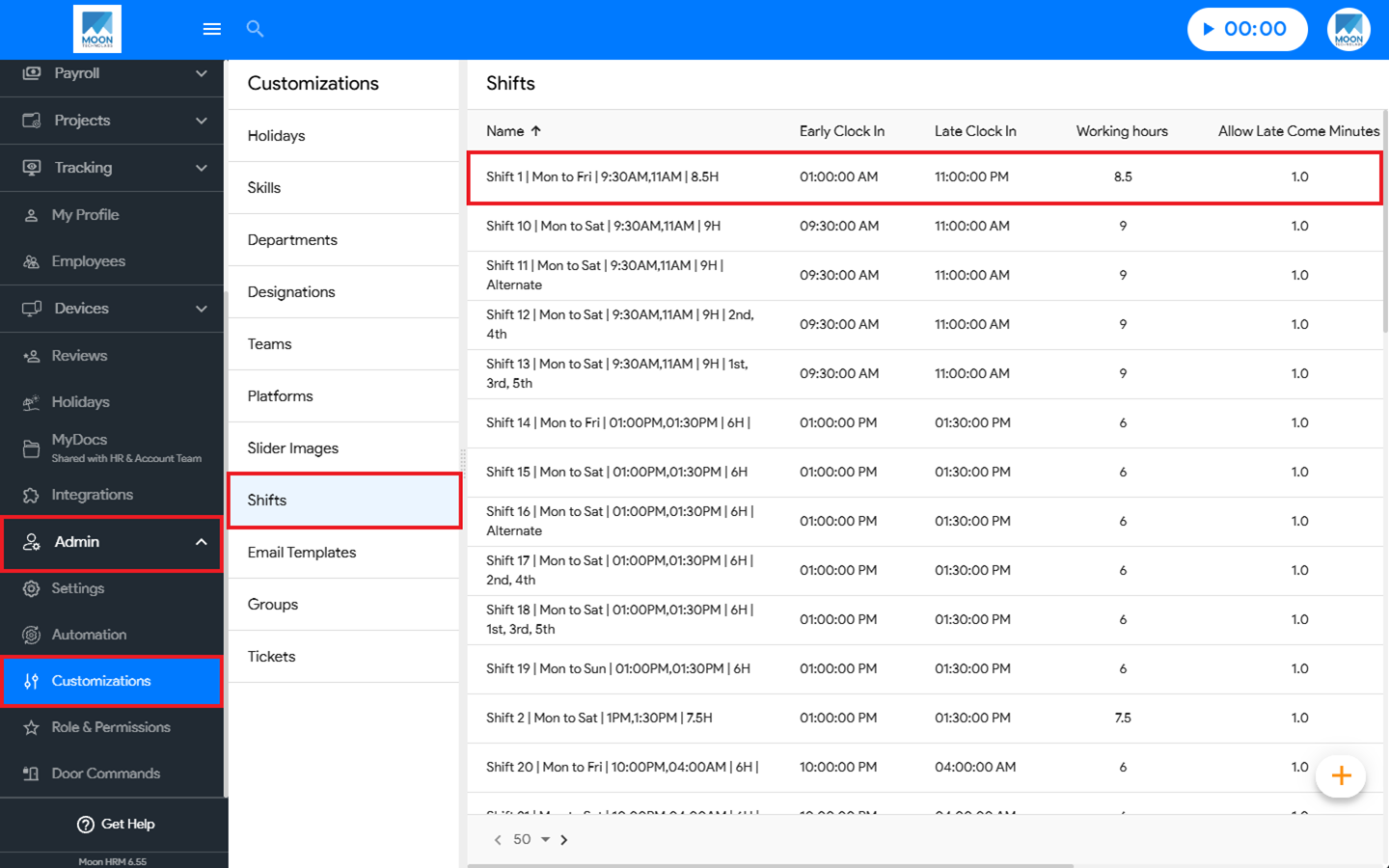
- From the main menu, navigate to Admin ➜ Customizations.
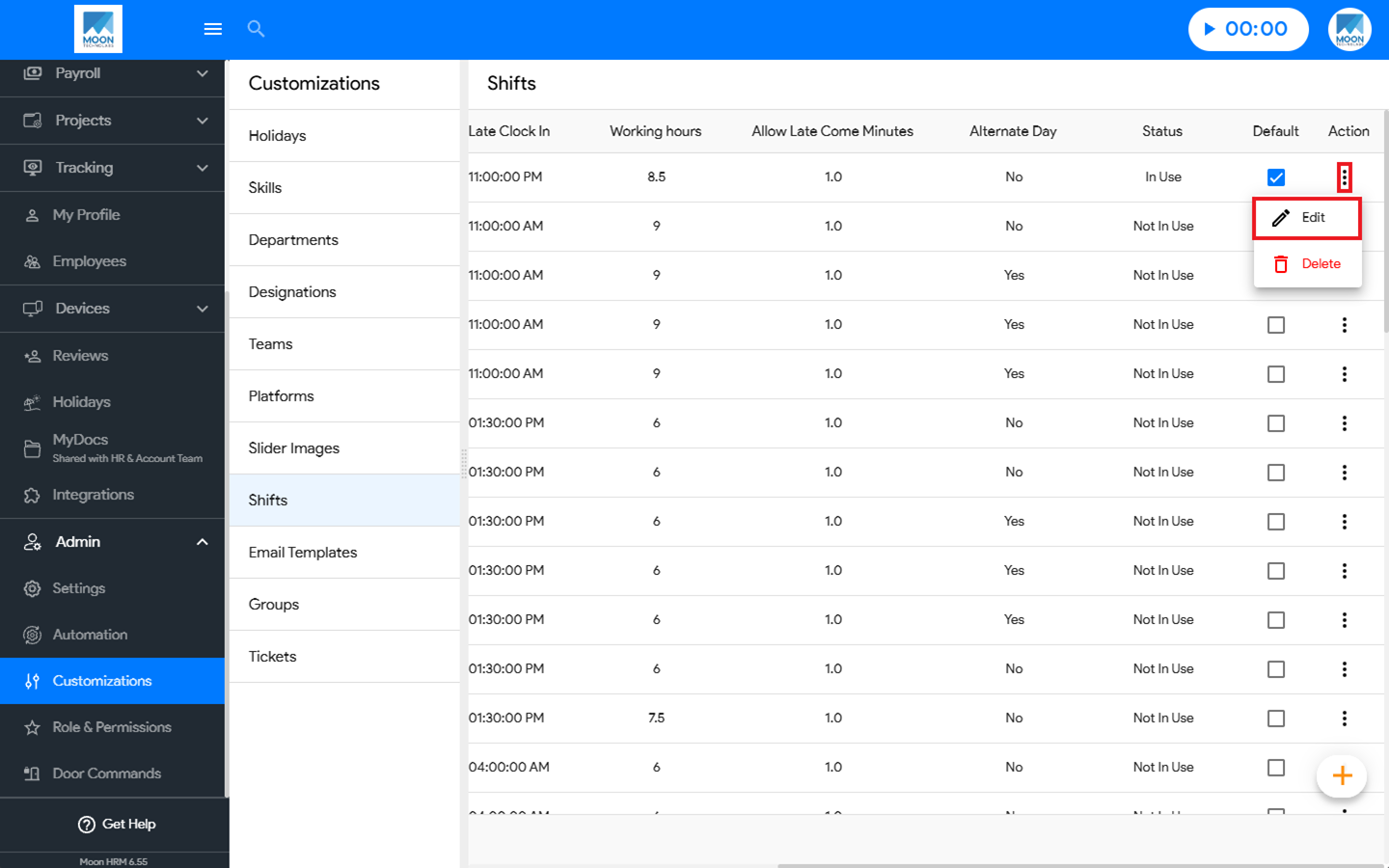
- Under Shifts, select the desired shift, click the three-dot icon (⋮), and choose Edit.
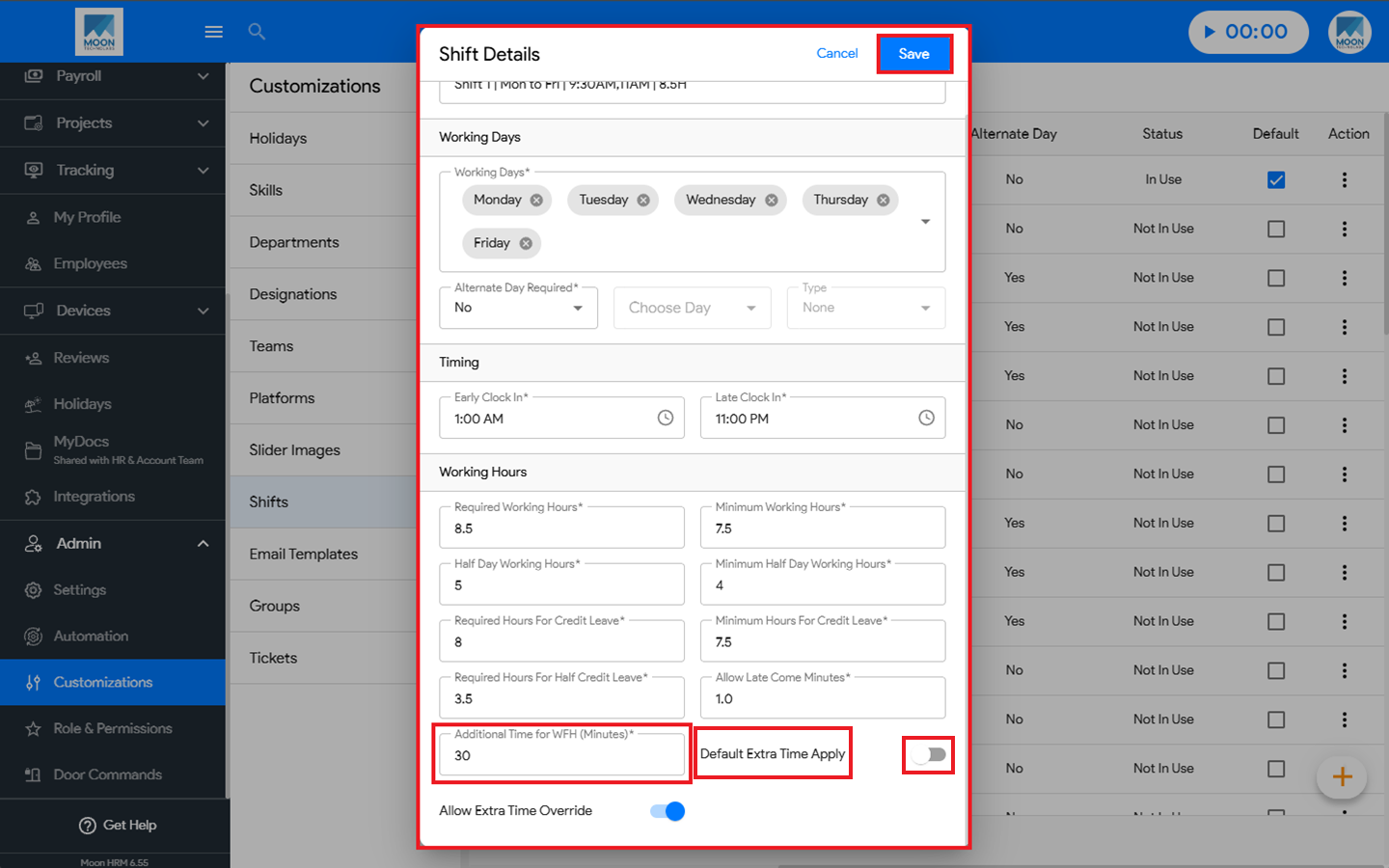
- Under Shift Details, go to the Additional Time for WFH section, first enable the Default Extra Time Apply toggle and enter the required time.
- Click Save to apply the changes.