

How can I manage Professional Tax Override during payroll execution?
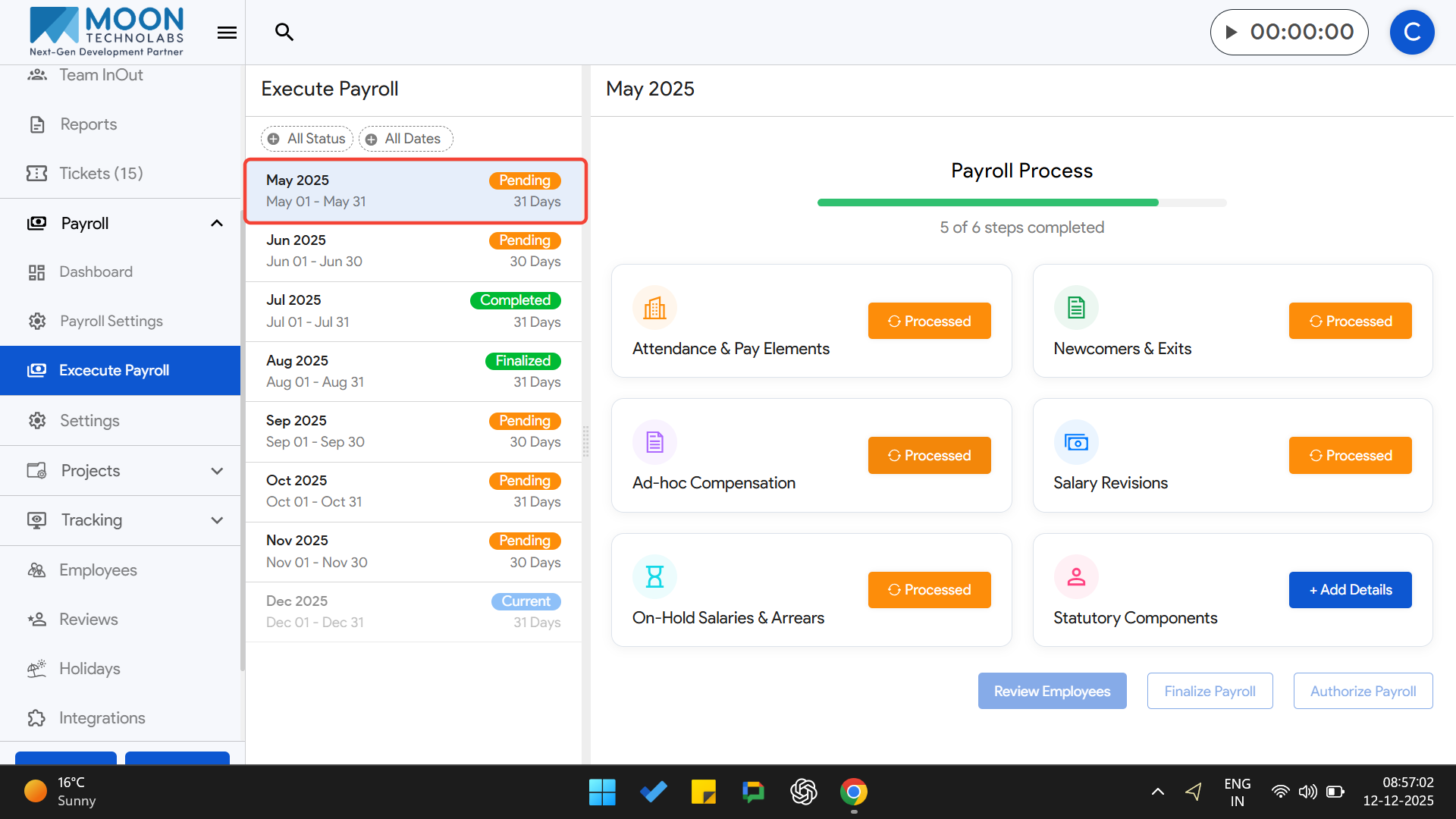
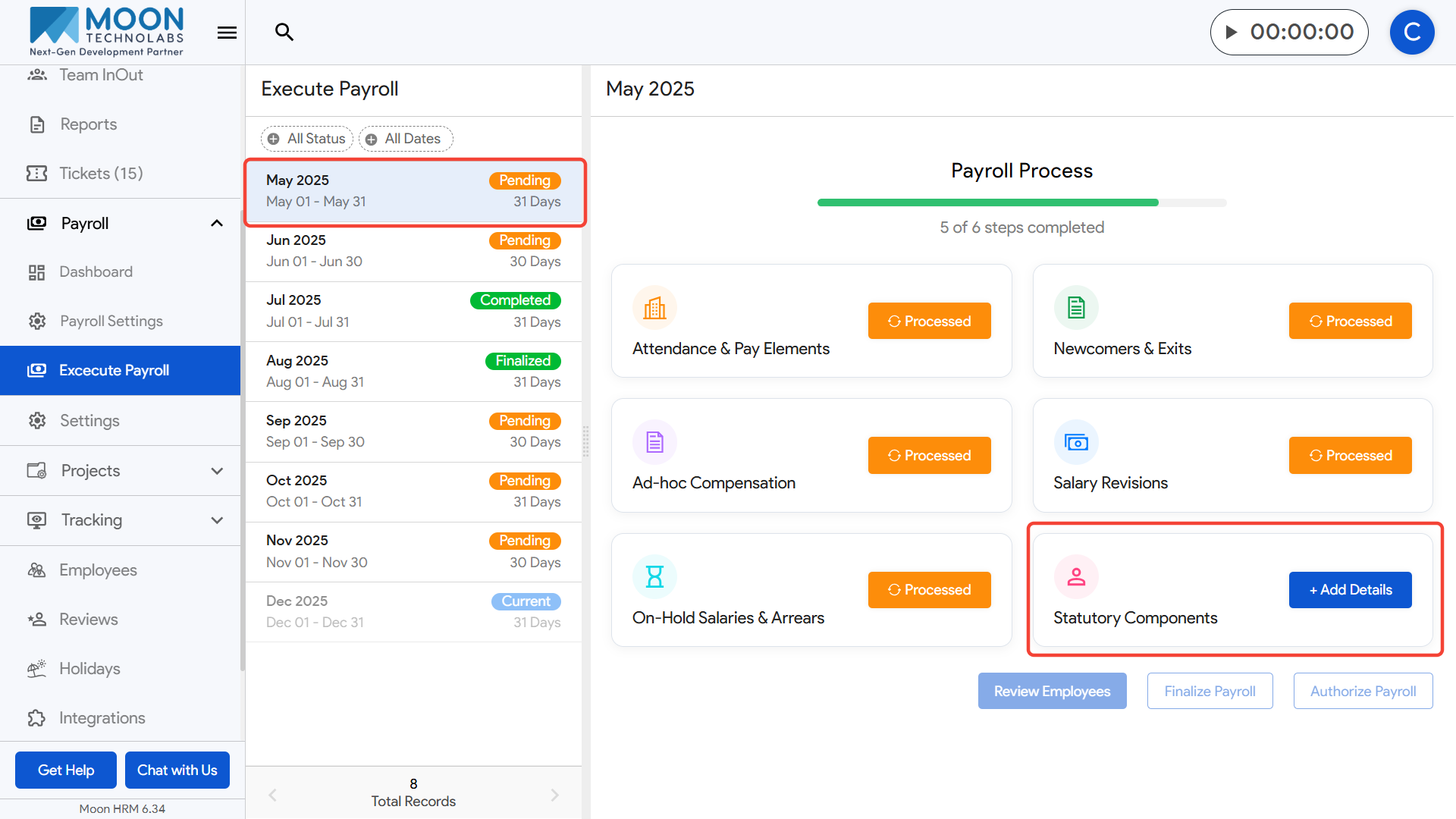
To process PT Overrides as part of payroll execution, click on Execute Payroll from the sidebar and select the payroll month you are working on.
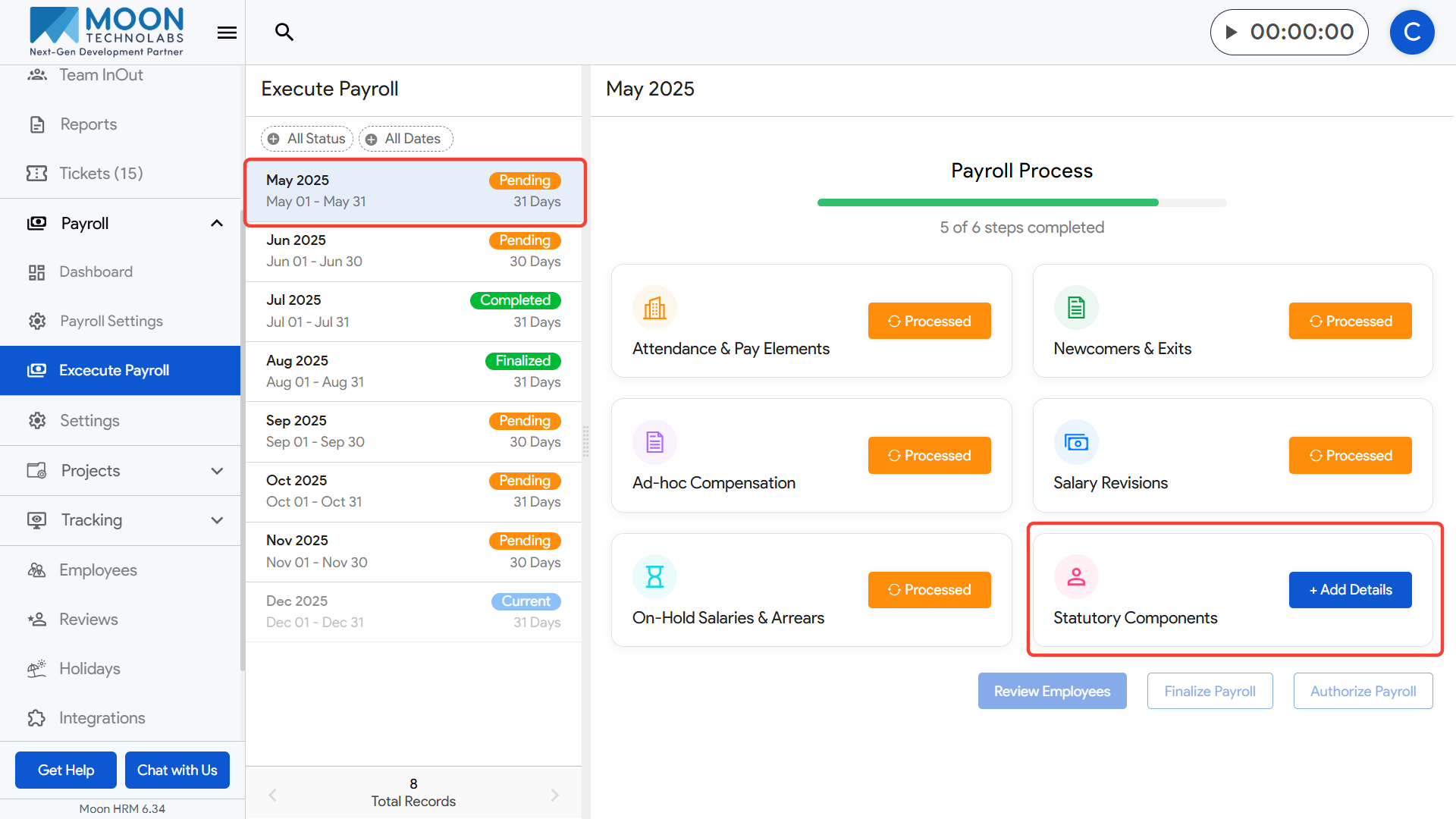
Go to the Statutory Components step and open the PT Override tab.
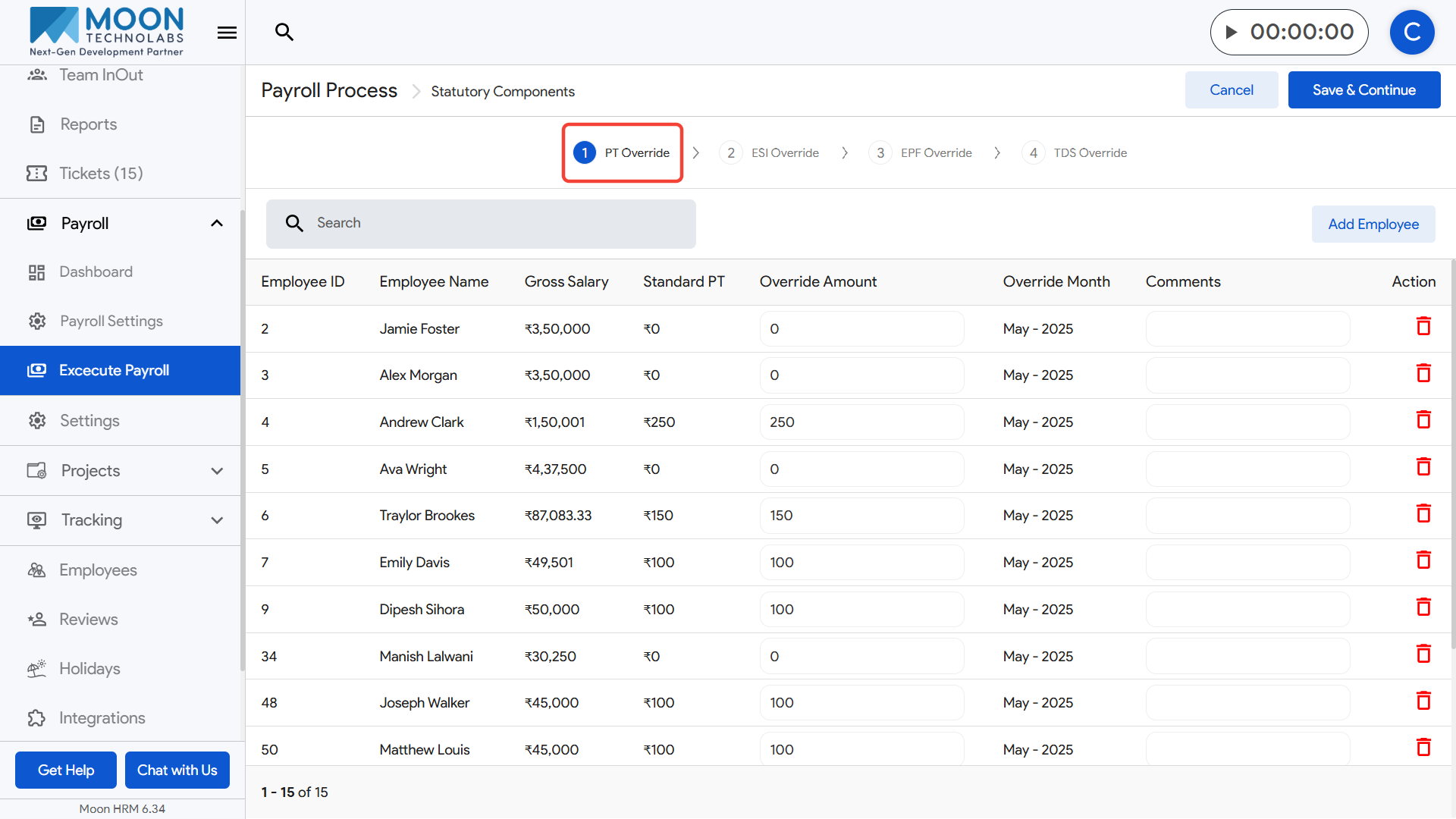
Here, you will see each employee’s gross salary, the standard PT amount calculated by the system, and an option to enter an override amount.
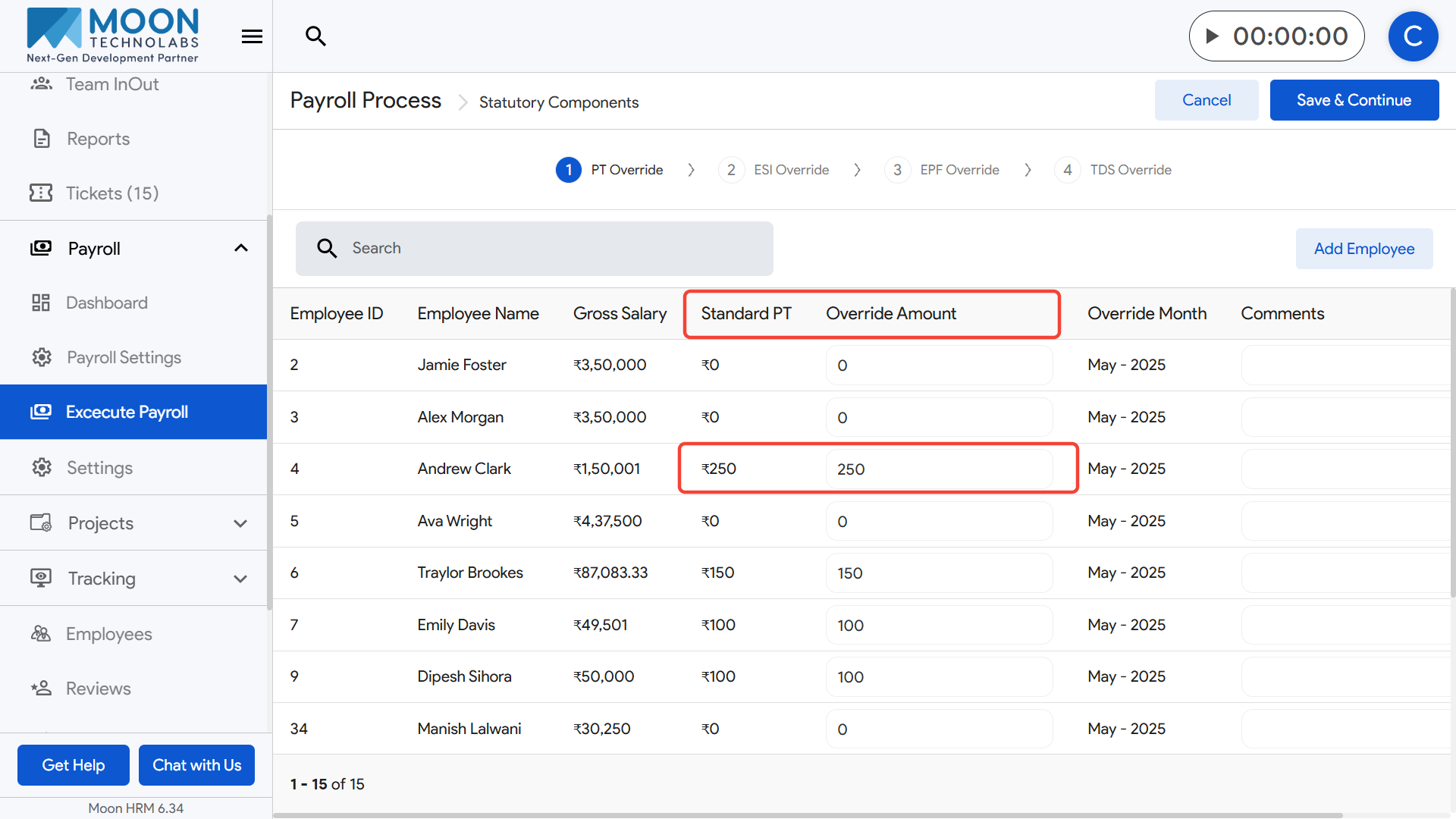
Enter the Override Amount if a different Professional Tax value needs to be applied for a specific employee for the selected month.
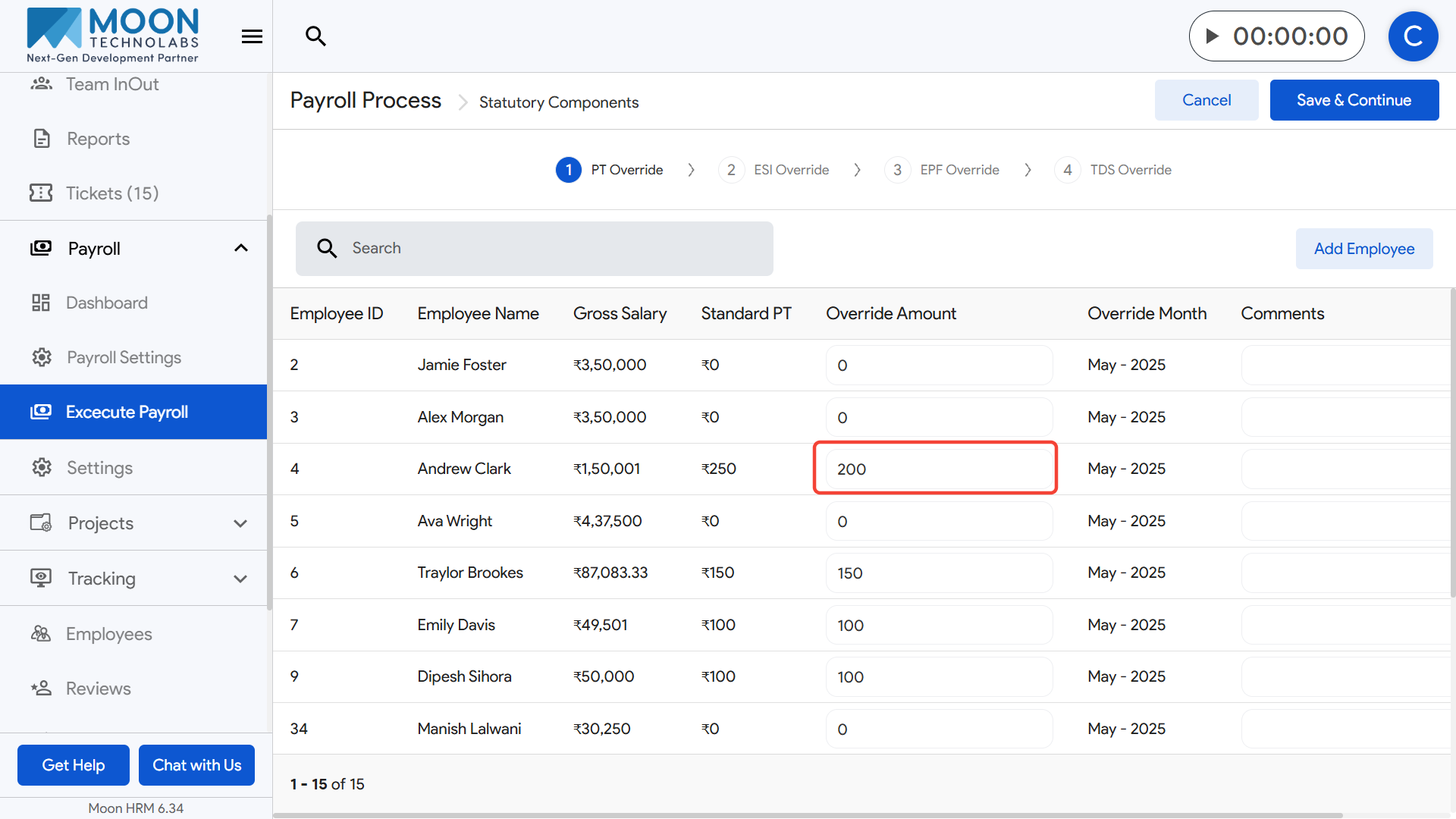
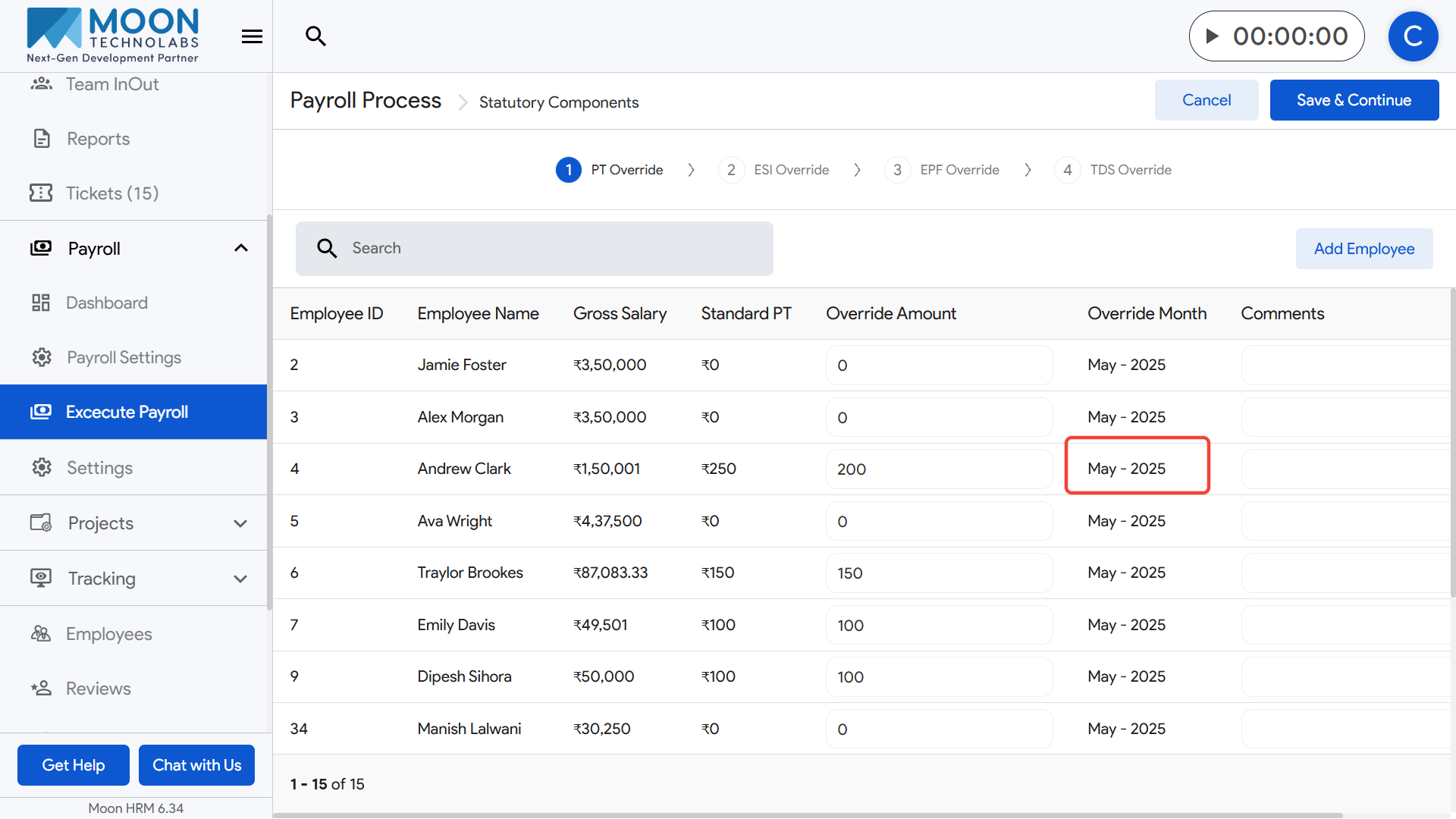
See the Override Month to specify when the override should take effect.
If needed, add comments to explain the reason for overriding the PT amount, such as missing previous deductions or special PT adjustments.
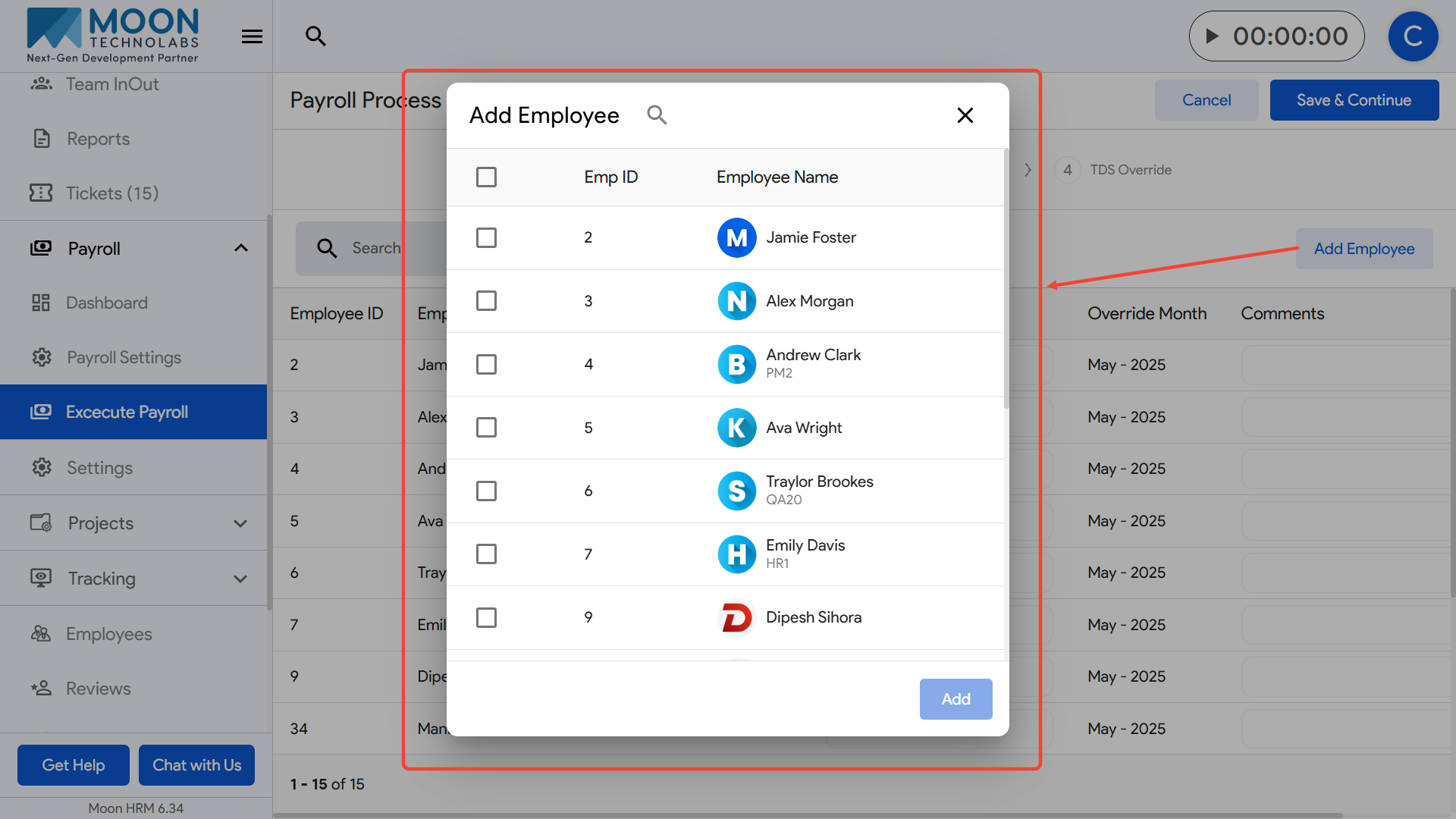
You can also add employees manually using the Add Employee button if they are not already listed.
Review all override entries and remove any incorrect ones using the delete icon.
Once all PT overrides are finalized, click Save & Continue to move to the next statutory override step.
How can I manage ESI Override during payroll execution?
To process ESI Overrides as part of payroll execution, click on Execute Payroll from the sidebar and select the payroll month you are working on.
Go to the Statutory Components step and open the ESI Override tab.
Here, you will see each employee’s gross salary along with the system-calculated ESI amounts for both employee and employer contributions.
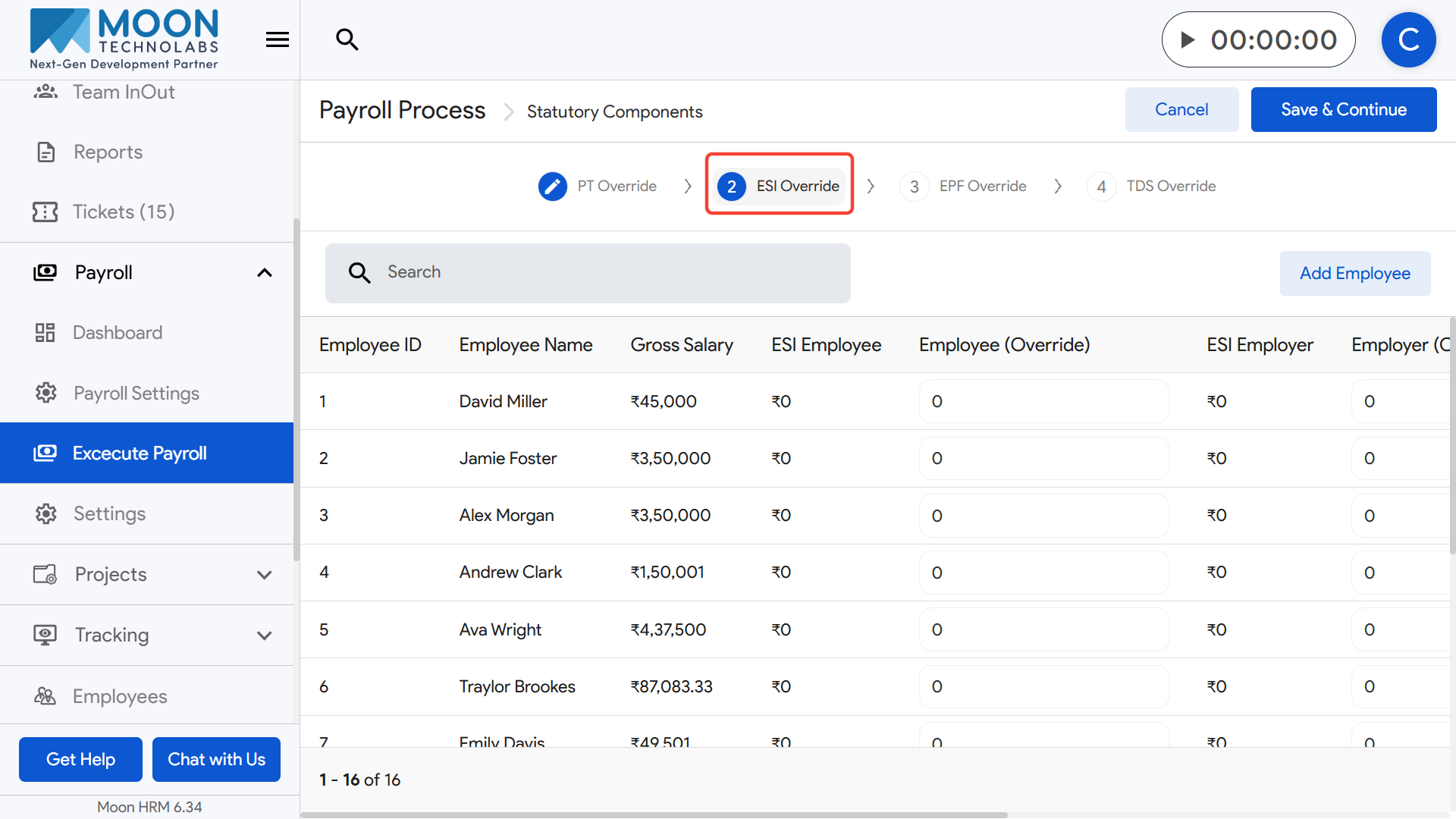
If the ESI amount needs to be adjusted for any employee, enter the revised value in the Employee (Override) and/or Employer (Override) fields.
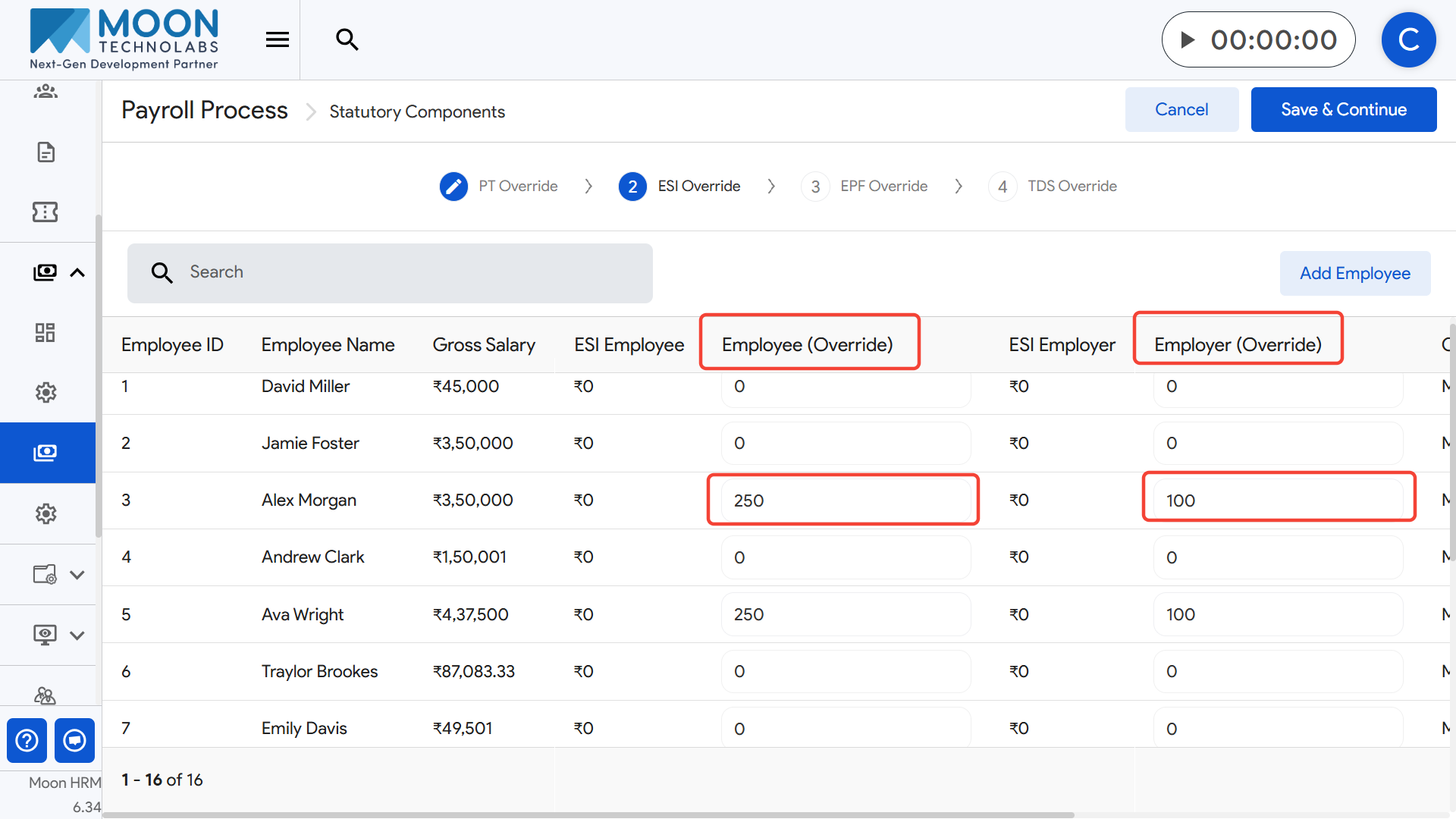
Use overrides only when special corrections are required, such as past adjustments, compliance corrections, or manual ESI recalculations.
You can add additional employees using the Add Employee button if they do not appear in the list by default.
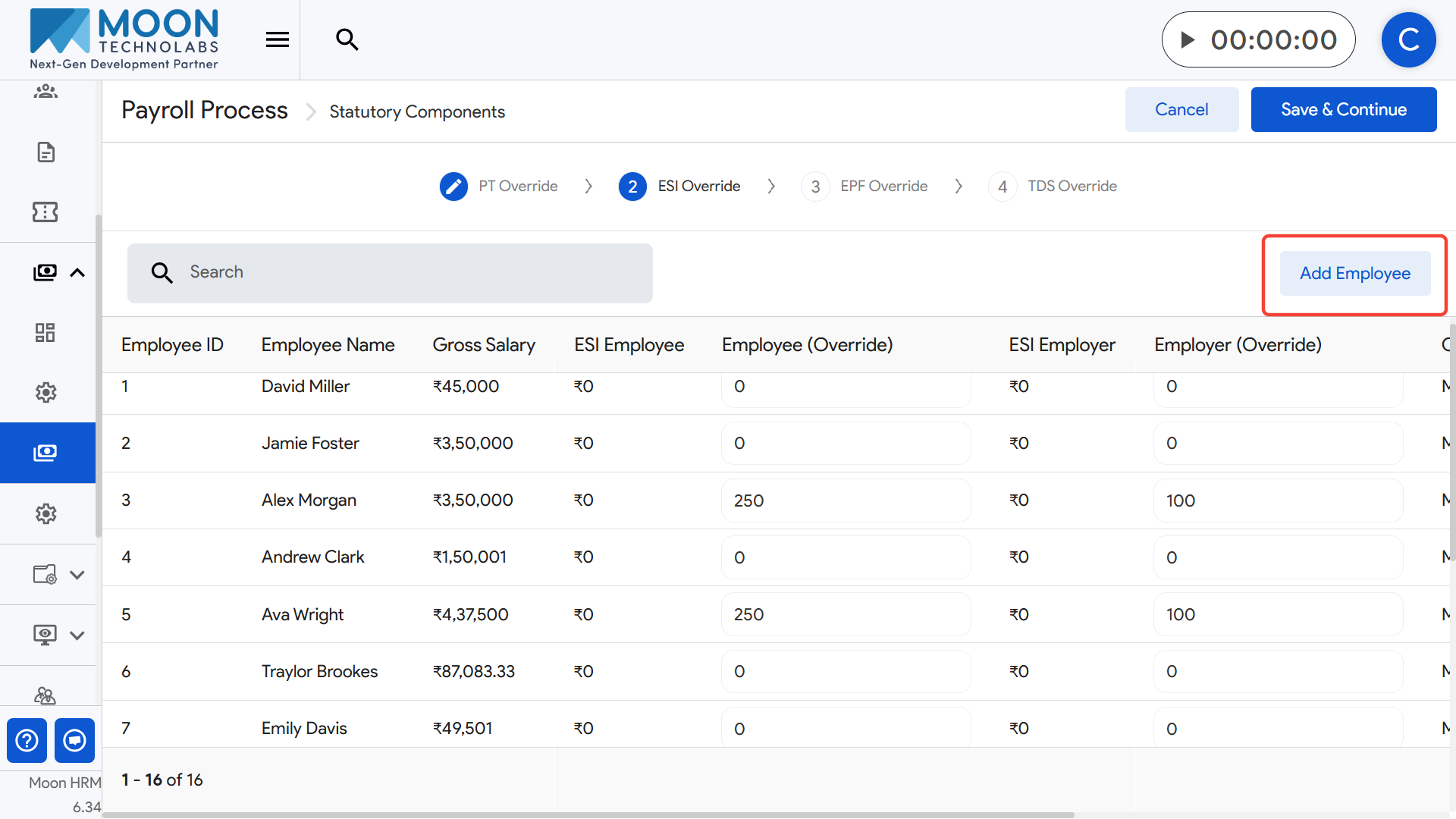
Review all override entries carefully and add comments when necessary to document the reason for each adjustment.
Remove any incorrect override entries using the delete icon.
Once all ESI overrides are finalized, click Save & Continue to move to the next override stage in payroll execution.
How can I manage EPF Override during payroll execution?
To process EPF Overrides as part of payroll execution, click on Execute Payroll from the sidebar and select the payroll month you are working on.
Go to the Statutory Components step and open the EPF Override tab.
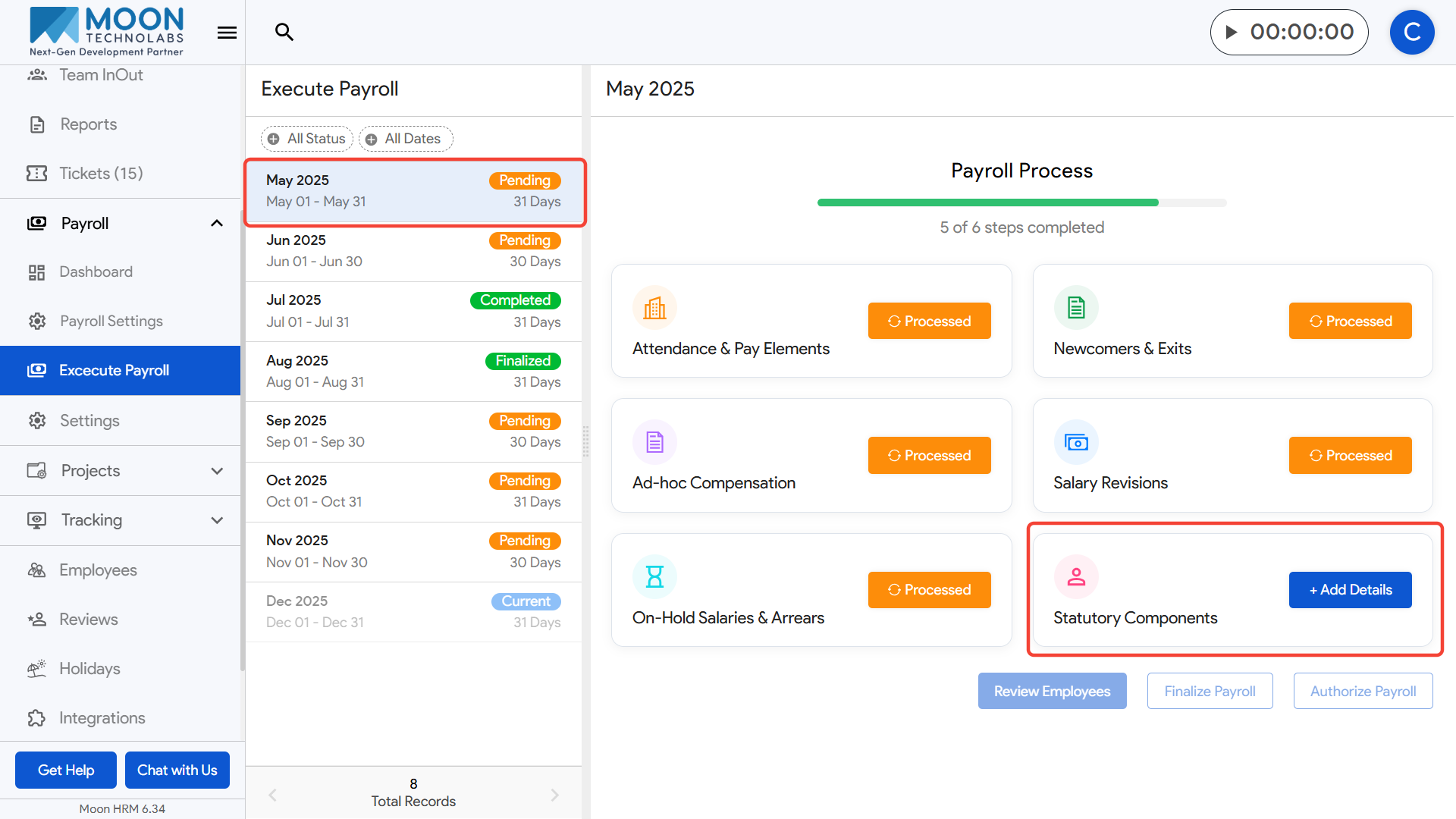
Here, you will see each employee’s gross salary along with the system-generated EPF amounts for both employee and employer contributions.
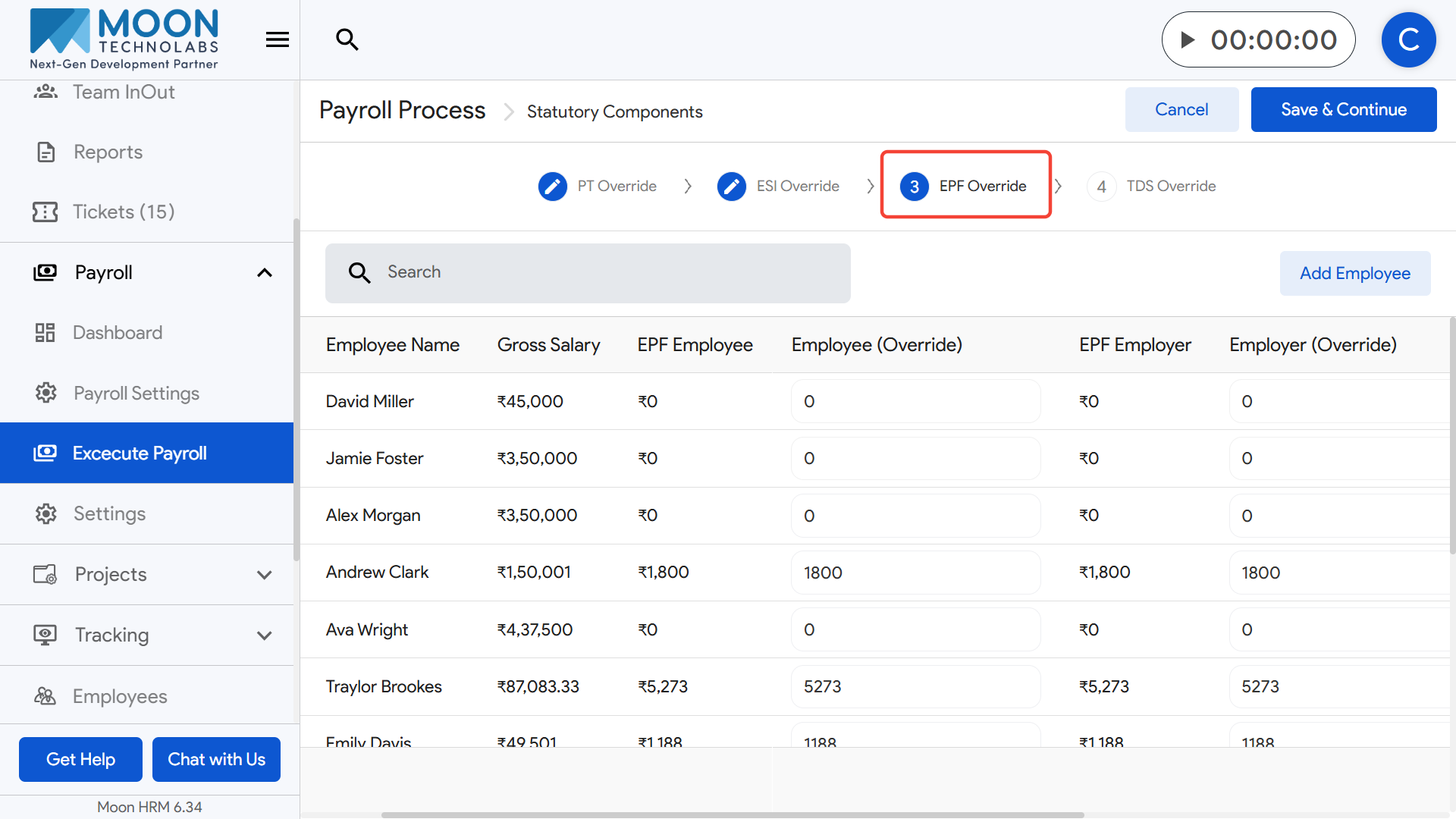
If any correction or manual adjustment is required, enter the revised EPF amount in the Employee (Override) and/or Employer (Override) fields.
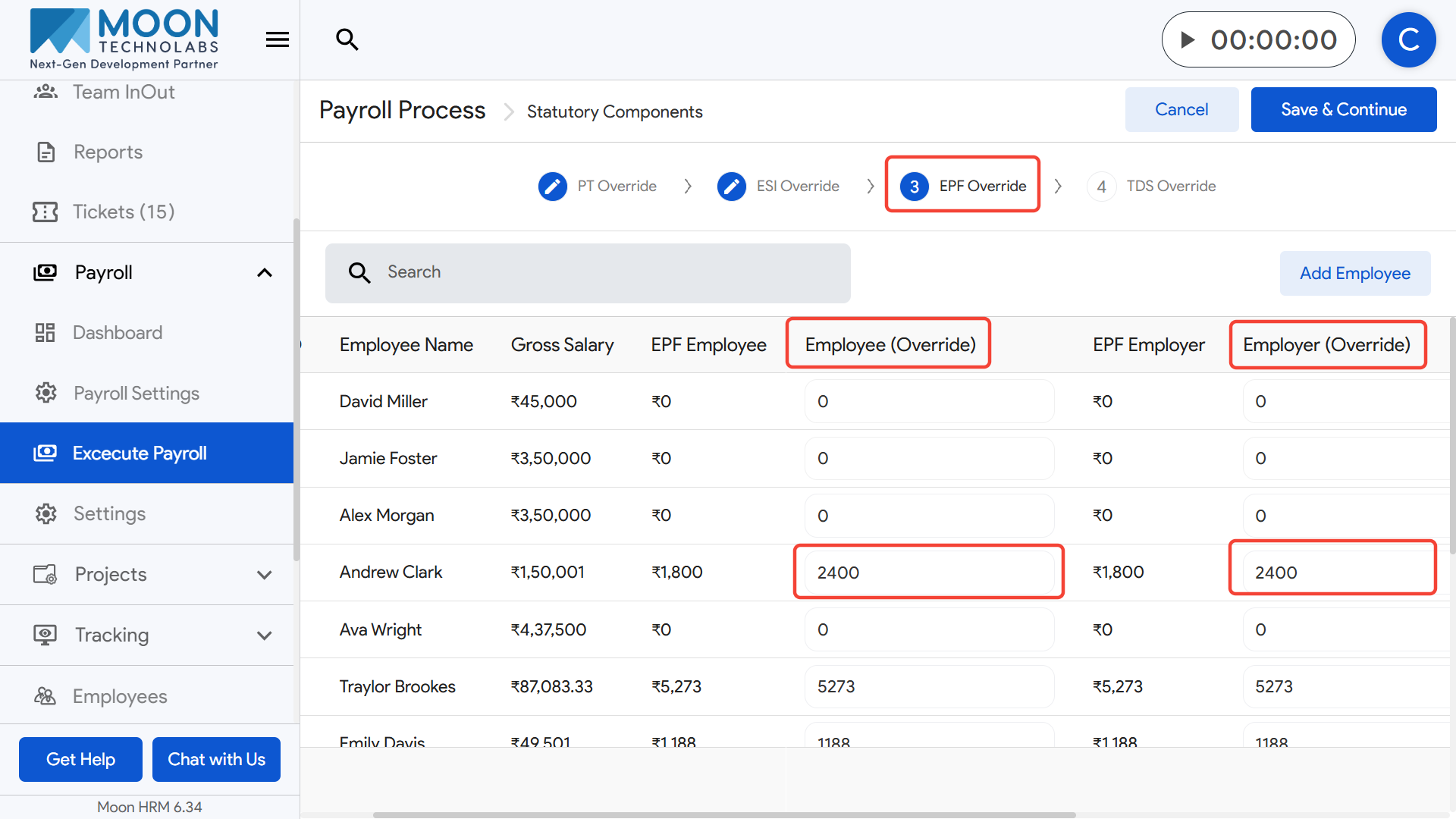
Use overrides only when special cases arise, such as PF corrections, arrears adjustments, LOP-related changes, or backdated PF updates.
You can add additional employees to the override list using the Add Employee button if needed.
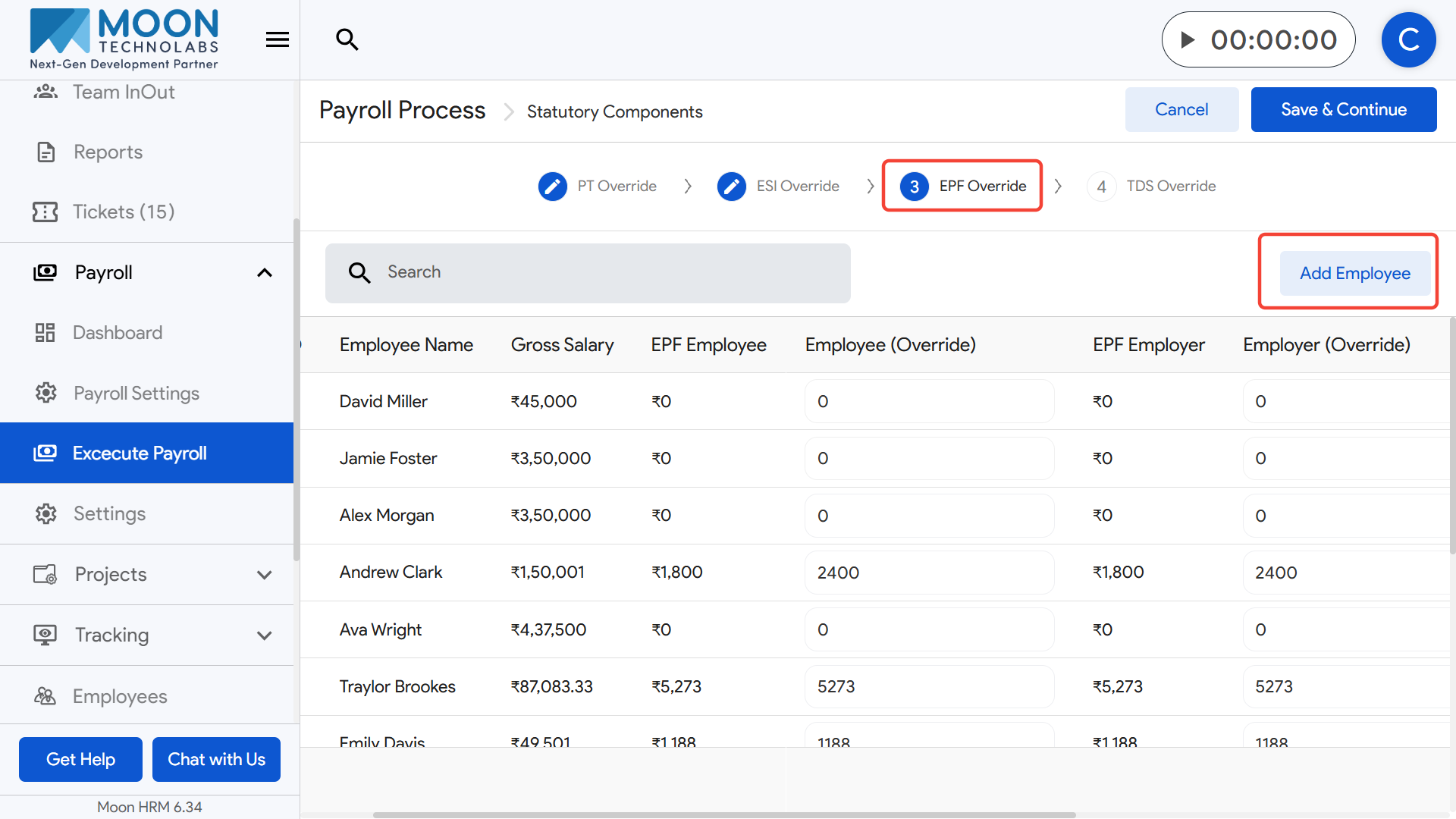
Review each override entry carefully and add a comment when required to document the reason for the adjustment.
Remove any incorrect override entries by using the delete icon in the Action column.
After finalizing all EPF overrides, click Save & Continue to proceed to the next statutory override step.
How can I manage TDS Override during payroll execution?
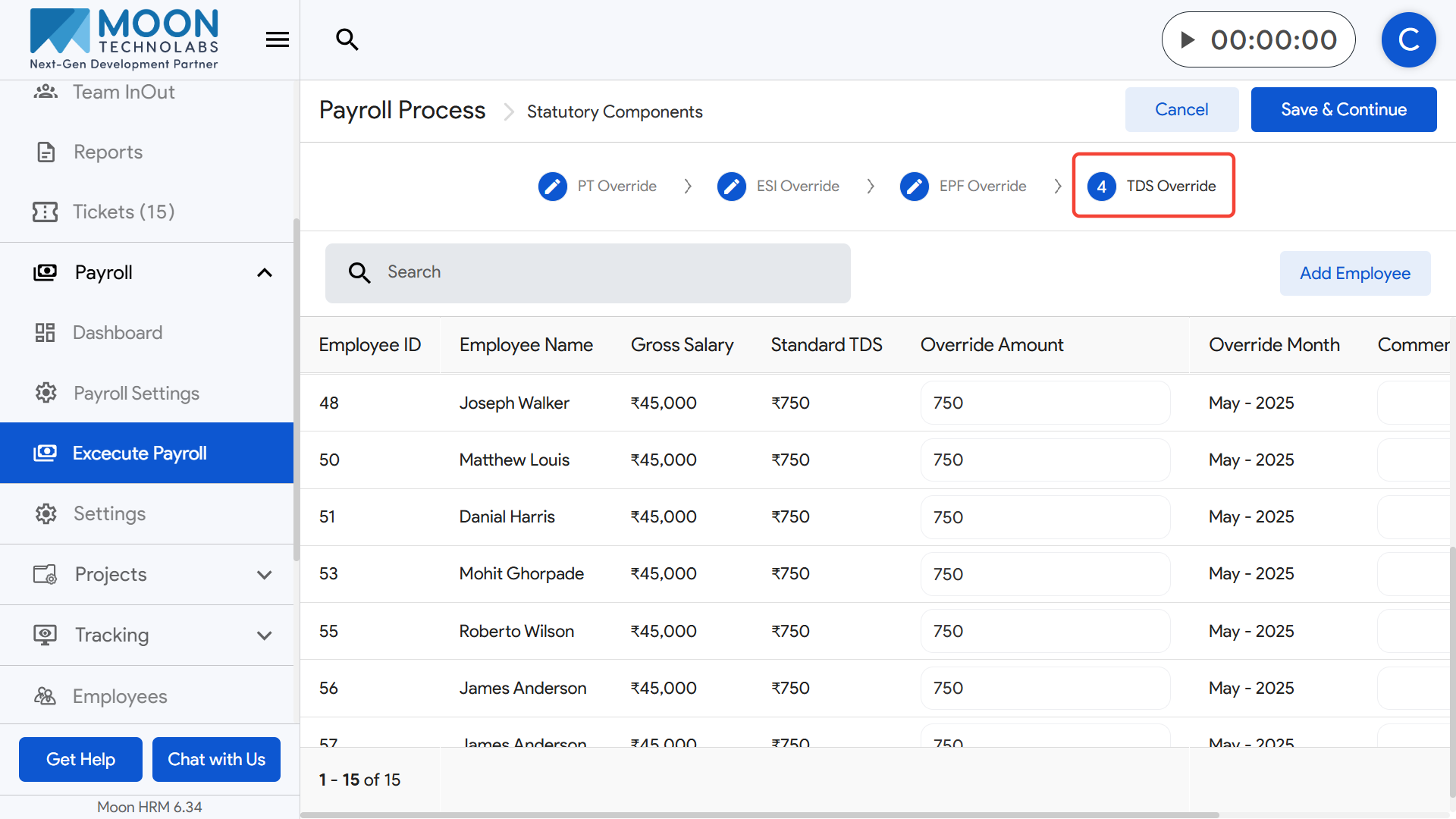
To process TDS Overrides as part of payroll execution, click on Execute Payroll from the sidebar and select the payroll month you are working on.
Go to the Statutory Components step and open the TDS Override tab.
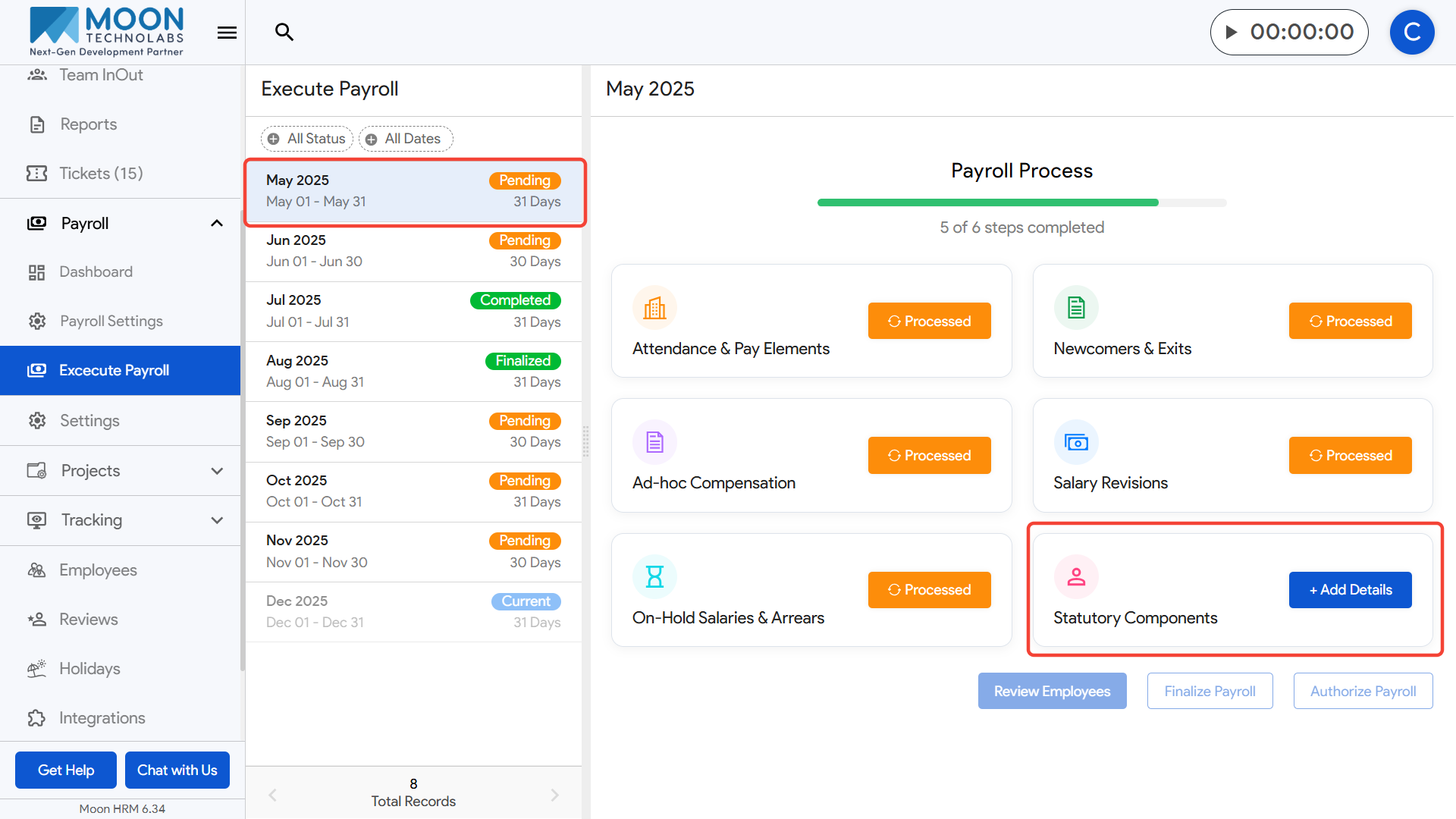
Here, you will see each employee’s gross salary along with the system-calculated standard TDS amount.
If a correction or manual adjustment is required, enter the revised TDS value in the Override Amount field for that employee.
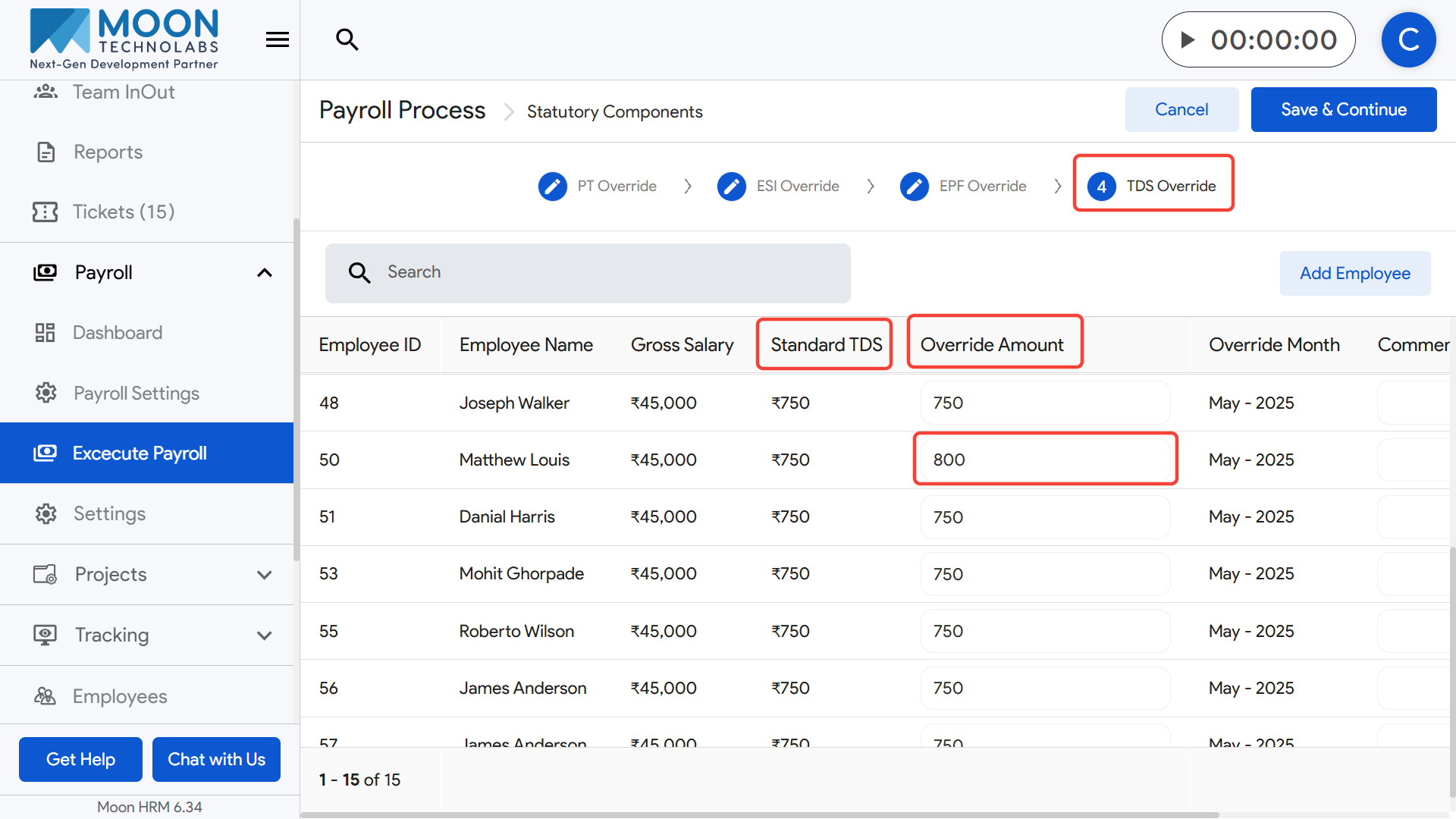
See the Override Month to indicate when this updated TDS should be applied.
You can also add comments to clarify why the override was needed, such as missed deductions, tax adjustments, or employee requests.
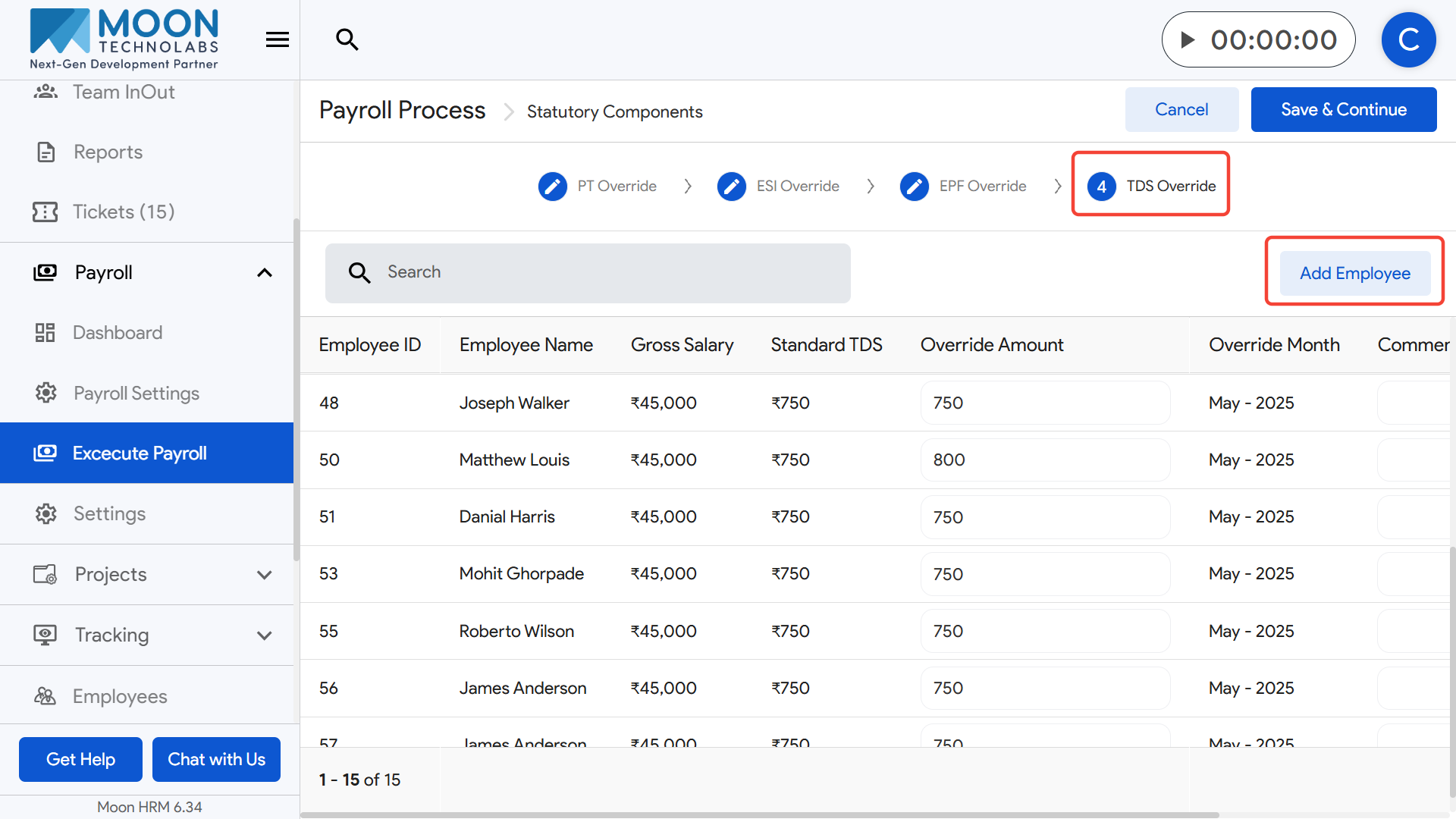
If an employee is missing from the list, use the Add Employee button to include them manually.
Review all override entries carefully and remove any incorrect items using the delete icon.
Once all TDS overrides are finalized, click Save & Continue to move forward in the payroll execution process.