

How can I manage Newcomers?
To process Newcomers as part of payroll execution, click on Execute Payroll from the sidebar and select the payroll month you want to process.
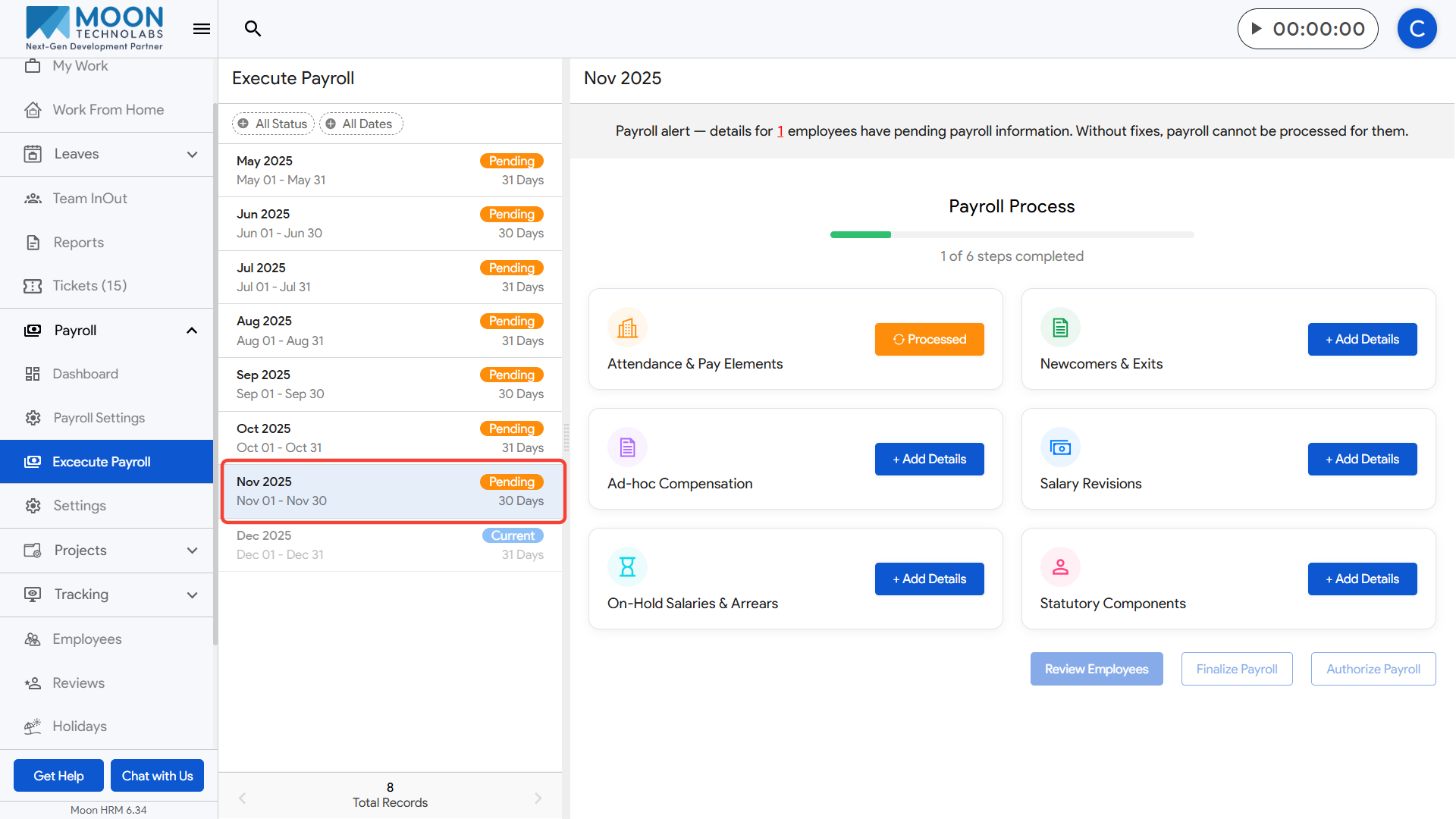
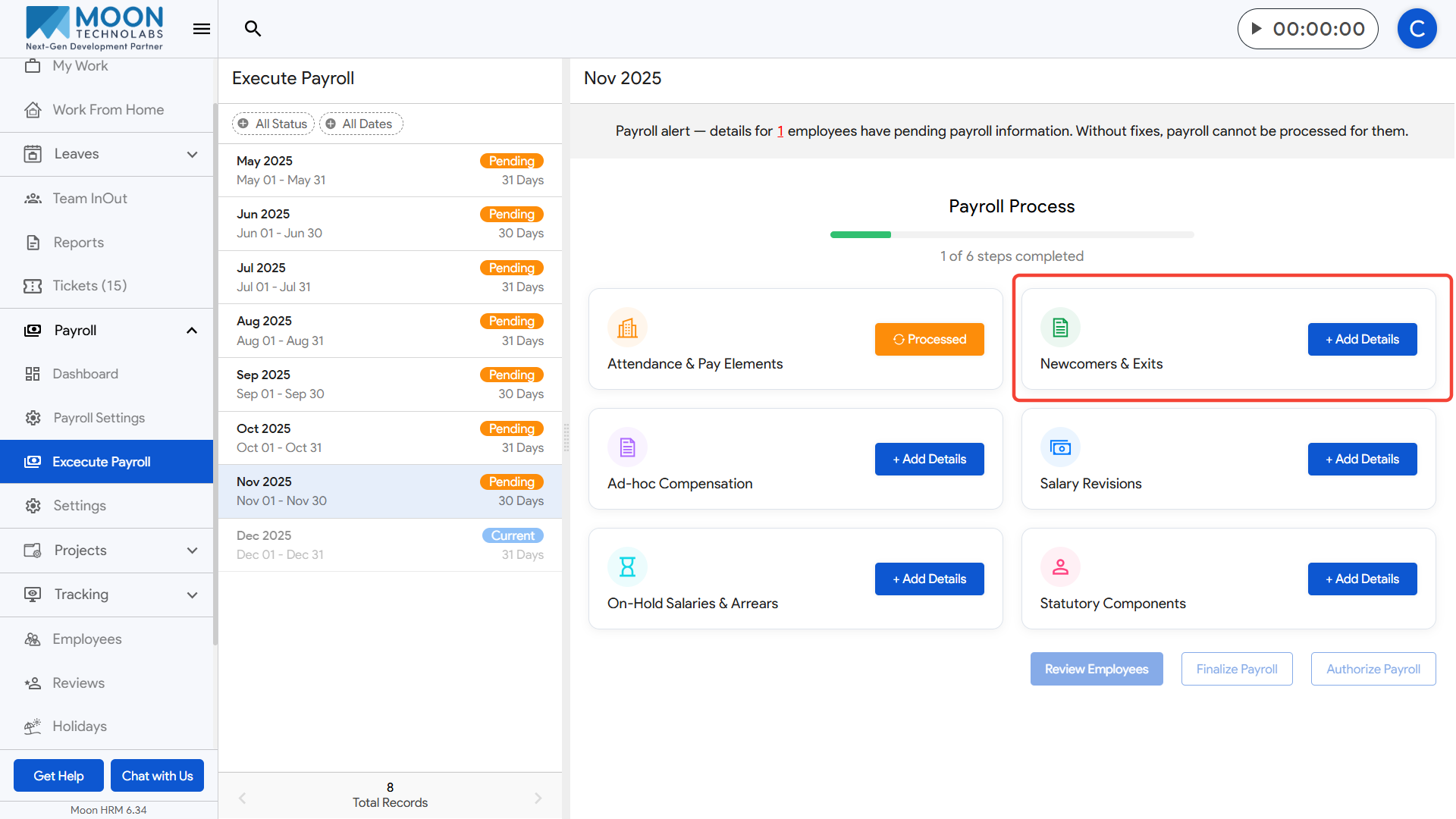
Open the Newcomers & Exits step, and then switch to the Newcomers tab.
Here, you will see all employees who joined during the selected payroll month along with their joining date, present days, and salary details.
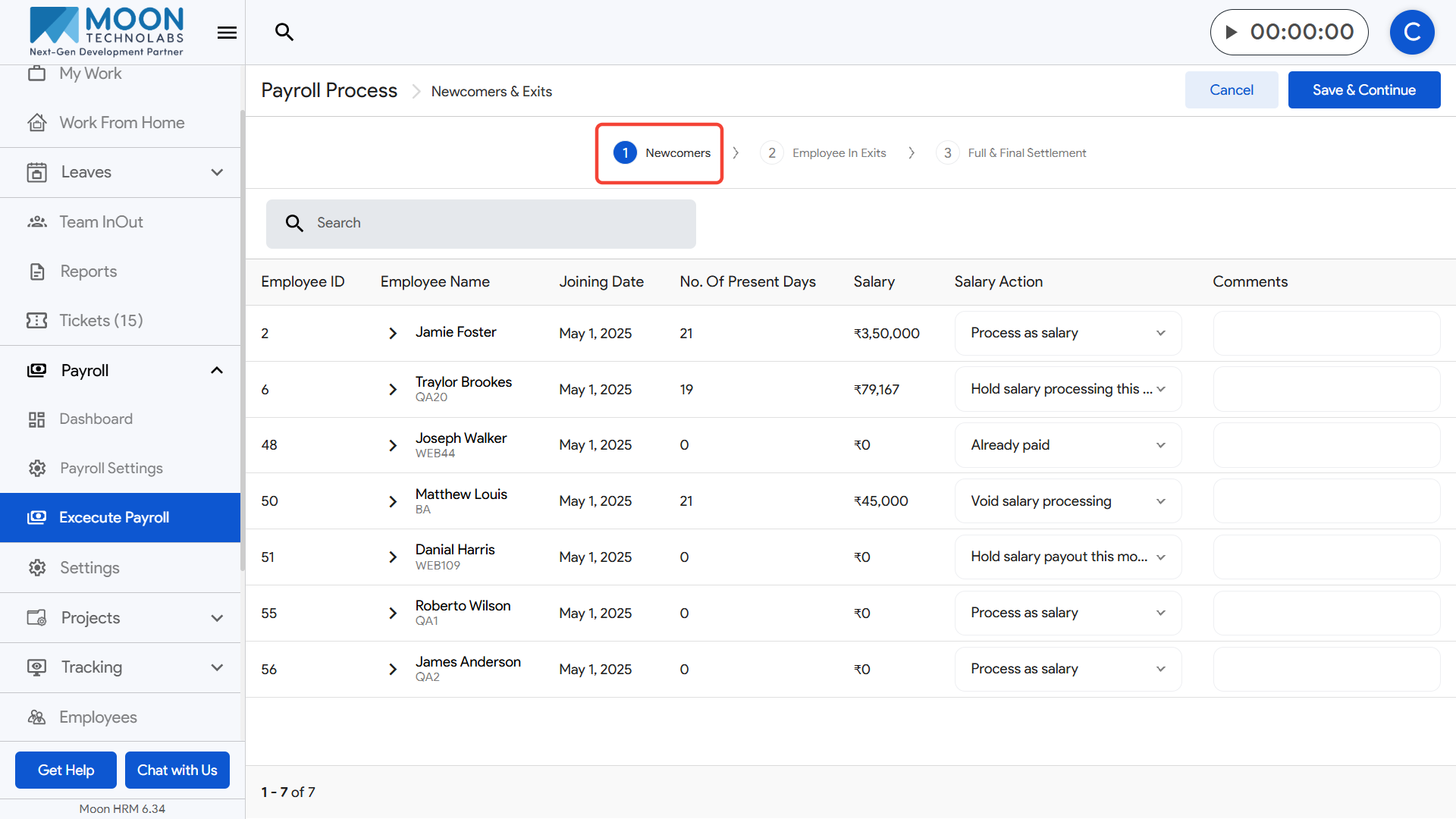
Review each newcomer’s attendance and salary information to ensure accuracy.

Choose the appropriate Salary Action for each employee, such as Process as salary, Hold salary processing this month, Already paid, or Void salary processing.

If needed, add comments to explain any special salary handling or notes related to the employee.
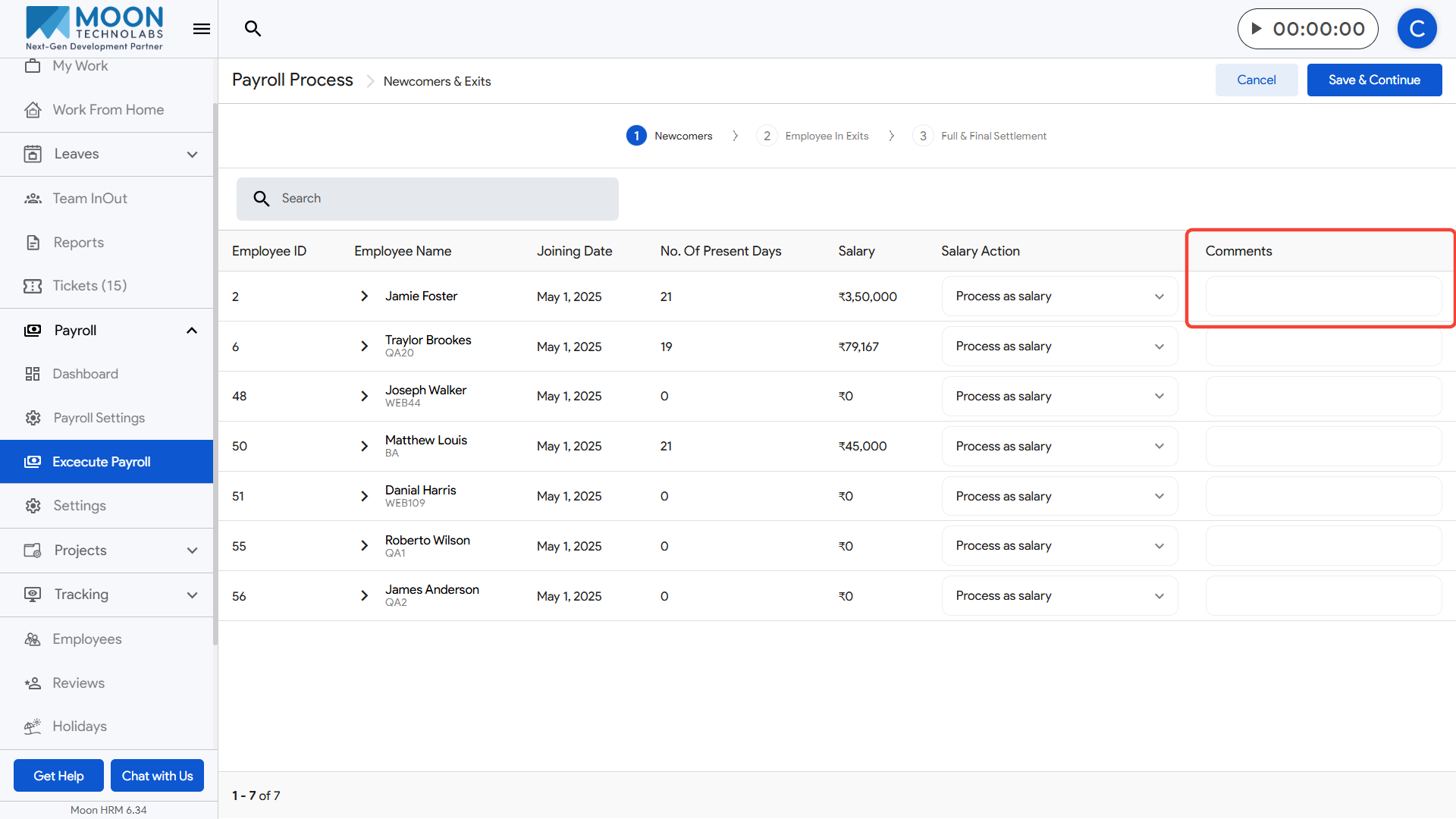
Go through the list row by row and verify that all newcomers have been updated correctly.
Once reviewed, click Save & Continue to move forward to the next step of payroll execution.
How can I manage Exits?
To process Exits as part of payroll execution, click on Execute Payroll from the sidebar and select the payroll month you want to process.
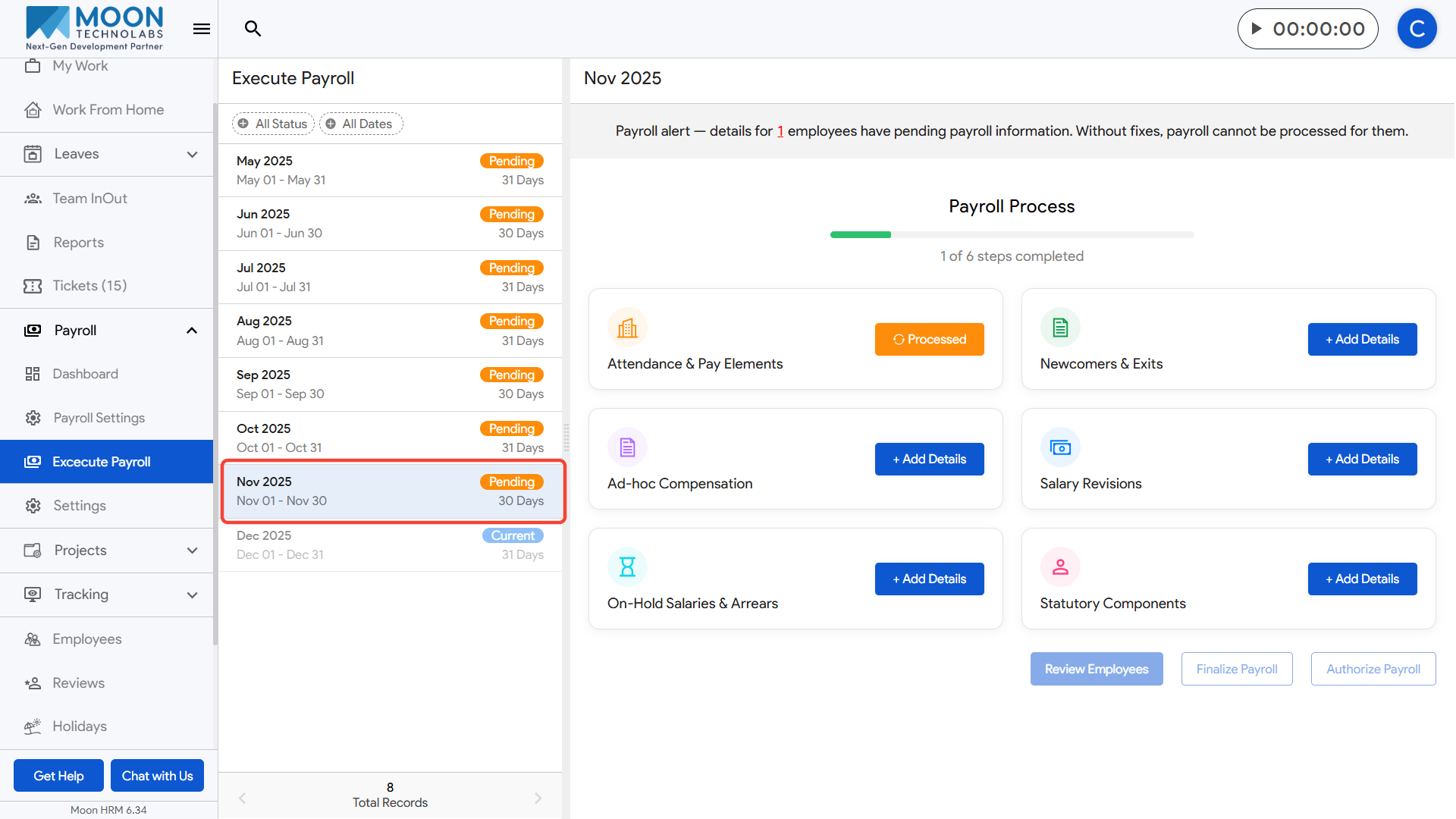
Open the Newcomers & Exits step, and then switch to the Employee In Exits tab.
Here, you will see all employees whose final working day falls within the selected payroll month.
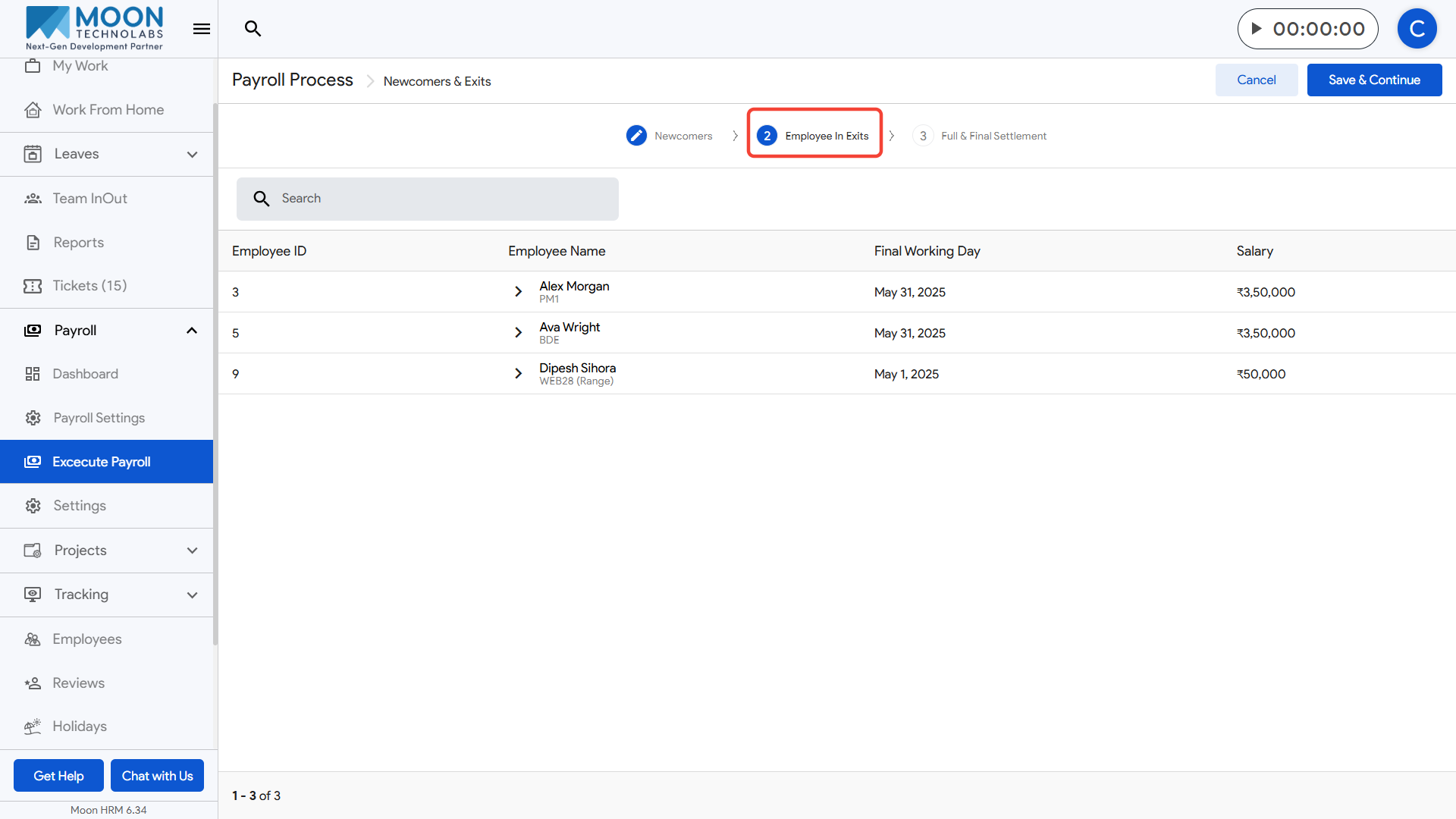
Review each employee’s final working day and salary details to ensure they are correct.

This step helps determine whether the employee should be included in the month’s payroll or moved to the Full & Final Settlement stage.
If any clarification or additional verification is required, click on the employee row to view more details.
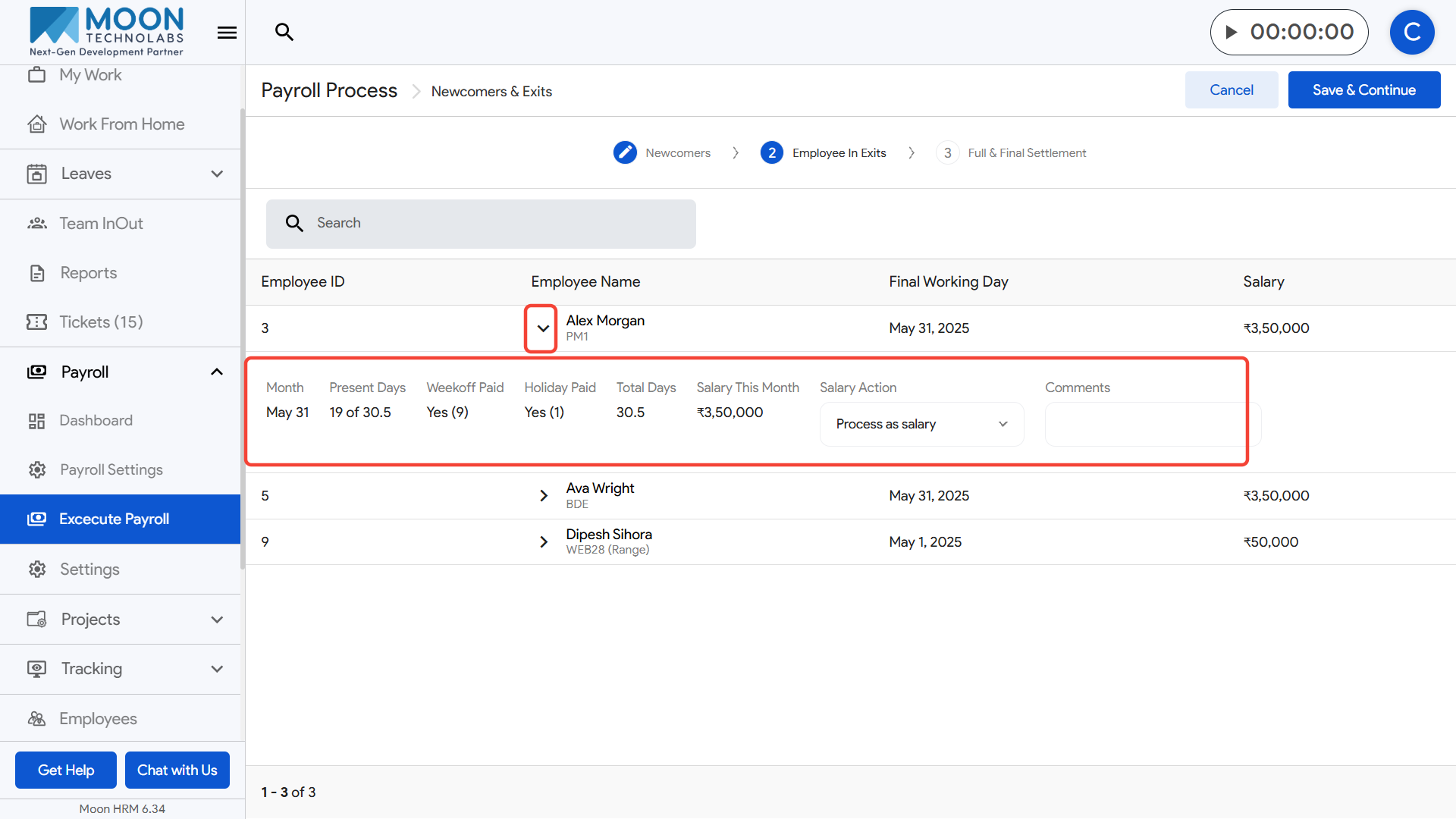
Once all exit details are reviewed and confirmed, click Save & Continue to proceed to the Full & Final Settlement step.
How can I manage Full & Final Settlement?
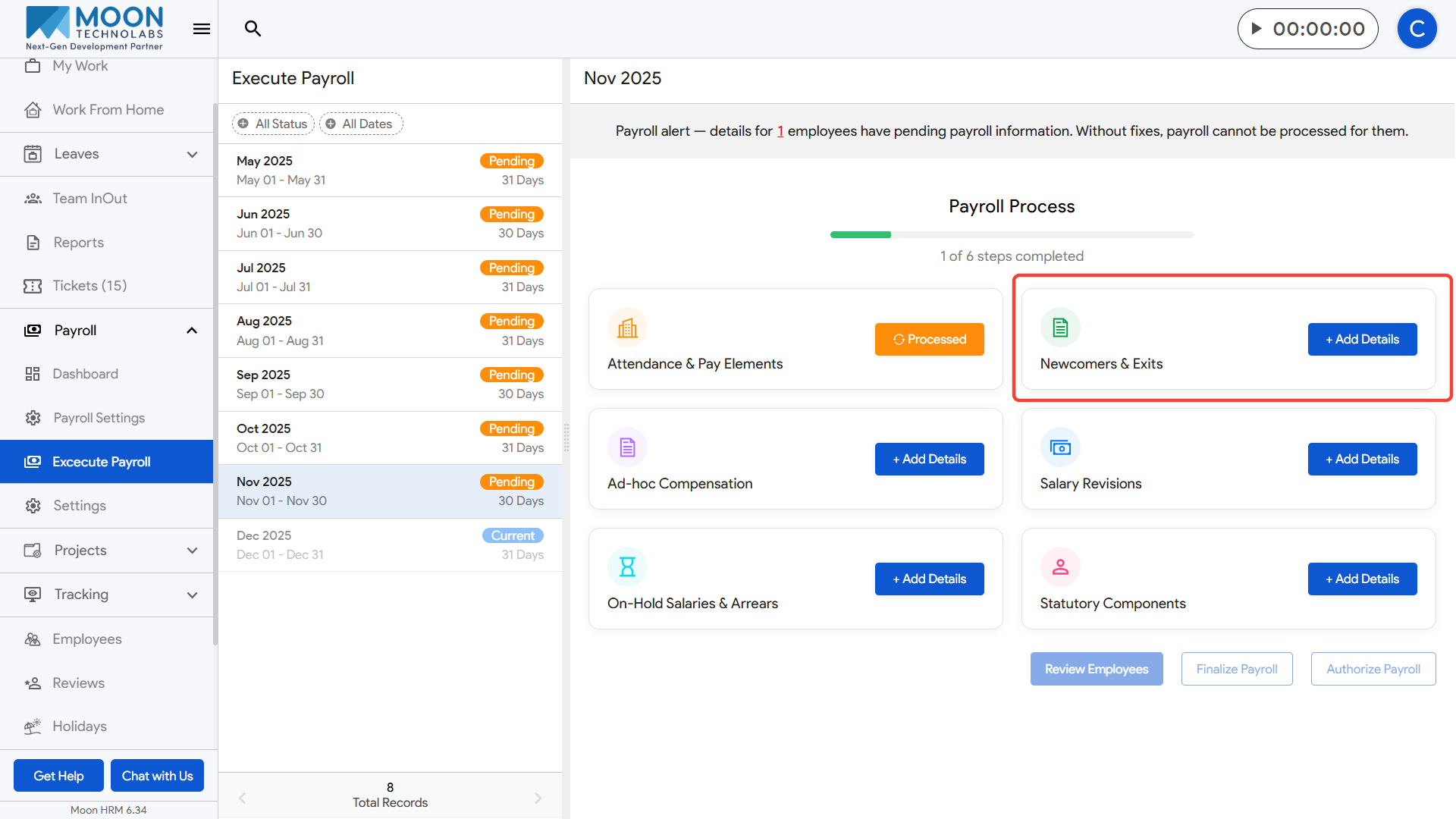
To process Full & Final Settlement as part of payroll execution, click on Execute Payroll from the sidebar and select the payroll month you are processing.
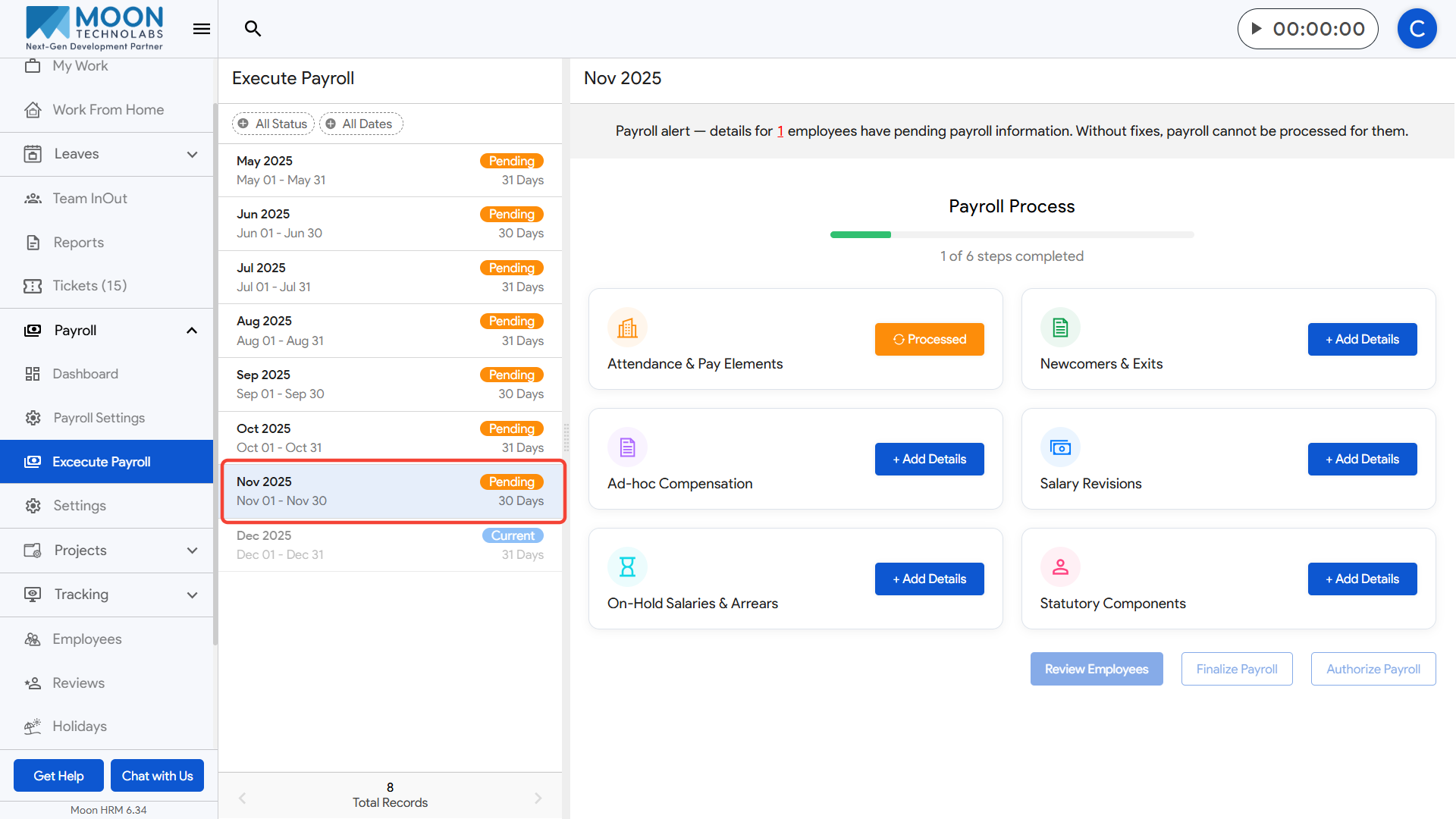
Open the Newcomers & Exits step and move to the Full & Final Settlement tab.
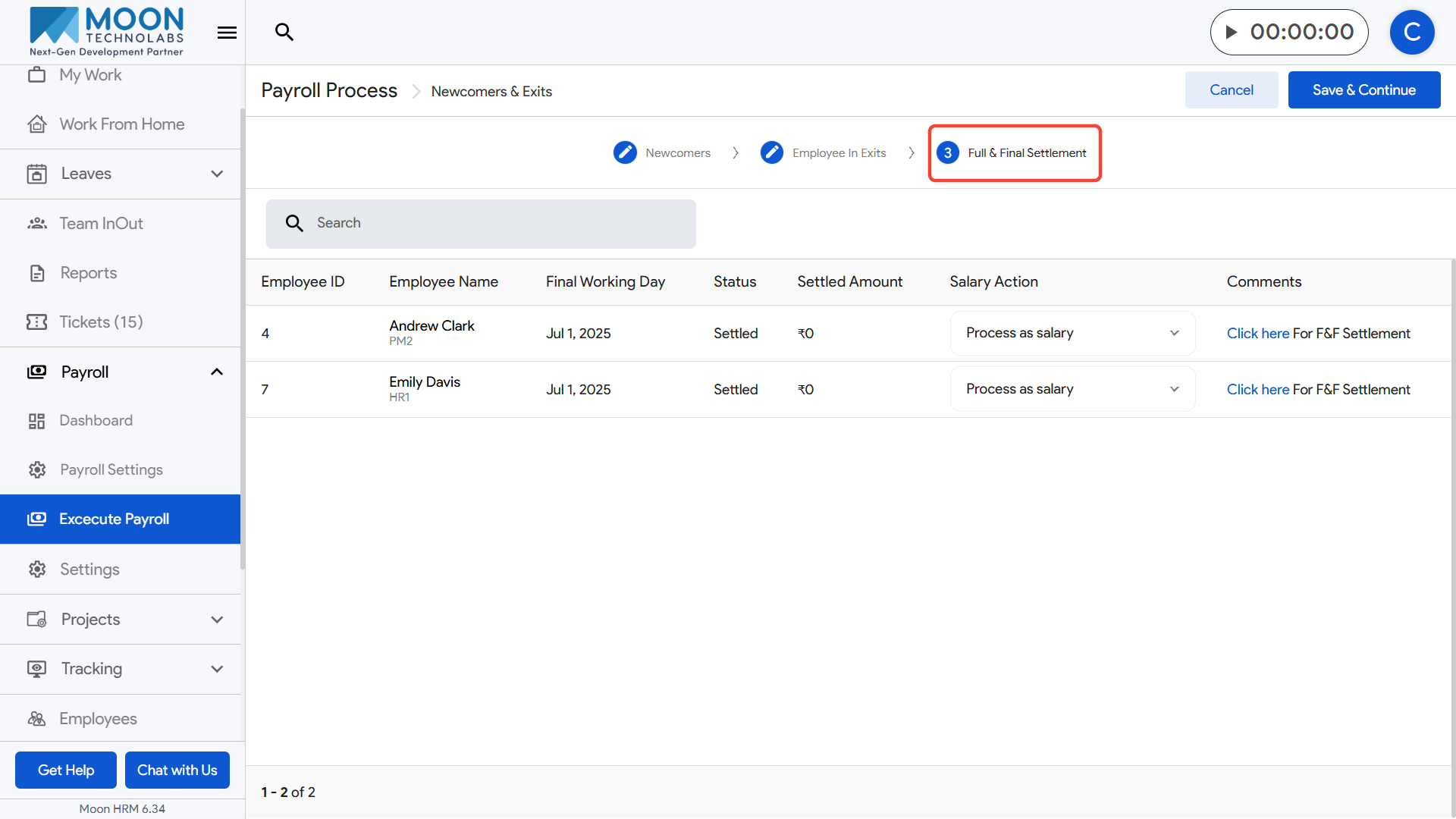
Here, you will see all employees whose F&F needs to be completed based on their final working day.
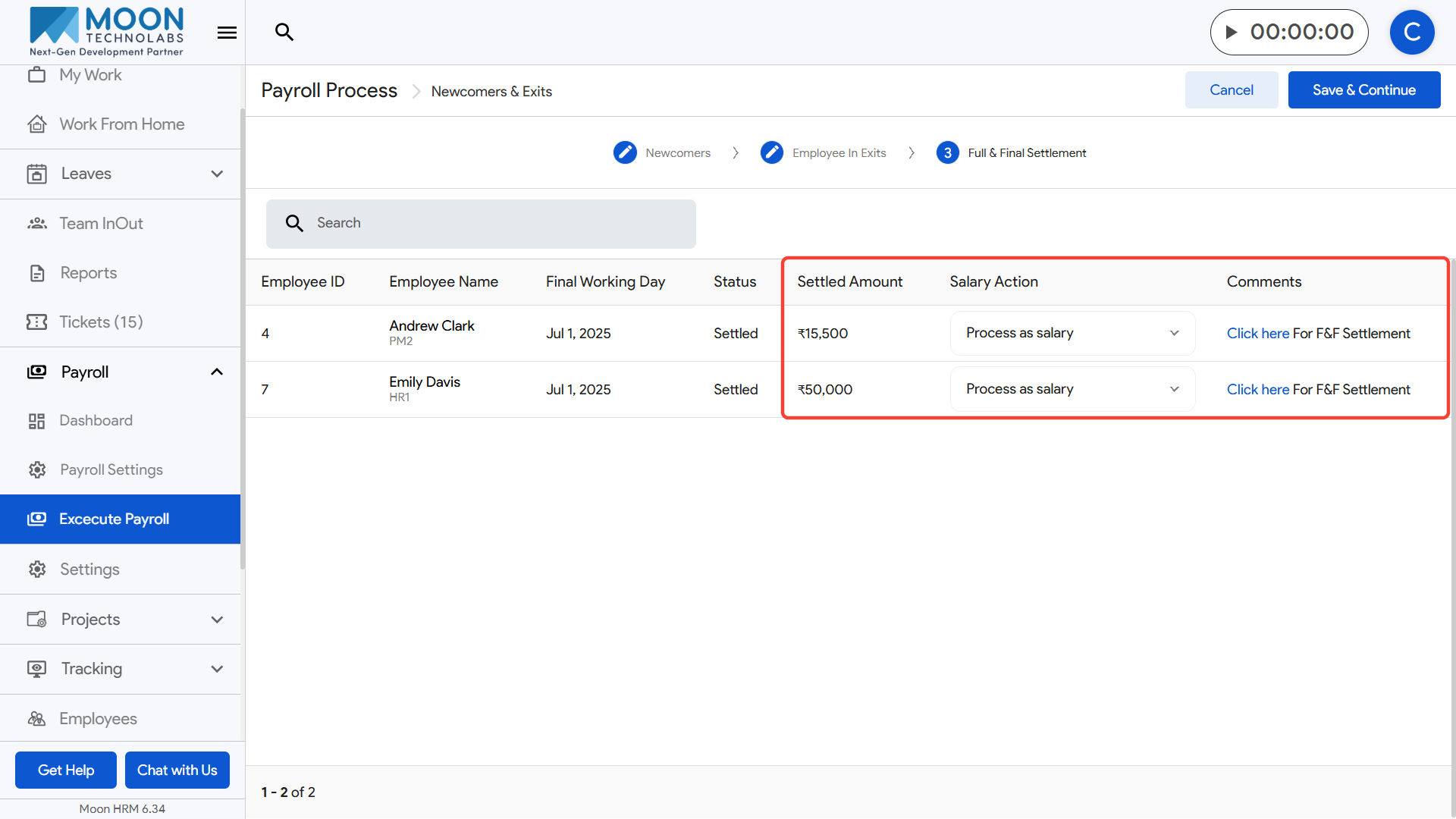
Check the employee’s status, settled amount, and salary action to ensure all details are accurate.
If any F&F calculation or verification is required, click the “Click here for F&F Settlement” link next to the employee.
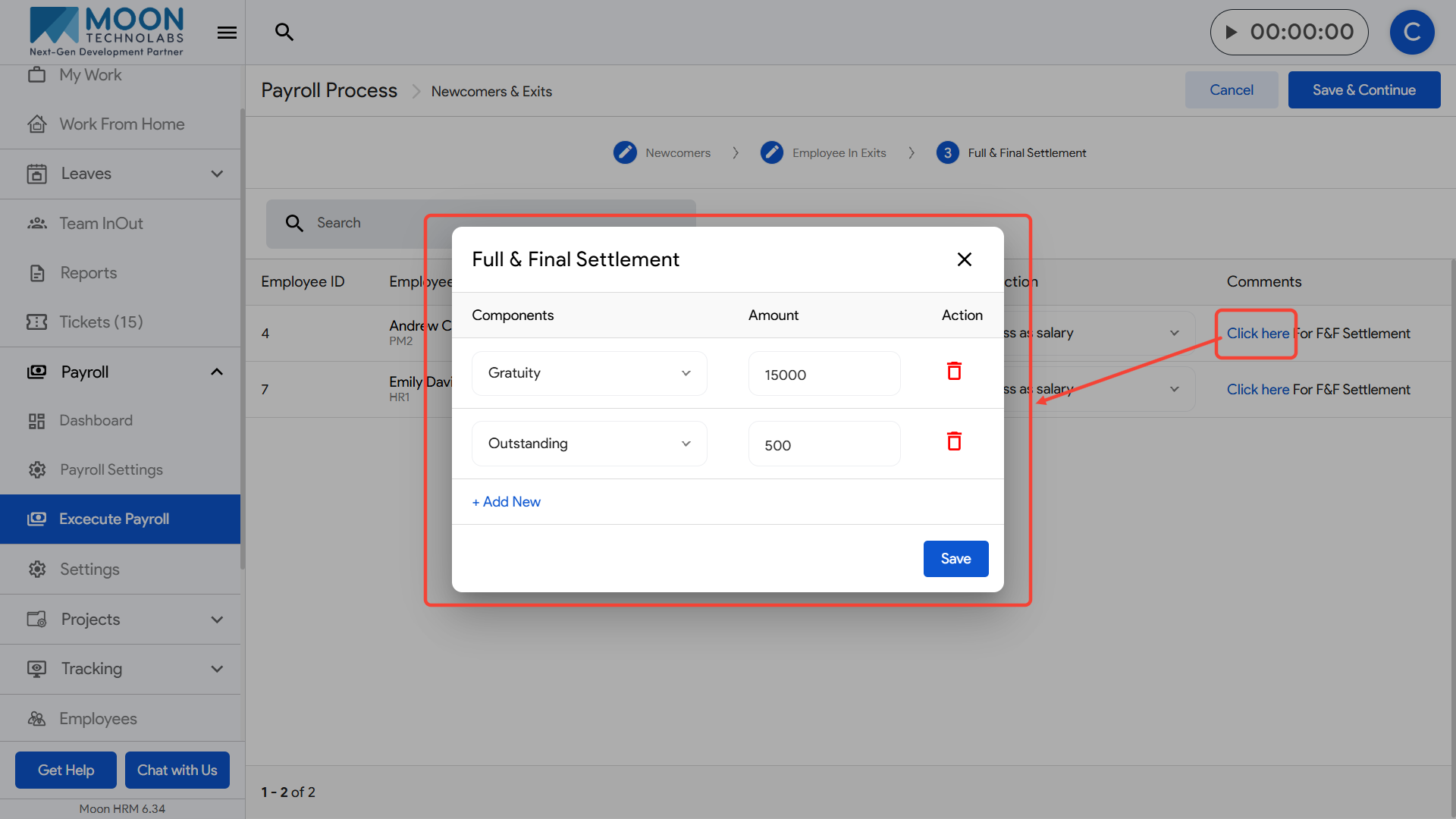
Inside the popup, add the components that need to be included in the employee’s settlement, such as gratuity, outstanding dues, recoveries, or other payable items.
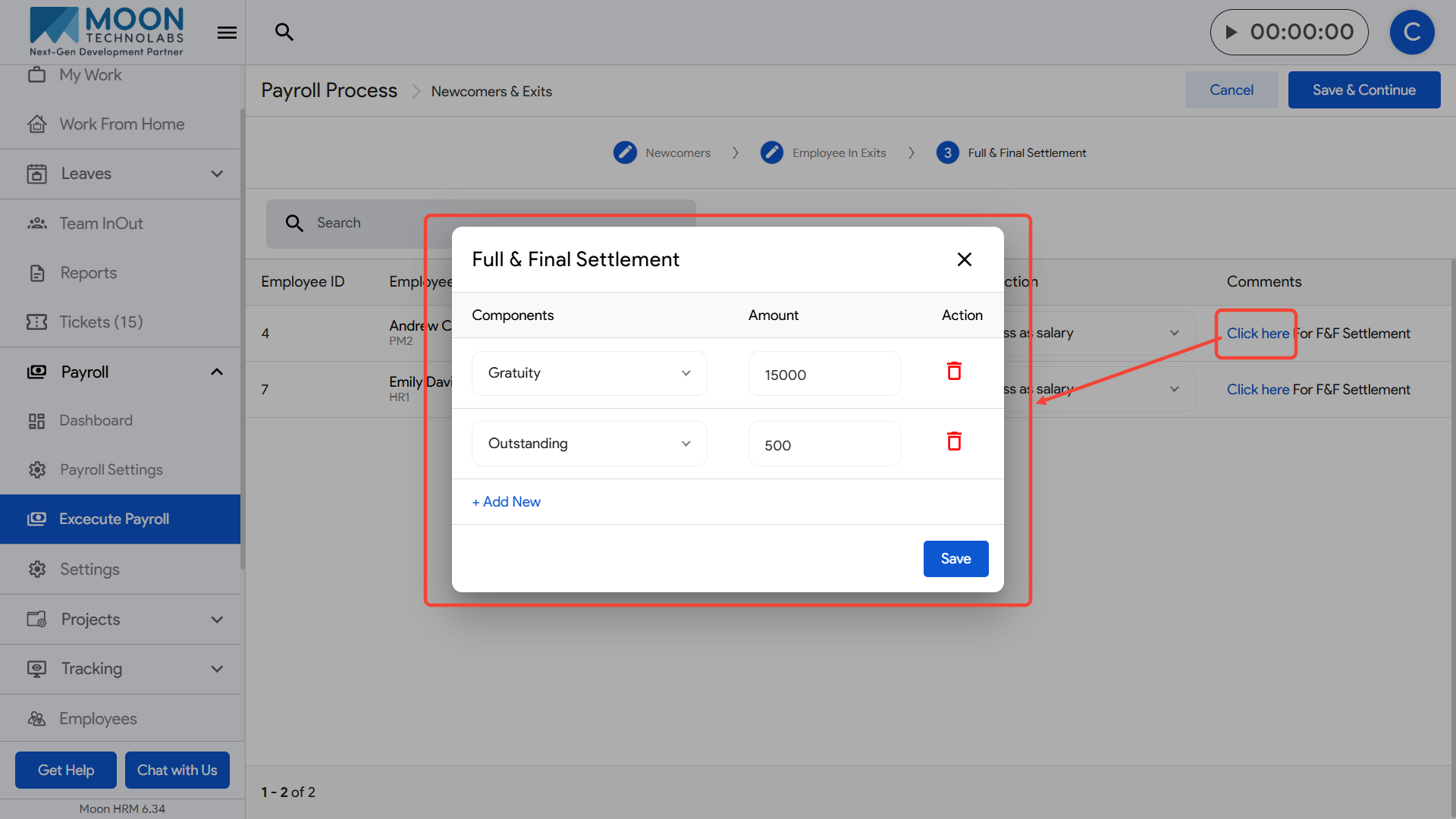
Enter the amount for each component and, if necessary, remove any item using the delete icon.
You can add more components by clicking the Add New option.

Once all settlement items are added and verified, click Save to update the employee’s F&F settlement details.
After saving, review the updated settlement status on the main screen and proceed with payroll execution.
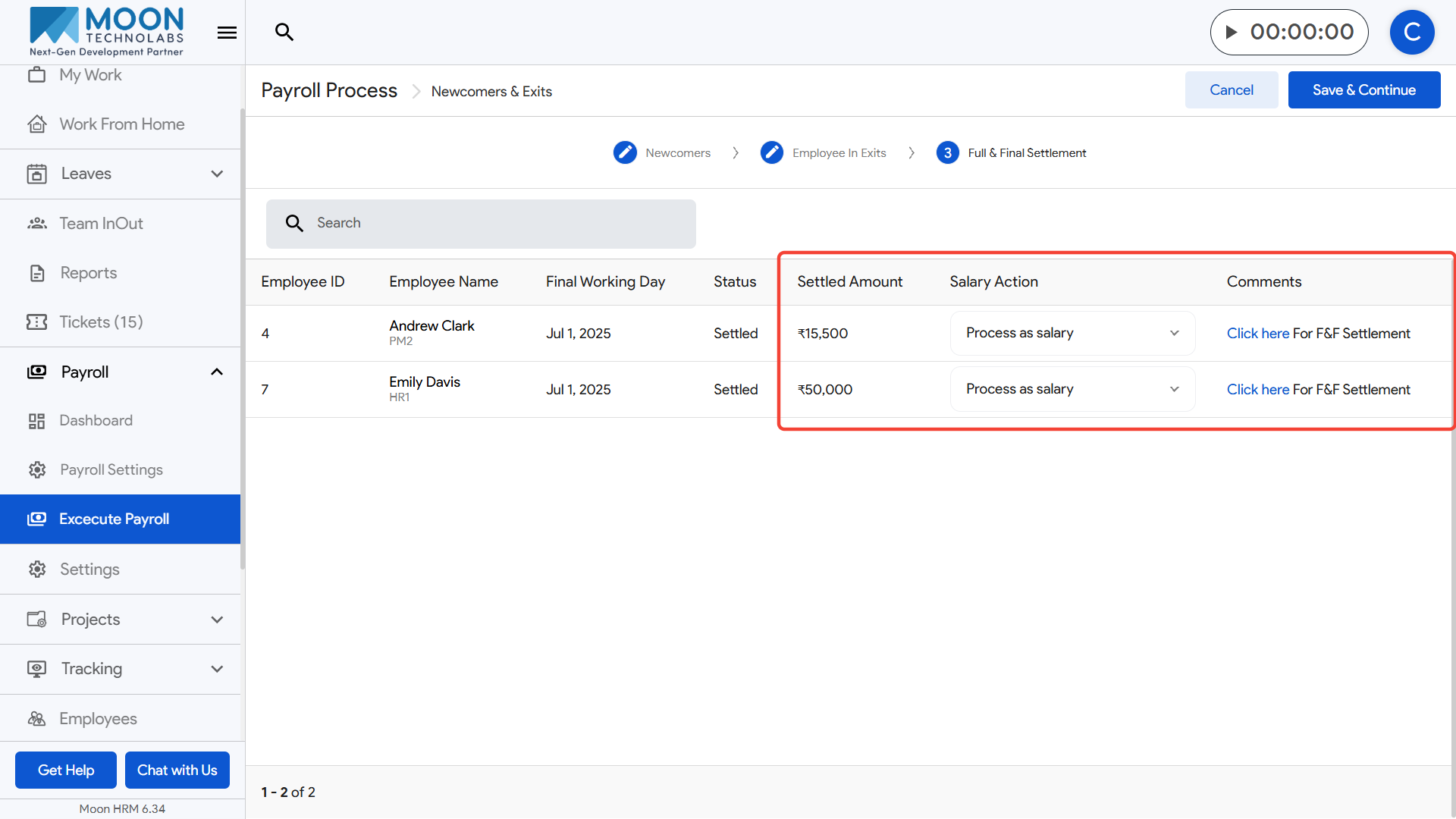
Once all F&F records are reviewed and processed, click Save & Continue to move to the next phase of payroll execution.