

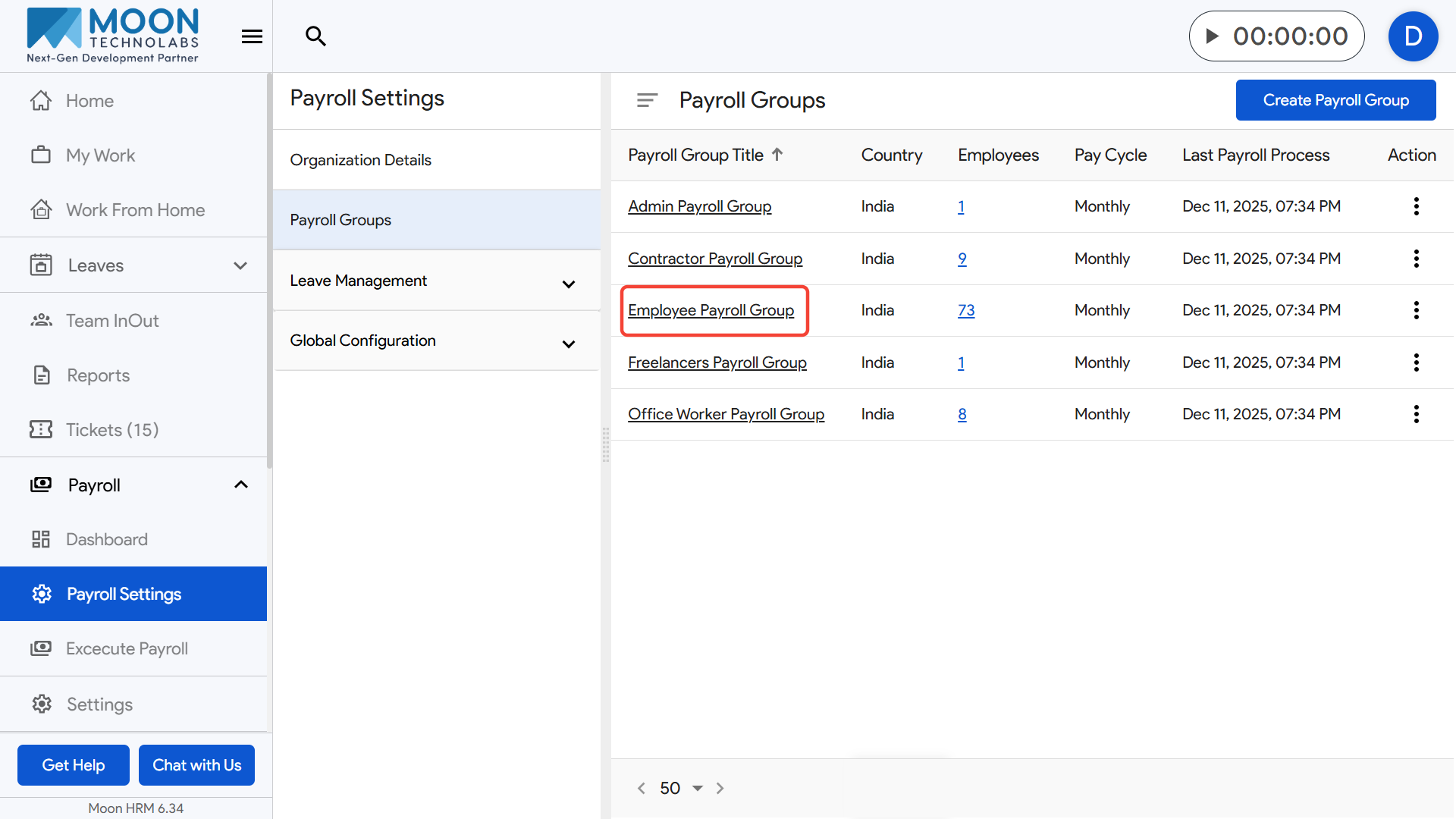
To add an Ad-hoc bonus for a specific payroll group, click on Payroll Settings from the sidebar and open the Payroll Groups section.
Select the payroll group you want to update and go to the Salary Components tab.
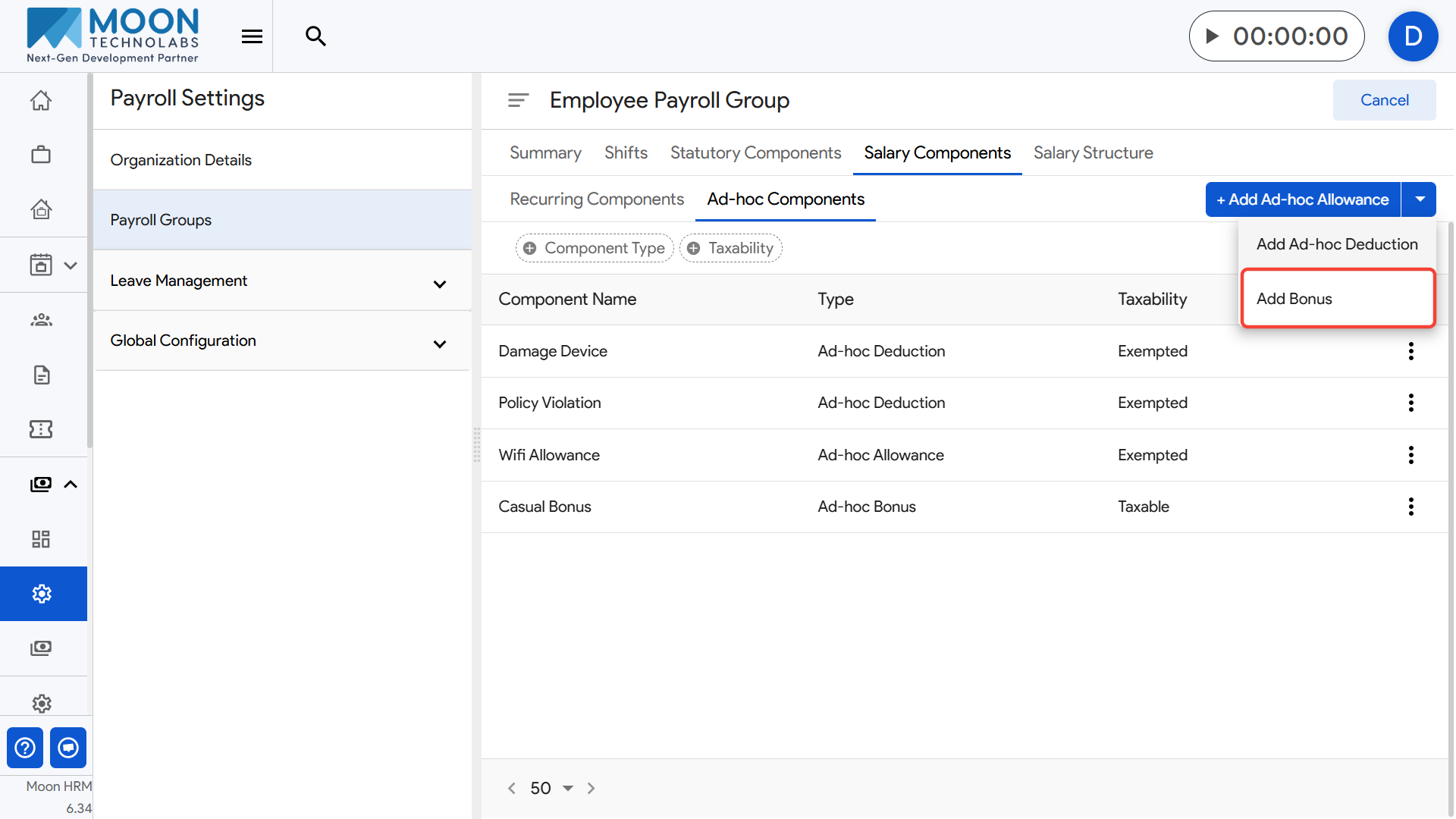
Open the Ad-hoc Components section and click the Add Ad-hoc Bonus option.
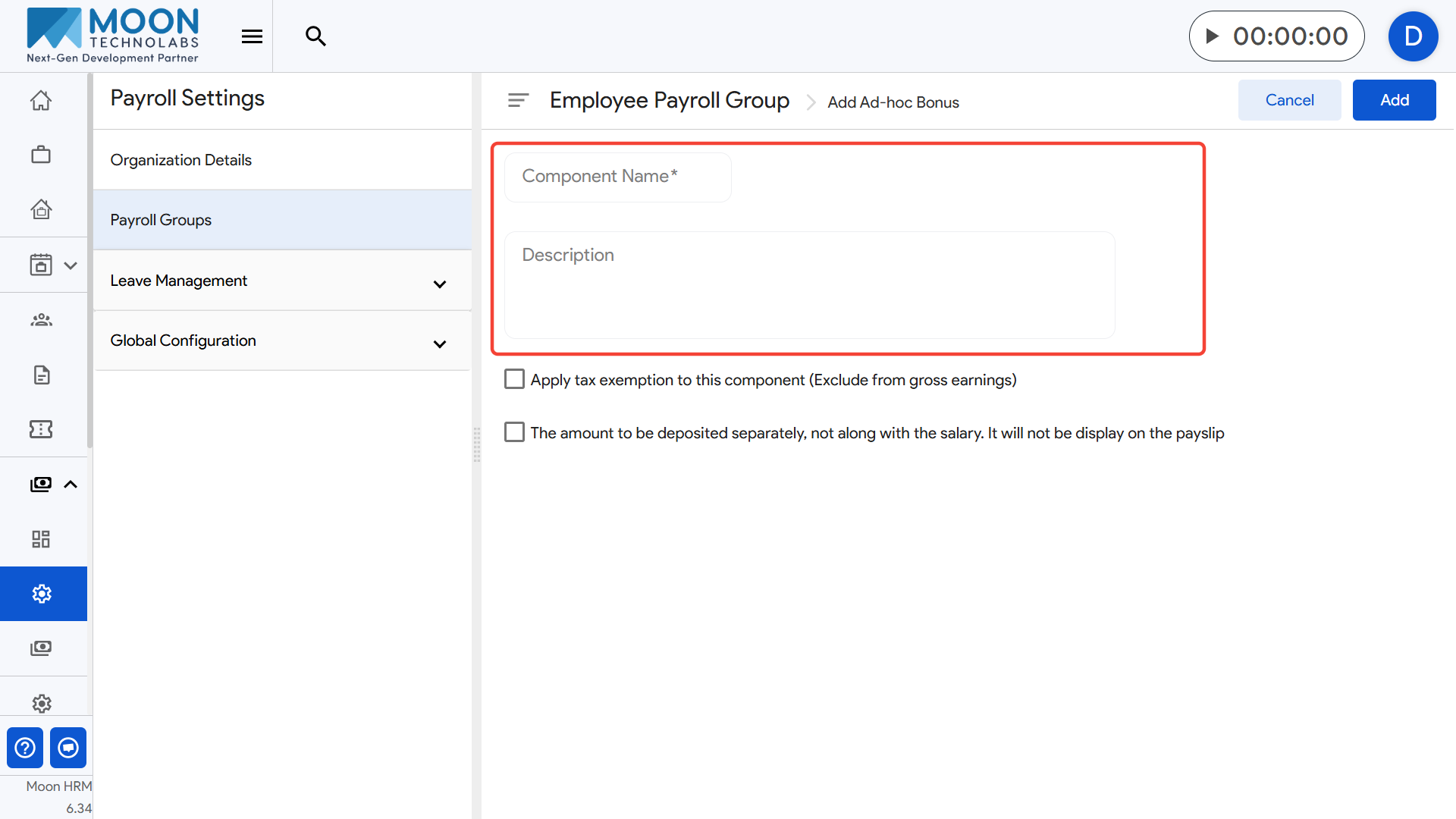
Enter the Component Name (for example, “Festival Bonus”).
If needed, add a description to explain when this bonus is applicable.
If you select Apply tax exemption to this component, the bonus will not be included in the employee’s taxable gross earnings.
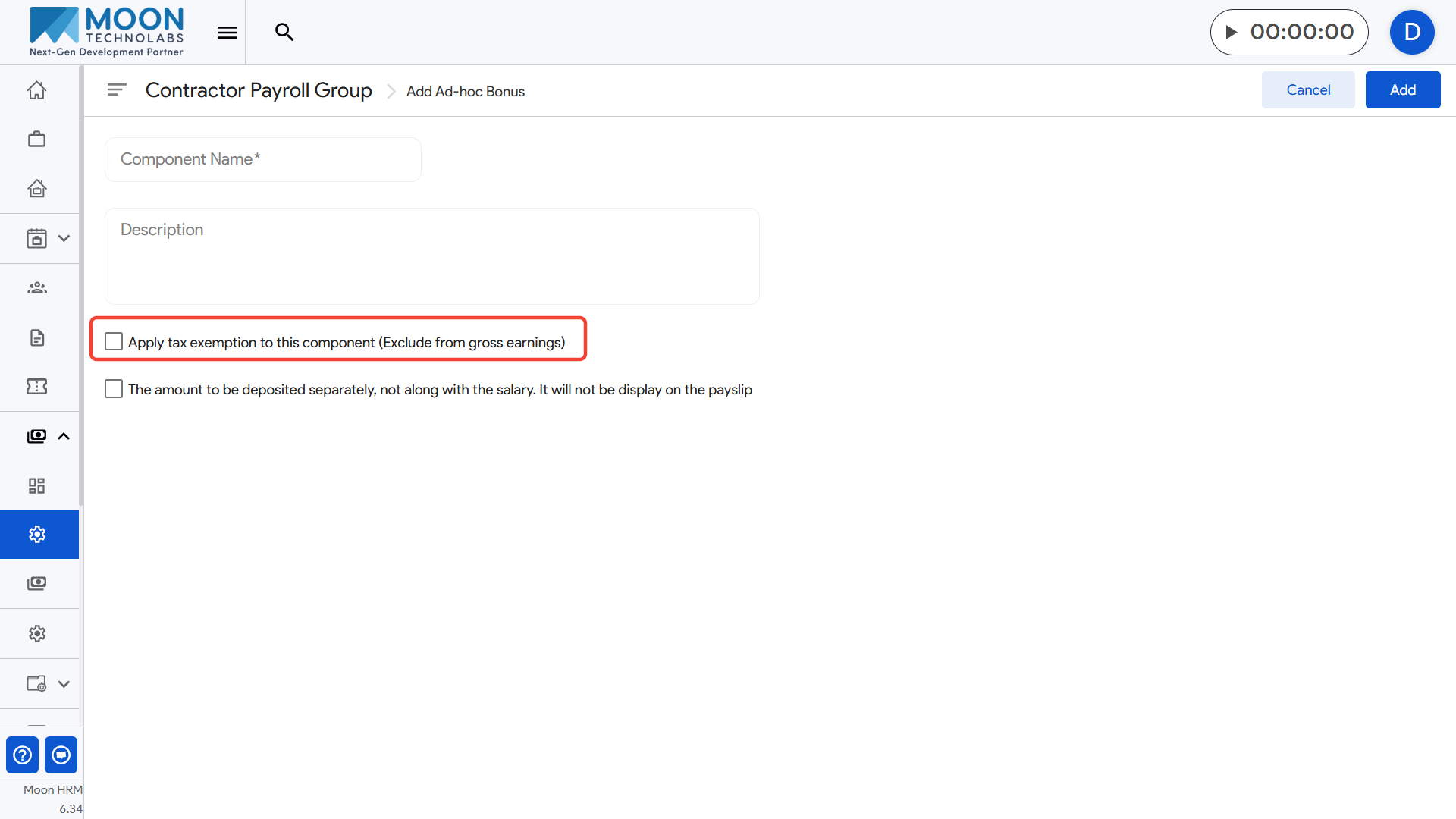
- Example: If a ₹3,000 bonus is exempted, it will not increase the taxable salary.
the monthly salary and will not appear on the payslip.
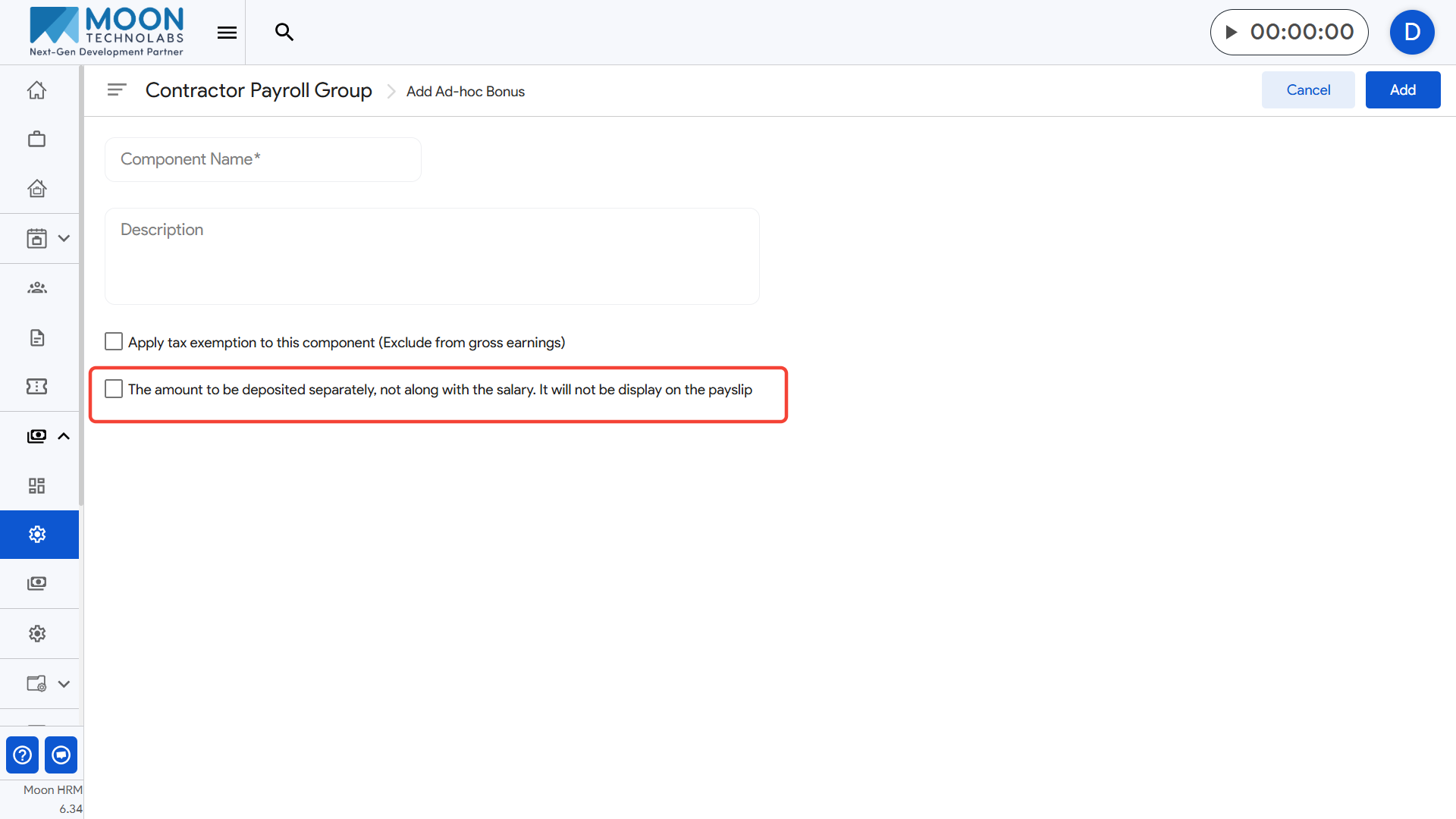
- Example: If ₹2,000 is issued as a standalone bonus payout, it will be processed separately and hidden from the payslip.
Click Add to save the Ad-hoc bonus for this payroll group.