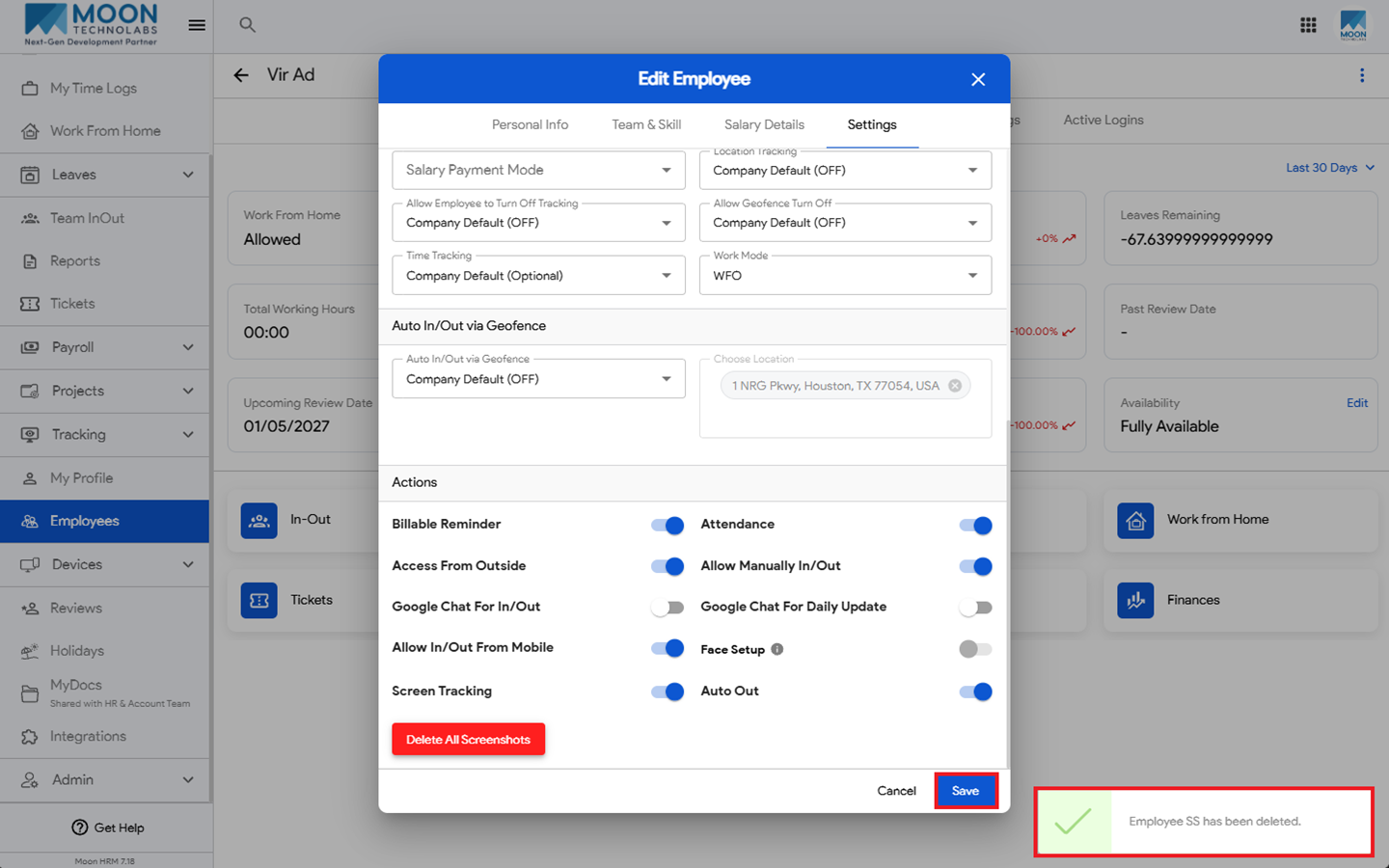
You can easily delete all screenshots for an employee in Moon HRM by following the steps below.
- Open the Moon HRM application on your device or tap this link.
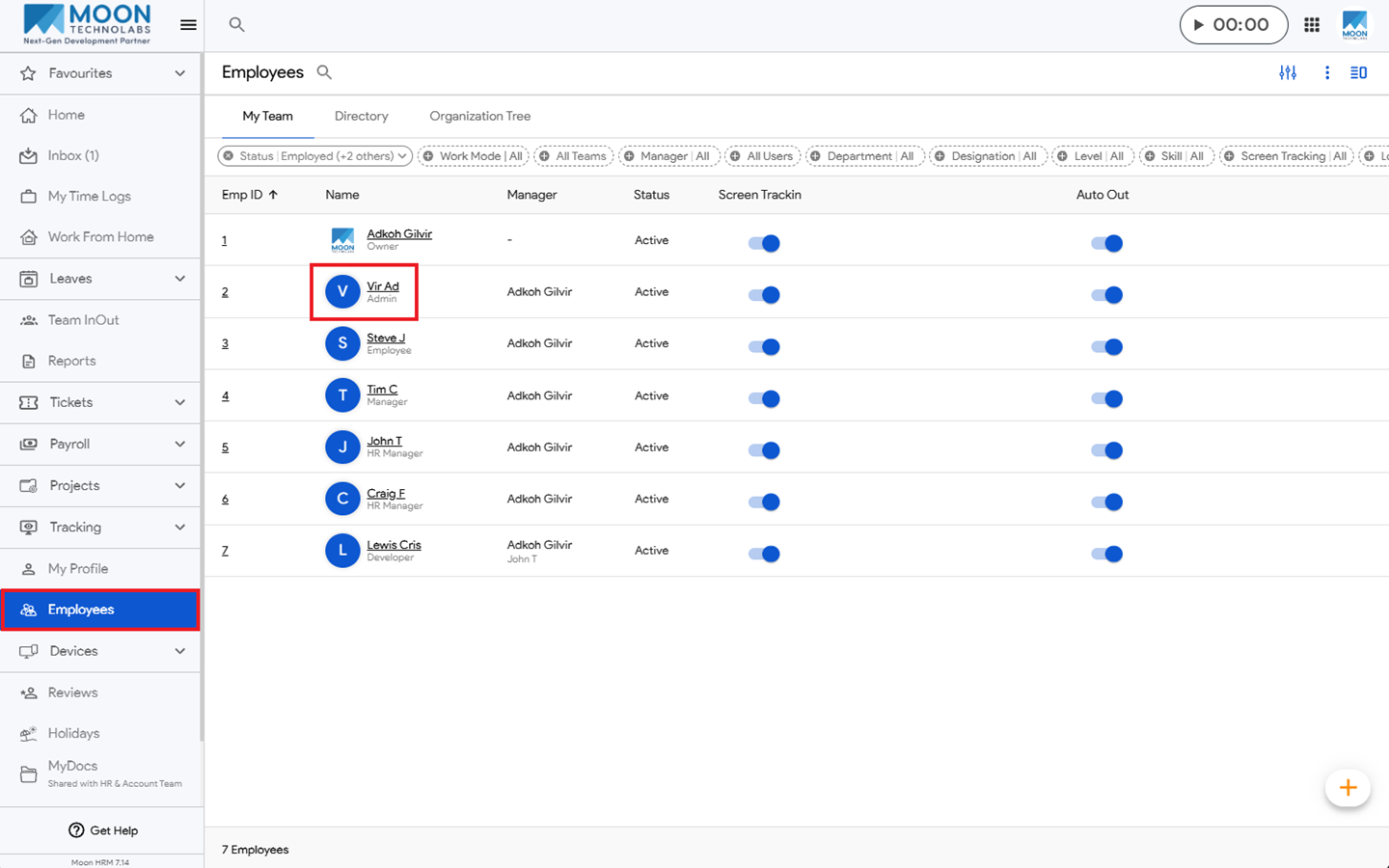
- From the main menu, navigate to Employees.
- Select the employee whose screenshots you want to delete.
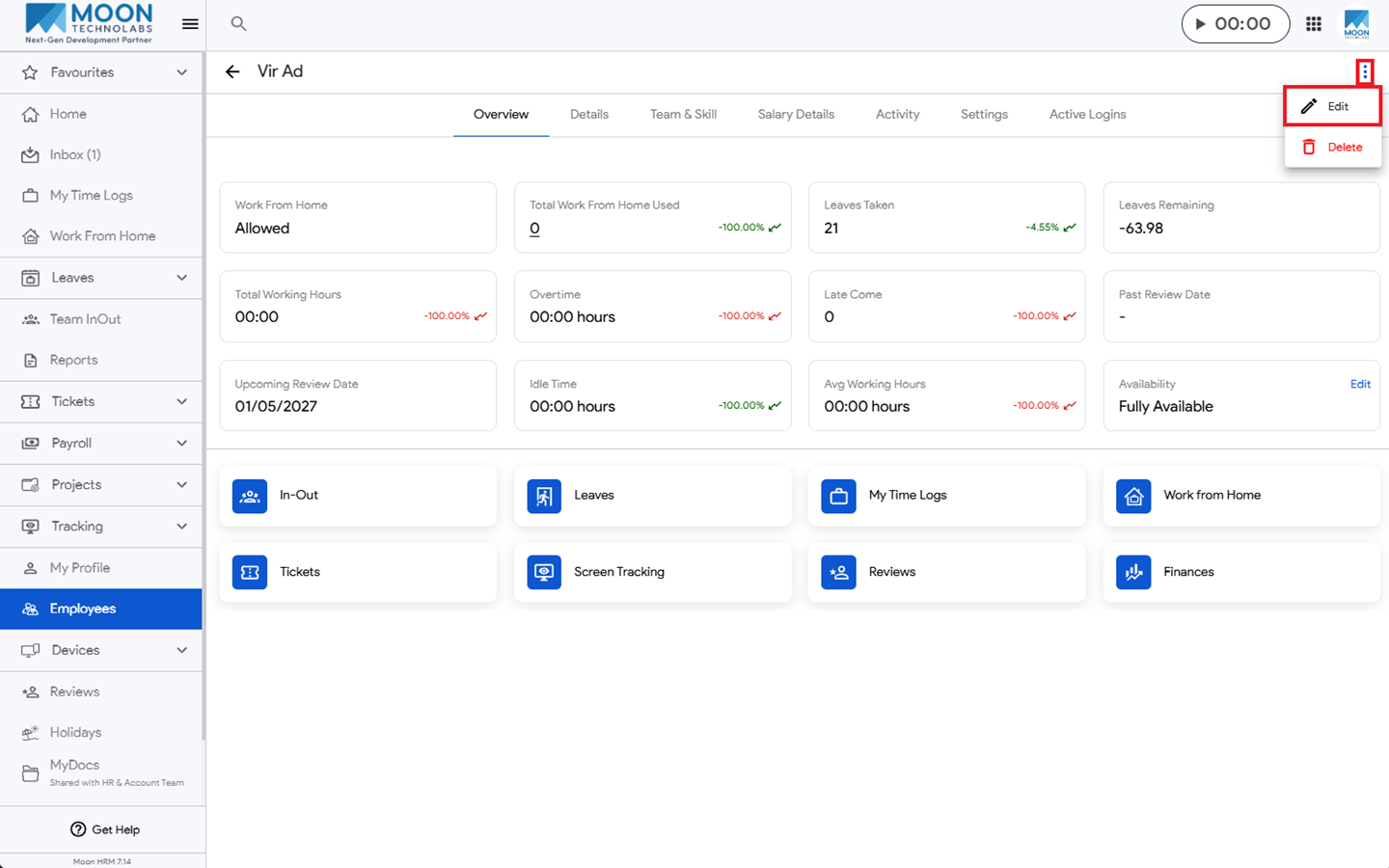
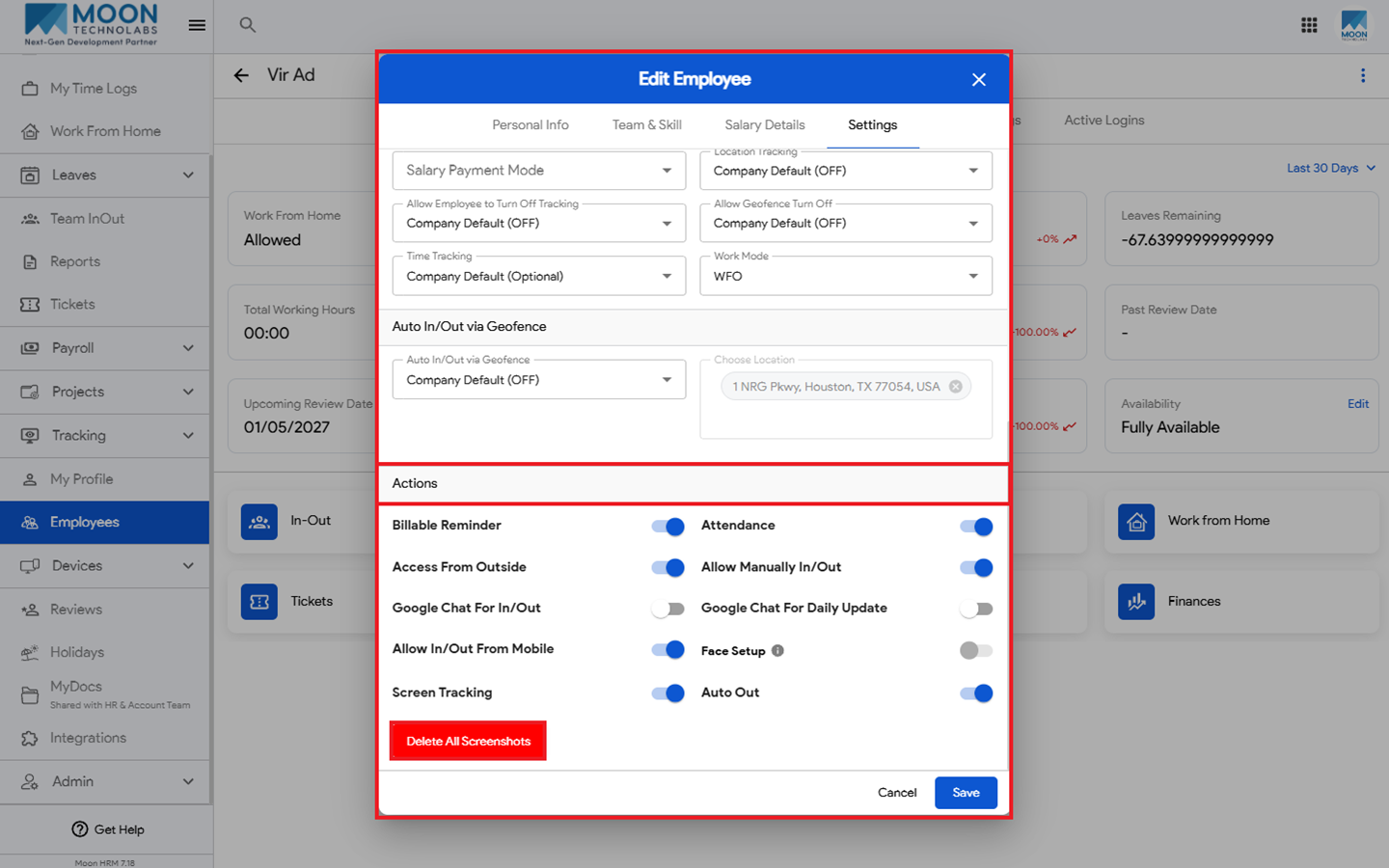
- Click the three-dot icon (⋮), select Edit, and go to Settings.
- Under Actions, click Delete All Screenshots.
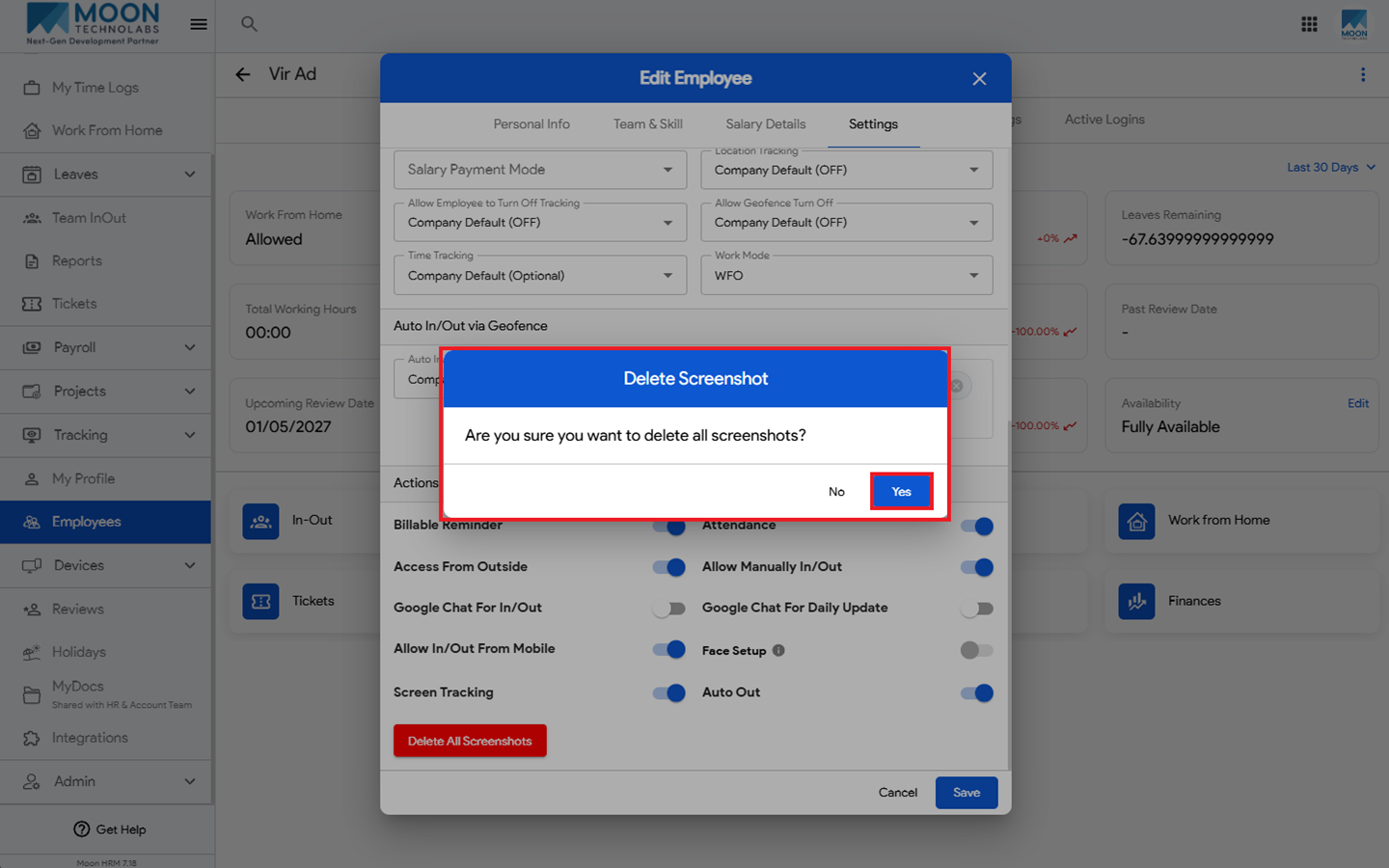
- A confirmation pop-up will appear. Click Yes to confirm and delete all screenshots for the selected employee.
- Click Save to apply the changes.
Note:
Only users with admin access can delete the screenshots.