

To set up payroll, first click on the Payroll Dashboard from the left menu.

Next, complete the Organization Information section by entering all essential company details.
Organization Details
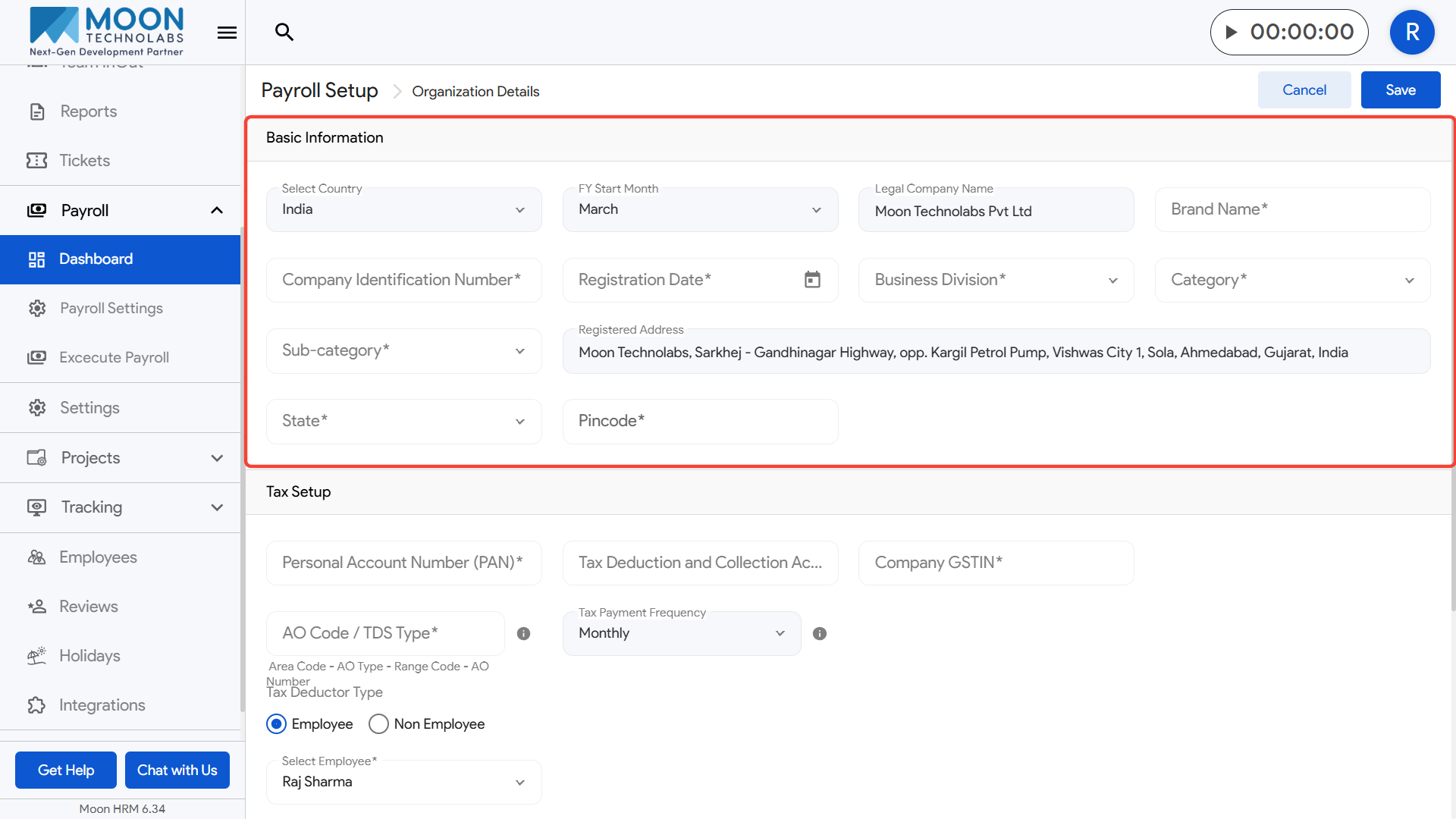
- First you need to update your organization information
- Fill in the basic details such as country, financial year start month, legal company name, and brand name.
- Enter your company identification number, registration date, business division, and category details.
- Select the appropriate sub-category, state, and pin code for your registered address.
Tax Setup
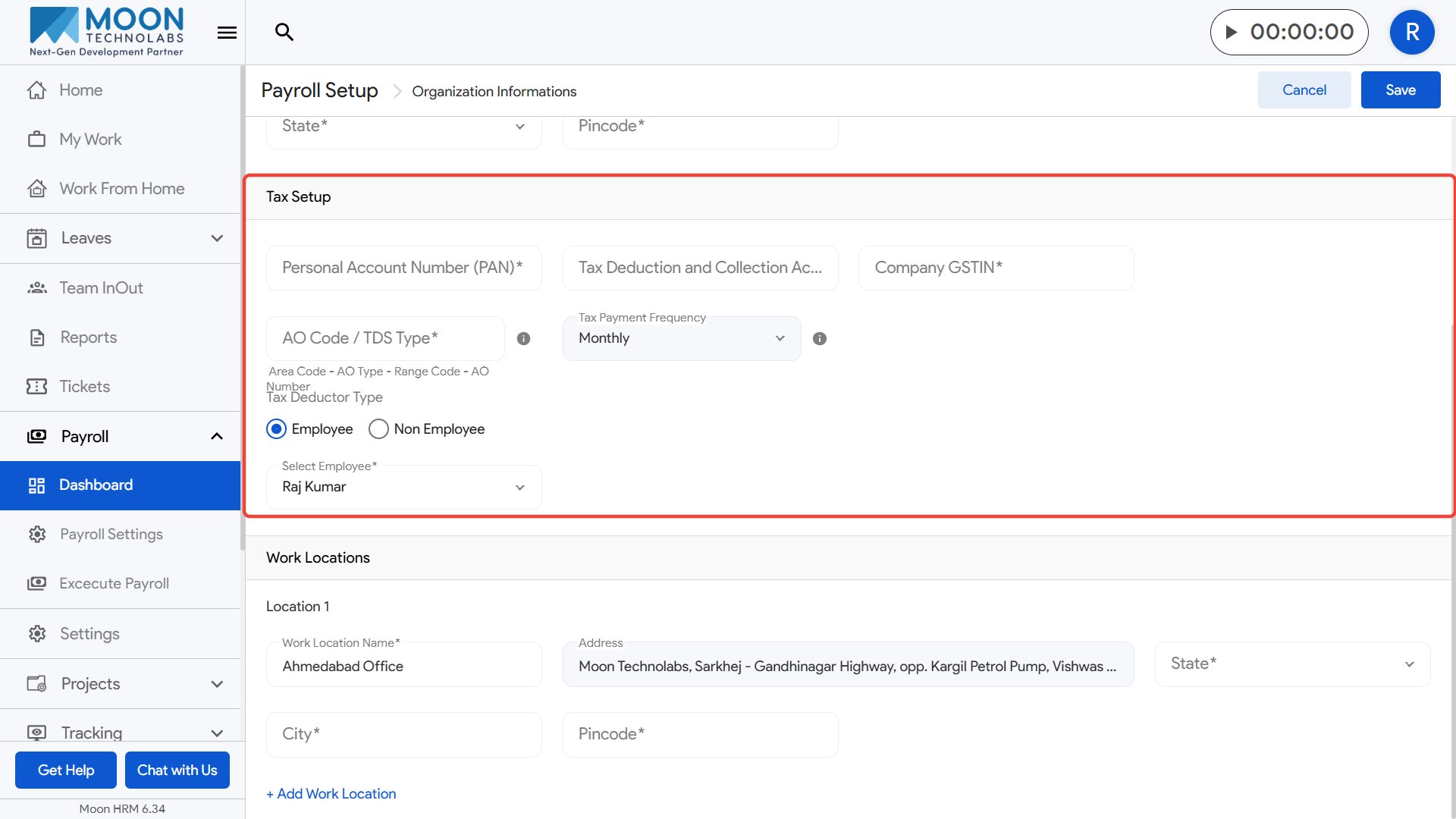
- To complete the tax setup, enter your company’s PAN, TDS details, and GSTIN in the required fields.
- Select the correct AO Code or TDS Type based on your tax category.
- Tax payment frequency, such as monthly by default applicable
- Specify whether the tax deductor type is Employee or Non-Employee.
- Finally, select the authorized employee responsible for tax deductions and save the details.
Work Locations
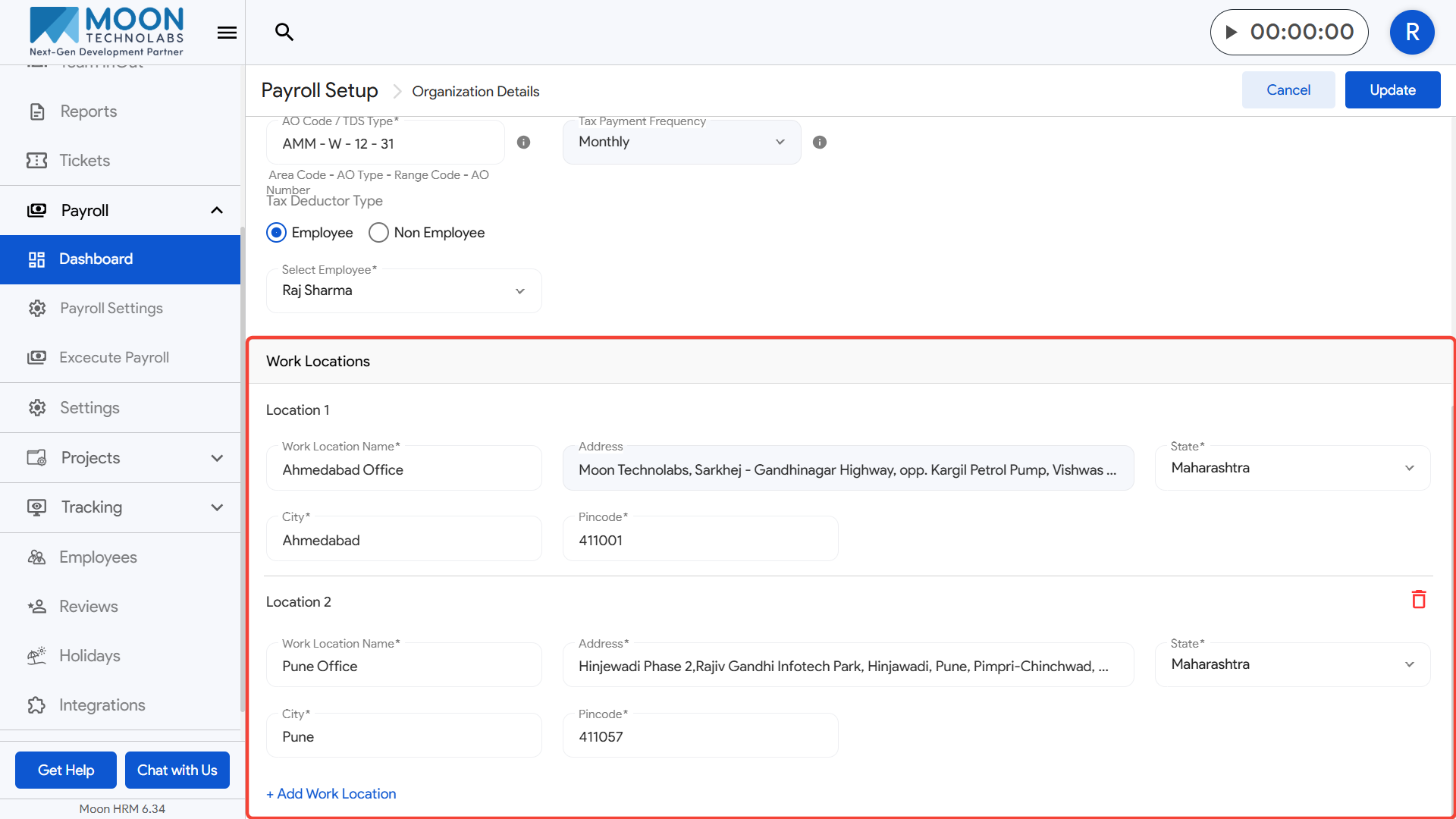
- To set up work locations, enter the work location name and the corresponding city for each office.
- Fill in the complete address details and provide the correct pin code for accurate mapping.
- Select the appropriate state for each work location.
- If your organization has multiple offices, click on Add Work Location to create additional entries.
- Review the information and update the details to save all work locations successfully.
Then, open the Statutory Components section and configure your compliance settings.

Employees’ Provident Fund (EPF)
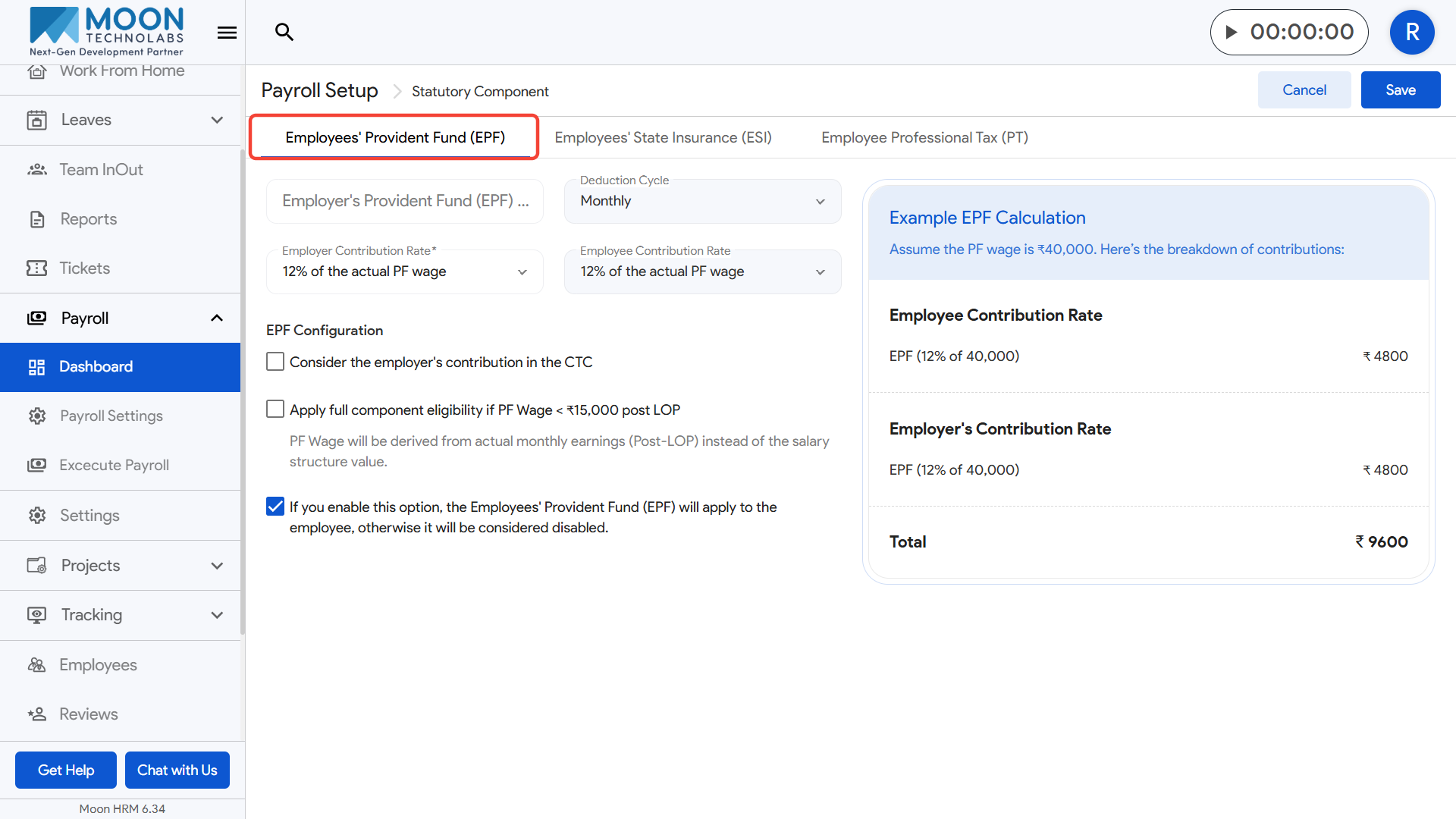
- To configure the Employees’ Provident Fund (EPF), go to the Statutory Components section and open the EPF tab.
- Start by selecting the employer and employee contribution rates based on your policy.
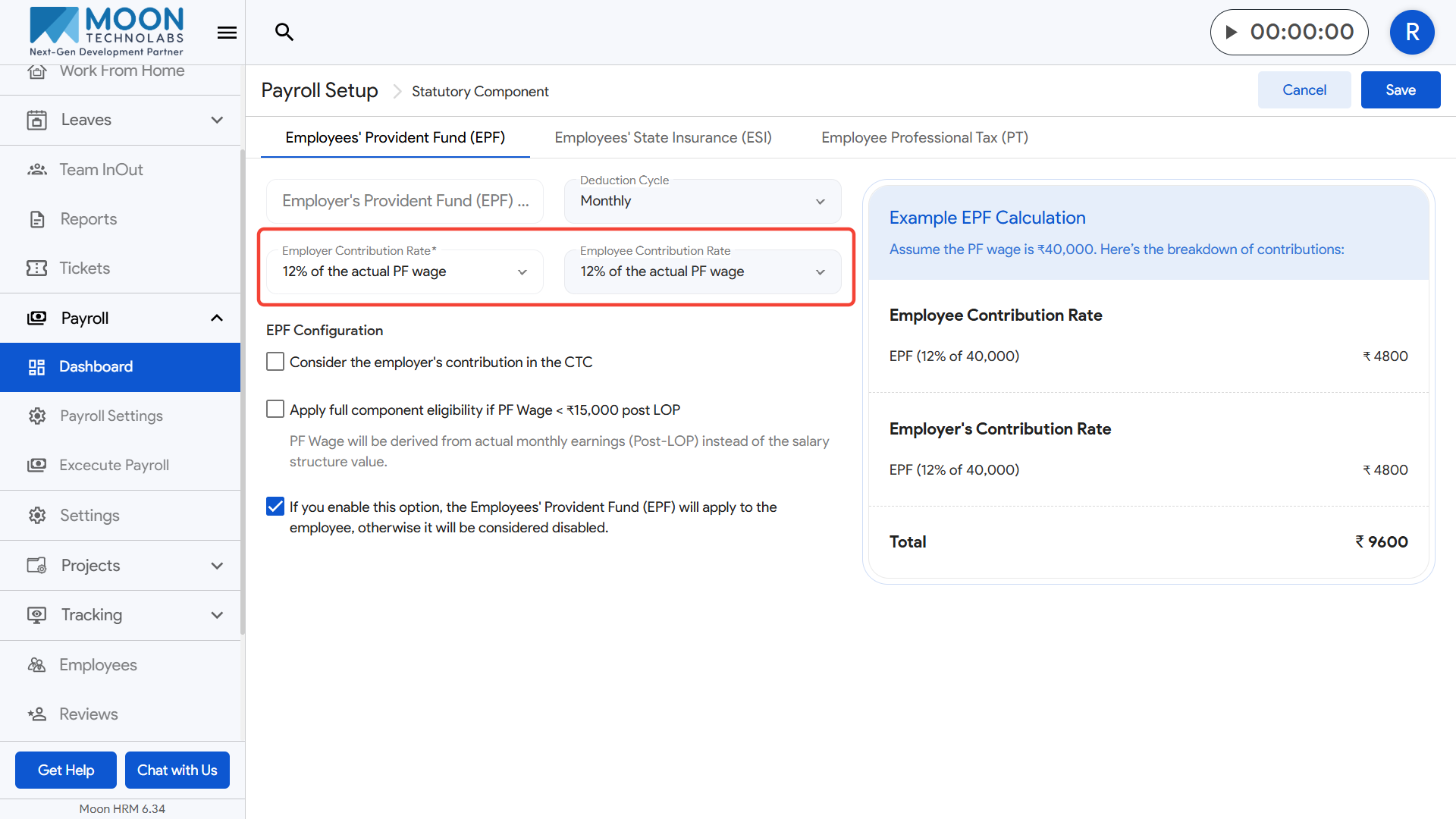
- Choose the deduction cycle, such as Monthly, to match your payroll frequency.
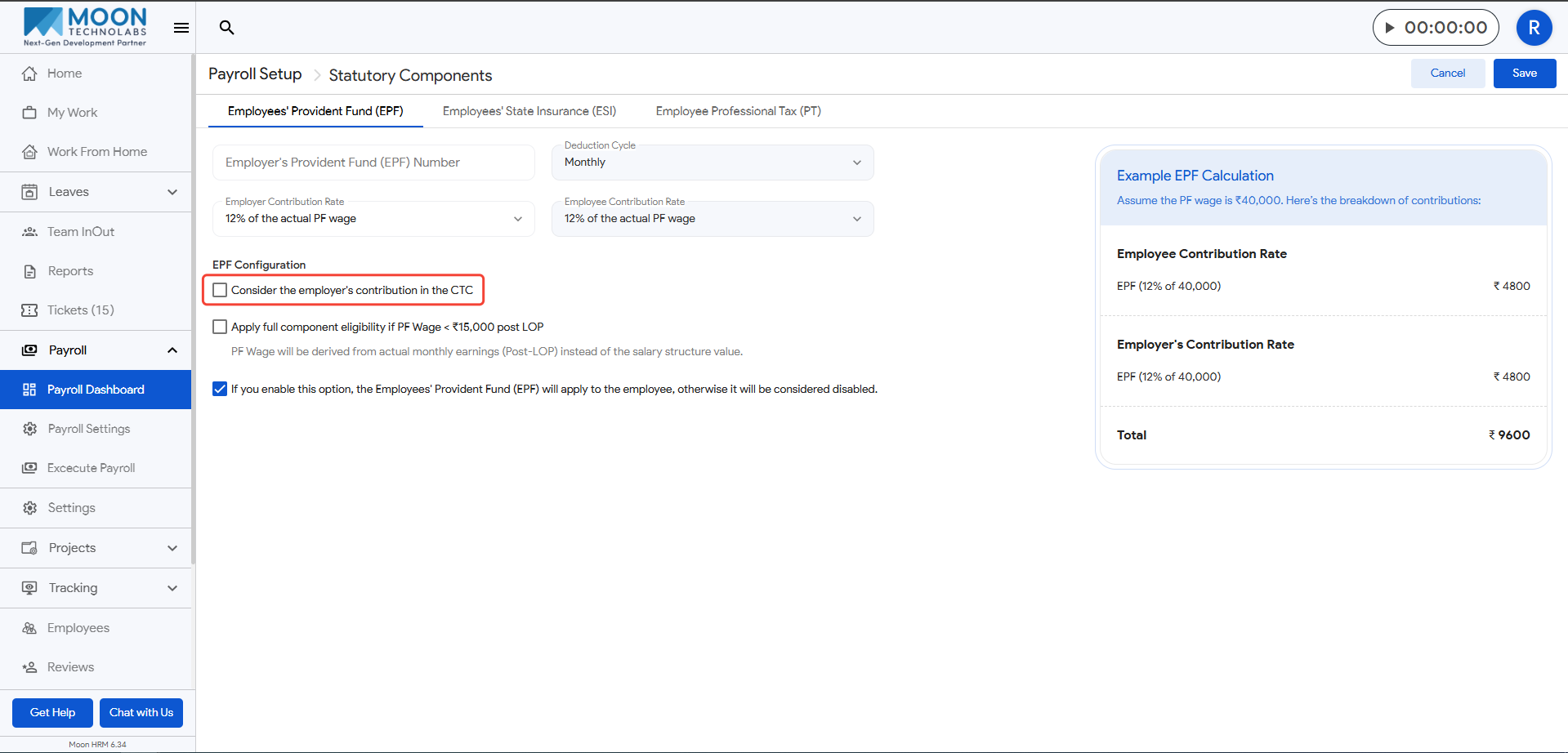
- If you want the employer’s PF contribution to be included in the employee’s CTC, enable the checkbox for that option.
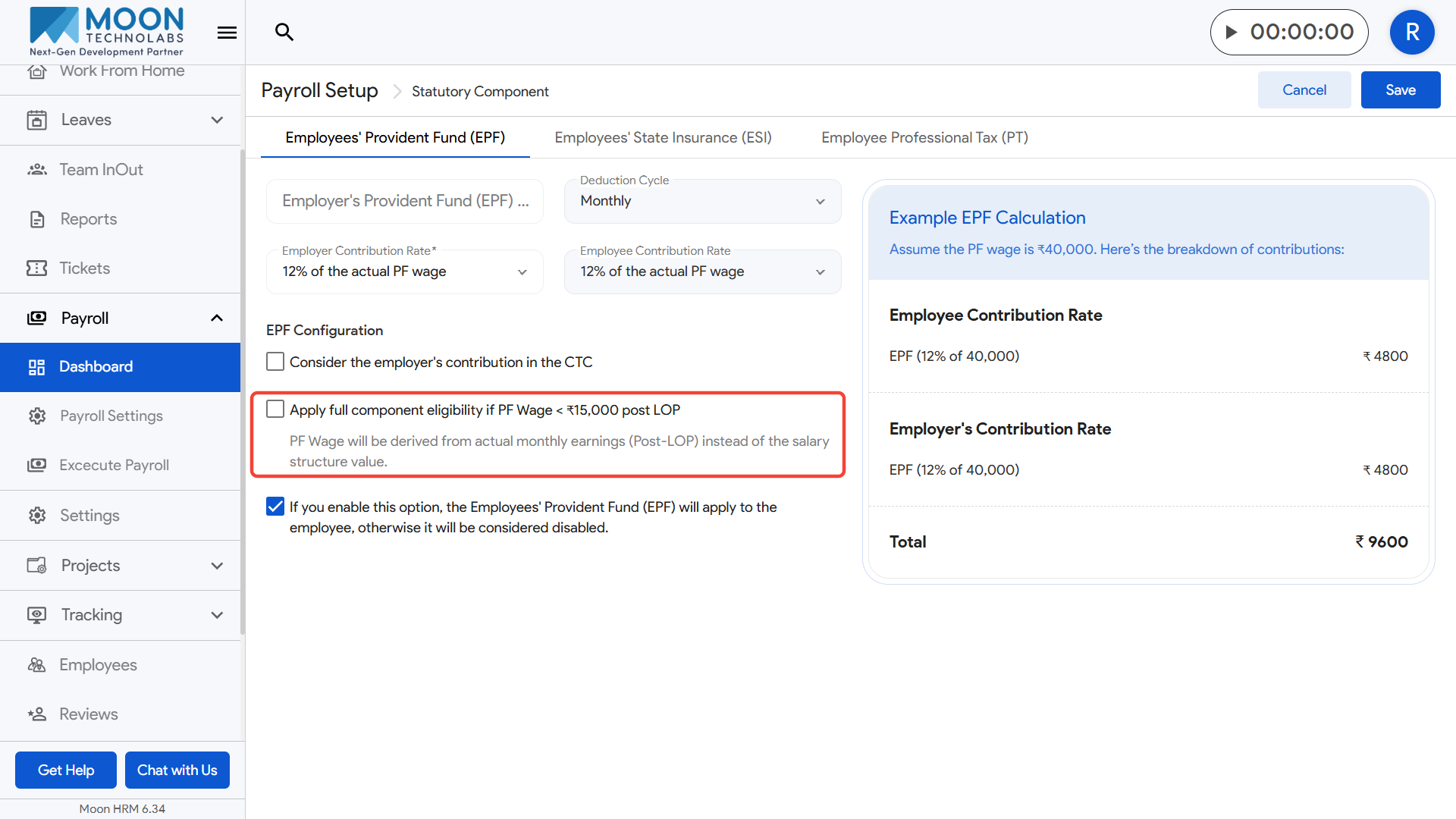
- Turn on the eligibility checkbox if PF should apply fully when the PF wage is below ₹15,000 after LOP adjustments.
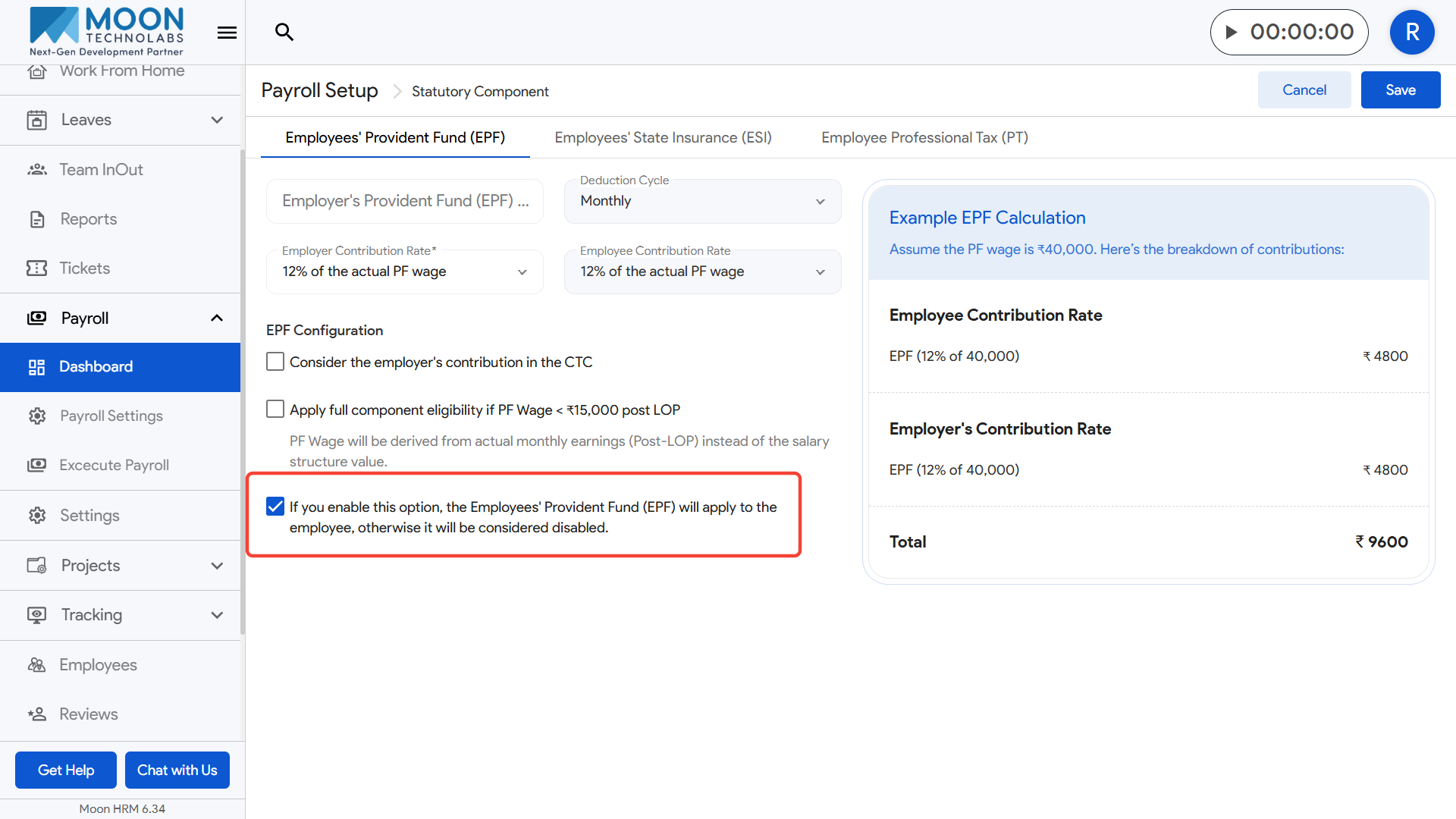
- Finally, use the main checkbox at the bottom to activate EPF for employees; keeping it unchecked will disable EPF
- Review the example EPF calculation preview on the right side and save the settings once everything looks correct.
Employees’ State Insurance (ESI)
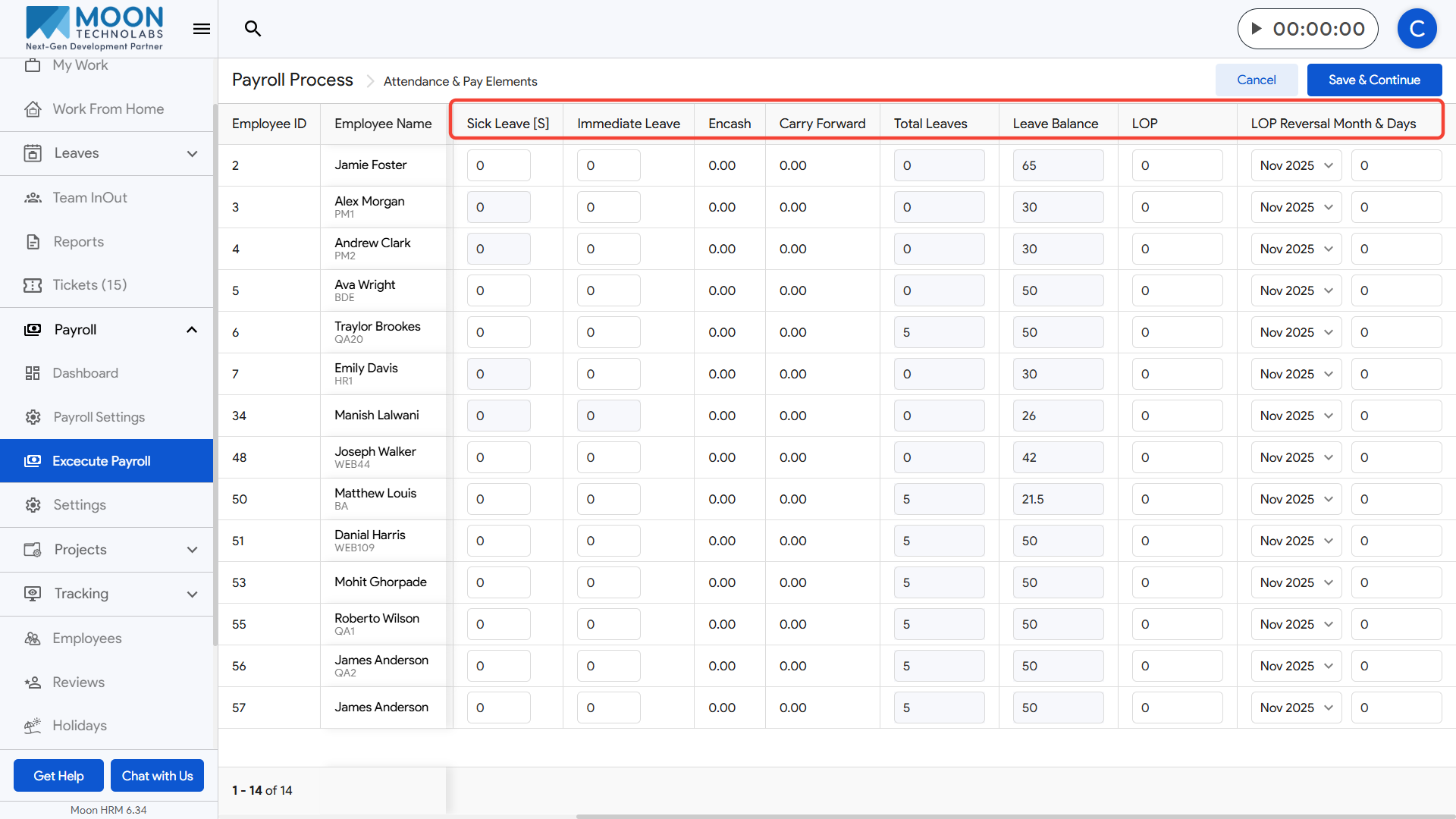
- To configure Employees’ State Insurance (ESI), open the Statutory Components section and switch to the ESI tab.
- Start by entering your organization’s ESI Number in the required field.
- Choose the deduction cycle, such as Monthly, to match your payroll frequency.
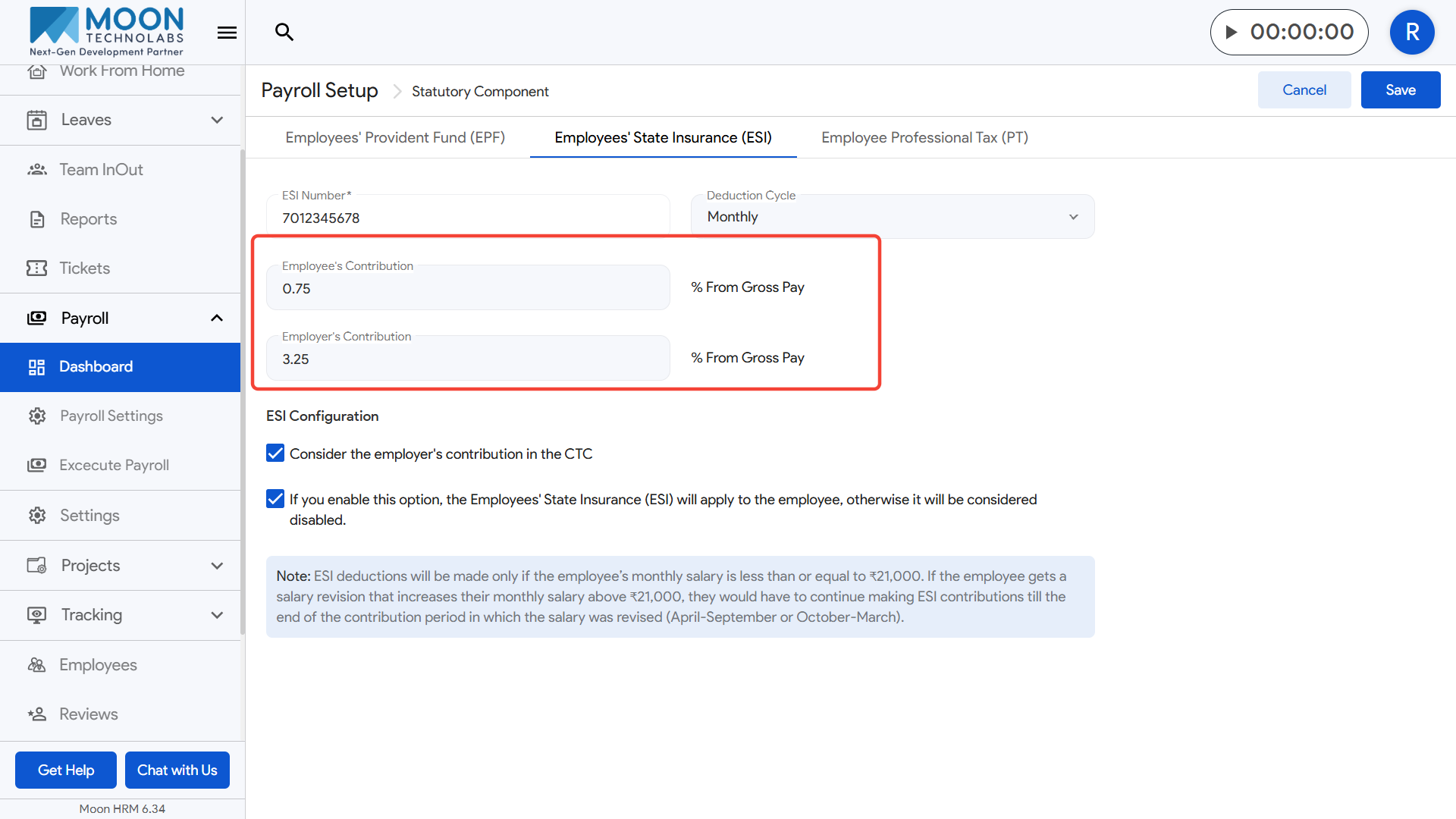
- Enter the employee’s contribution rate and the employer’s contribution rate, both calculated as a percentage of the employee’s gross pay.
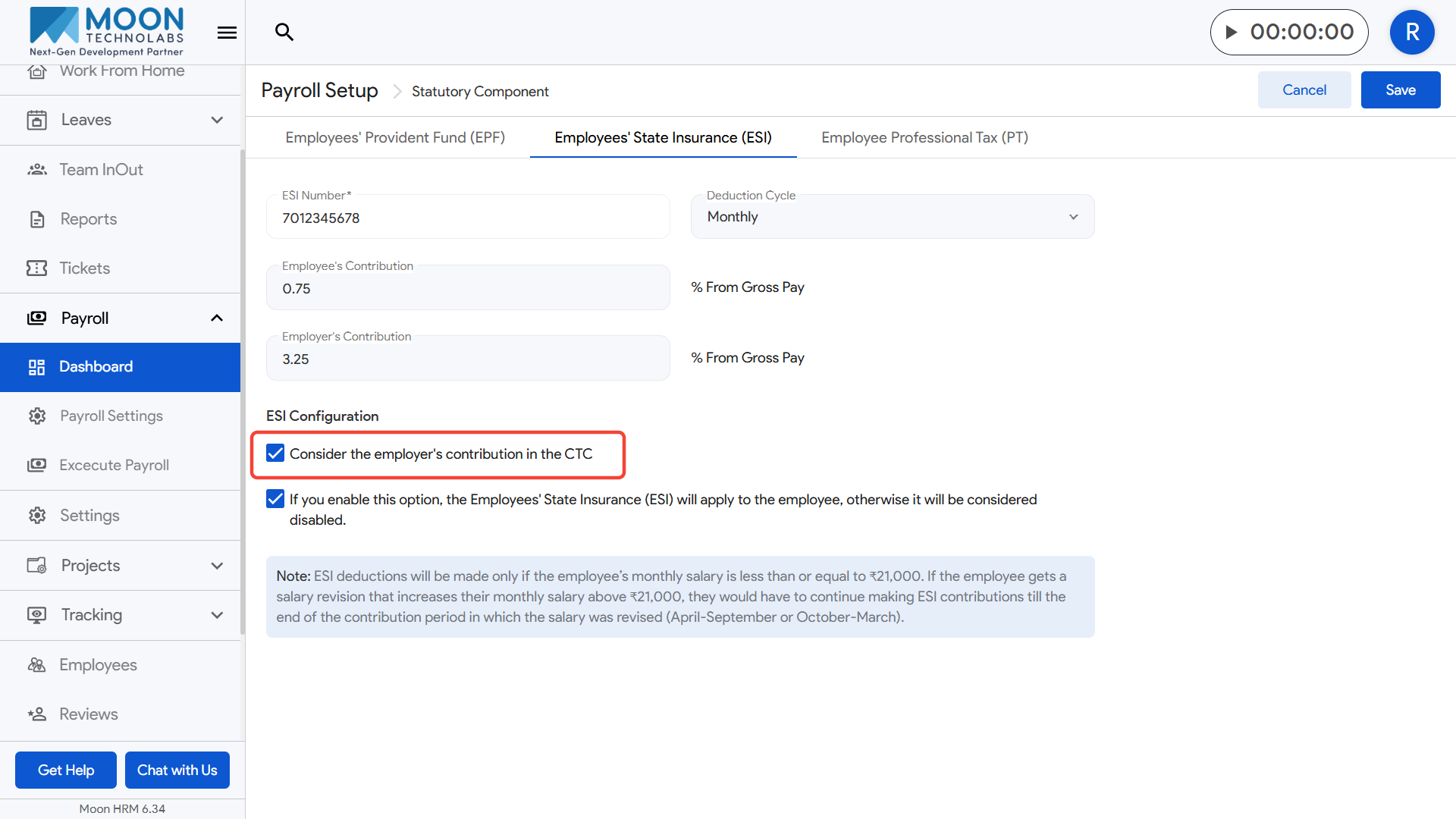
- If you want the employer’s ESI contribution to be added to the employee’s CTC, enable the corresponding checkbox.
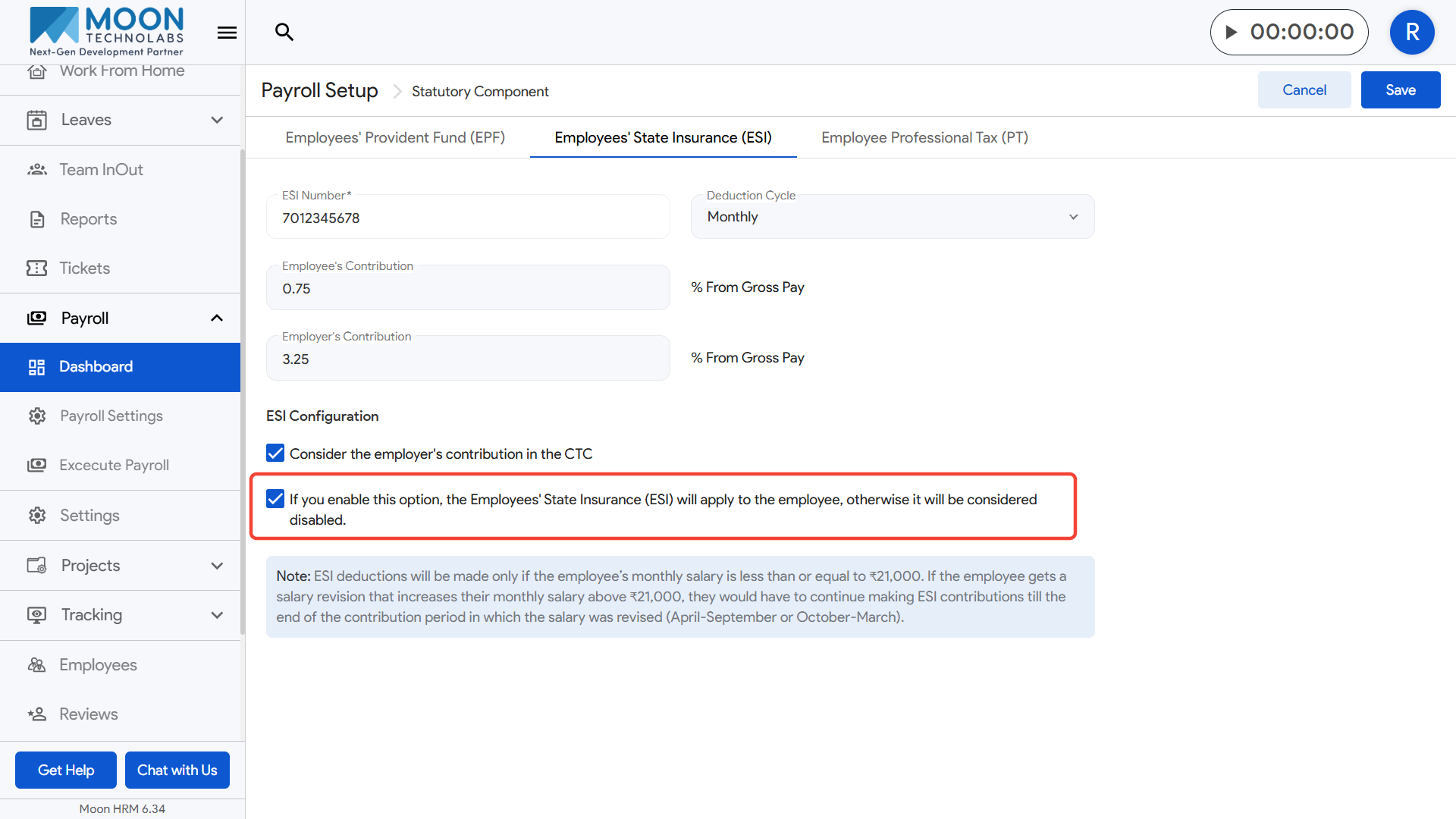
- Use the activation checkbox to turn ESI on for employees; if left unchecked, ESI will stay disabled.
- A helpful note is displayed below, explaining that ESI applies only when an employee’s monthly salary is ₹21,000 or below, and contributions continue for the entire contribution period even if the salary increases later.
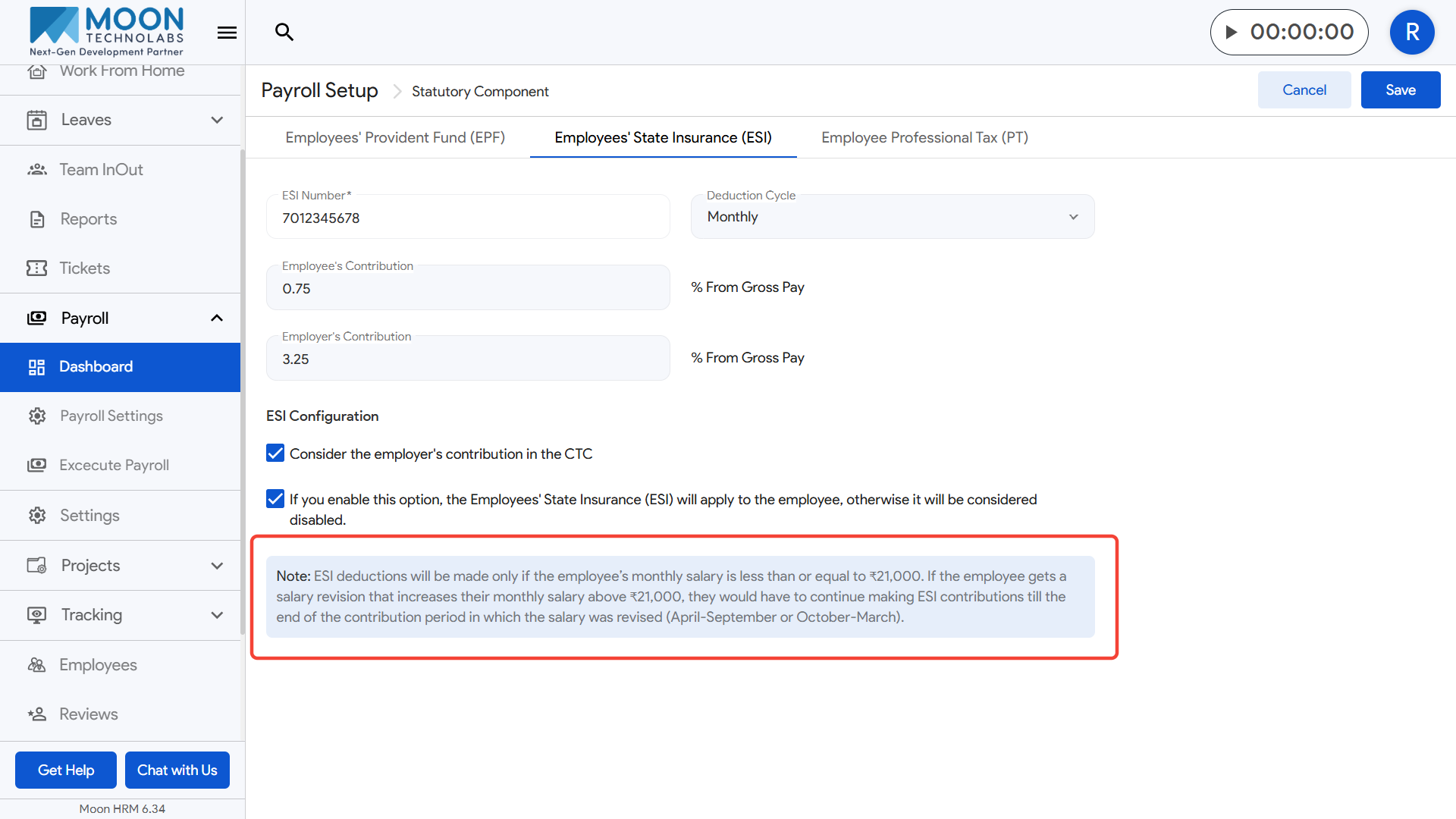
- Once all details are reviewed, save the configuration to apply ESI settings.
Employee Professional Tax (PT)
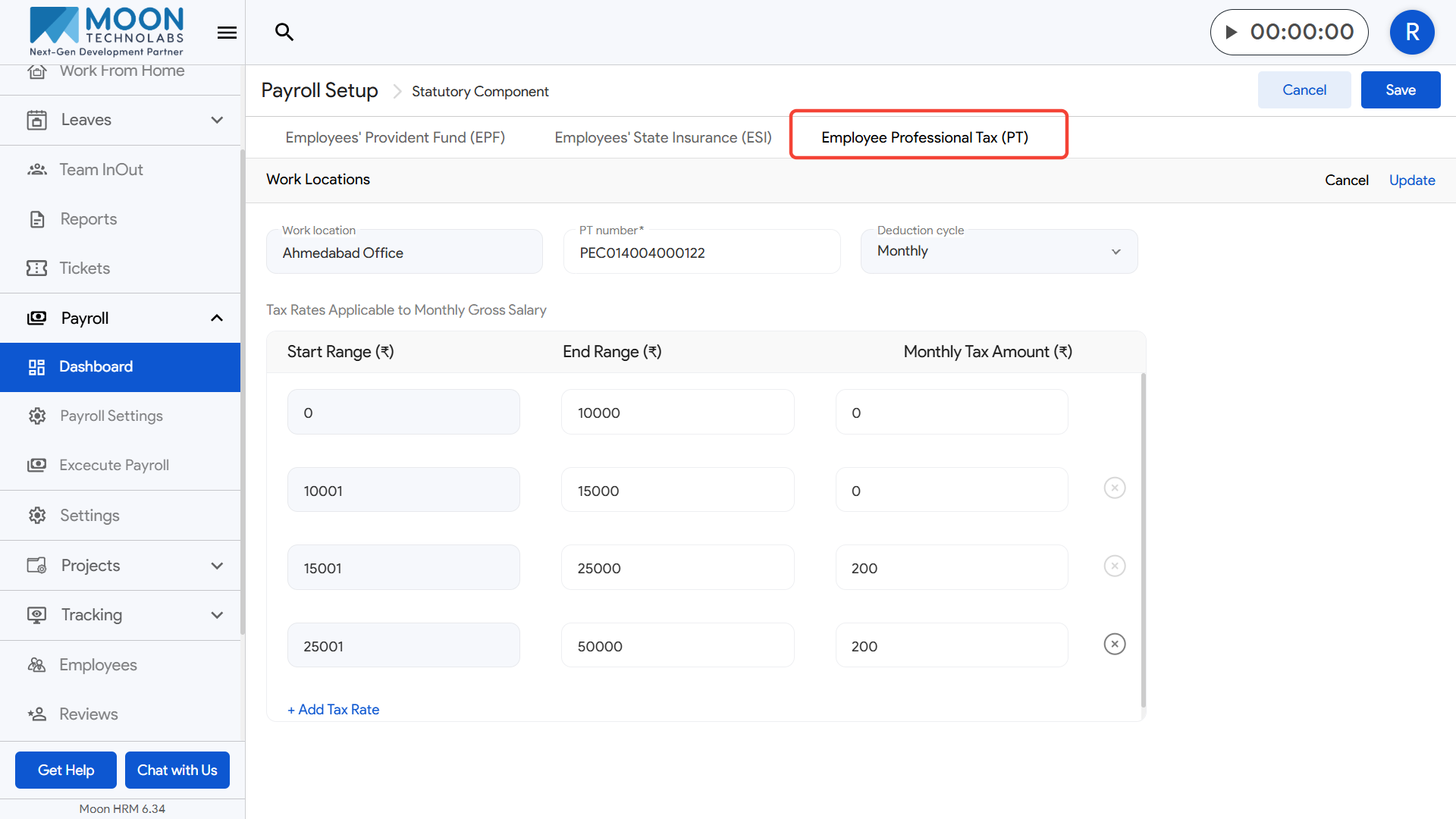
- To configure Professional Tax (PT), open the Statutory Components section and switch to the PT tab.
- Begin by selecting the work location for which you want to set up the tax rules.
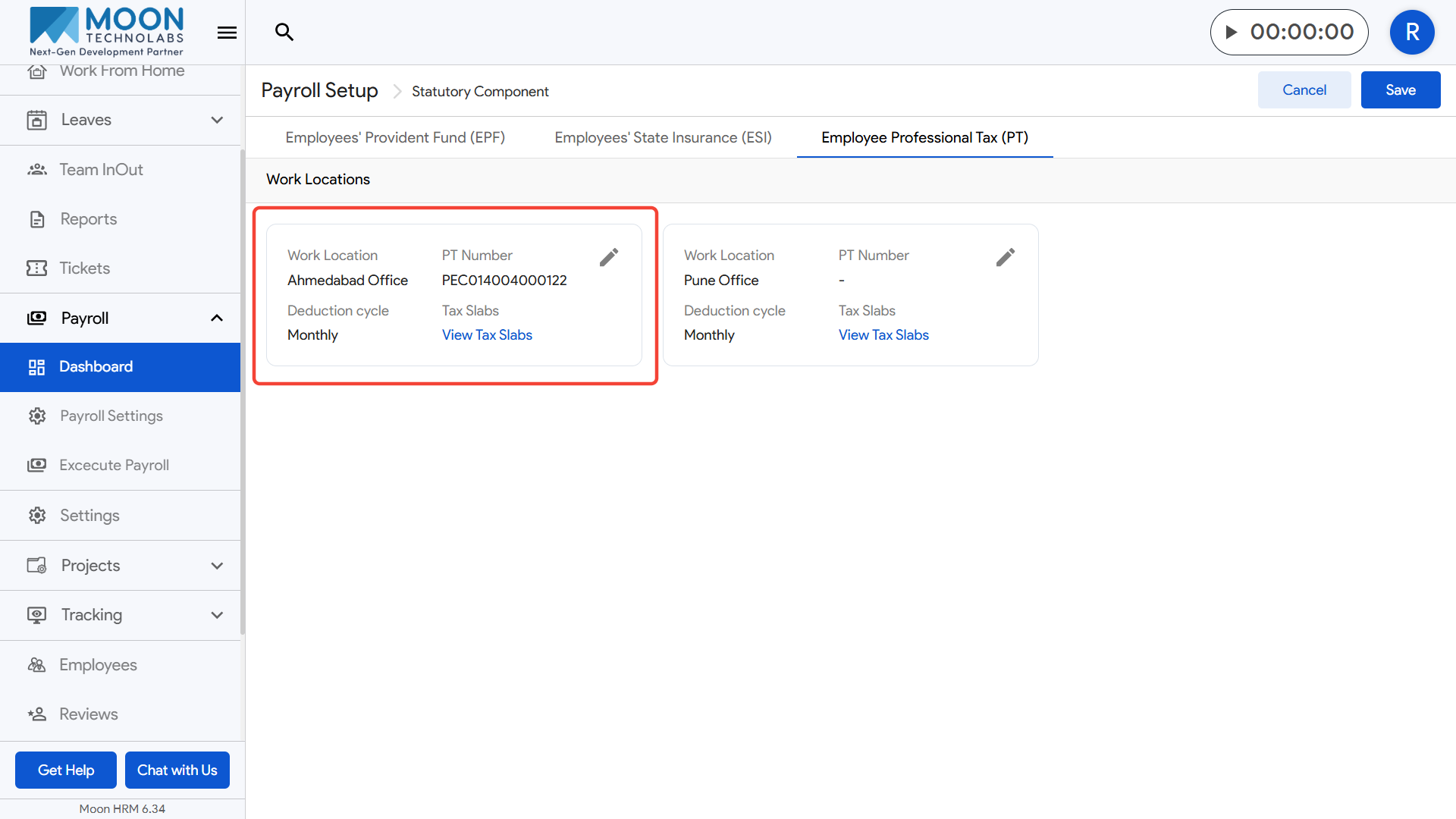
- Enter the PT registration number (PT number) for your organization.
- Choose the deduction cycle, such as Monthly, to match your payroll schedule.
- Set up the tax slabs by entering the start salary range, end salary range, and the corresponding monthly tax amount for each slab.
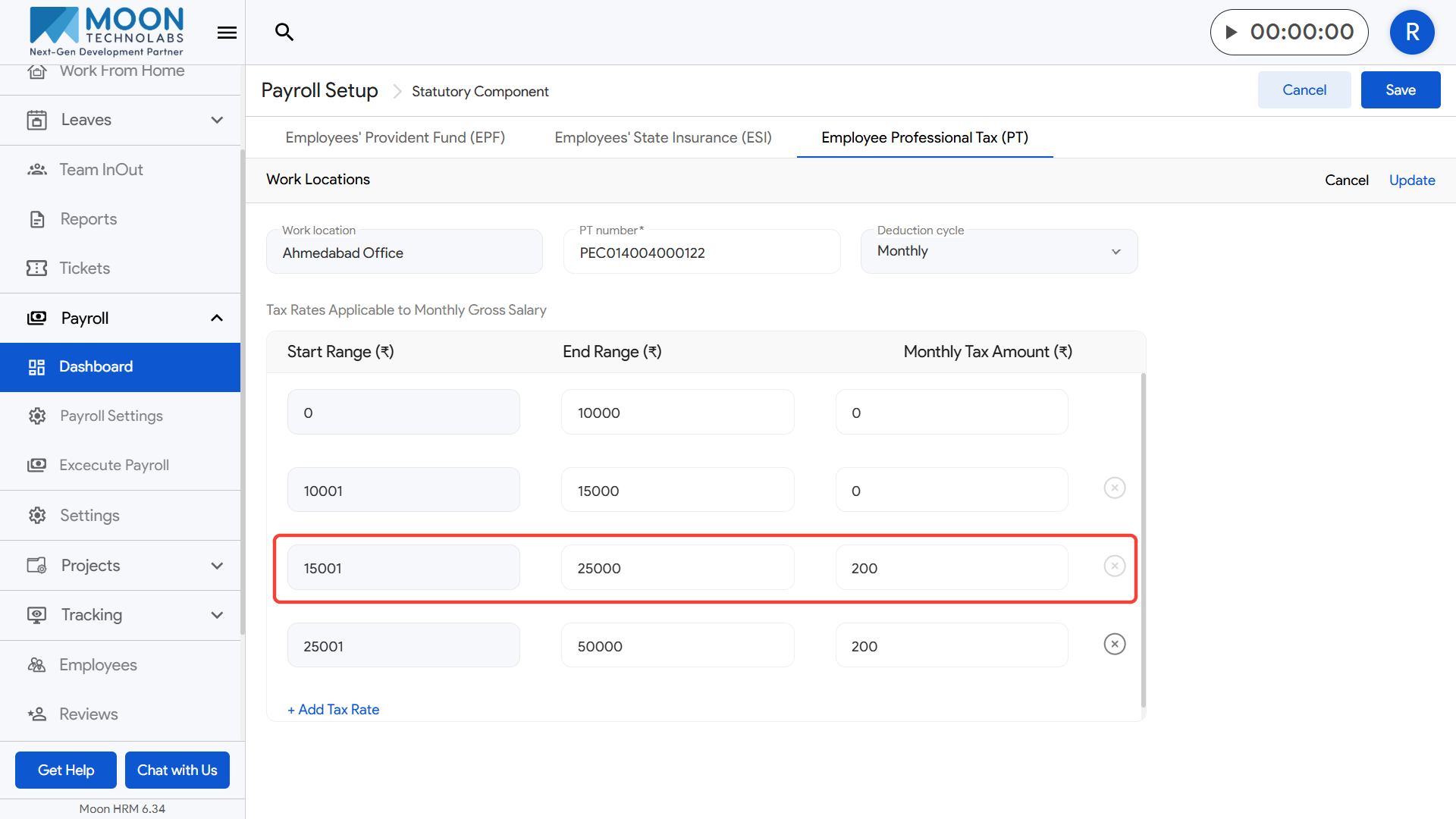
- Use the Add Tax Rate option to create additional slabs if required.
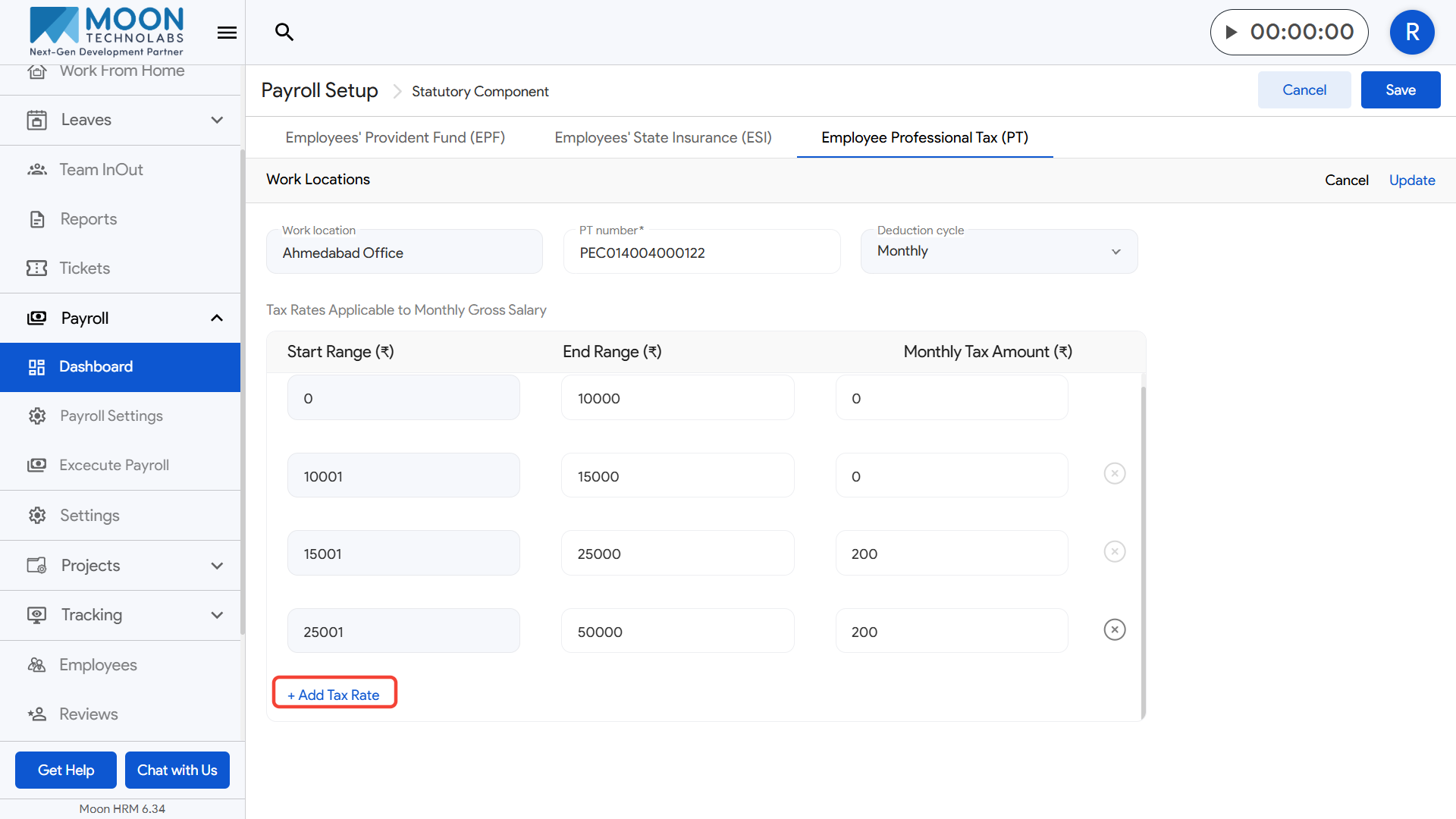
- Review all the ranges to ensure there are no gaps or overlaps in salary brackets.
- Once everything is set, save the PT configuration to apply it across payroll calculations.
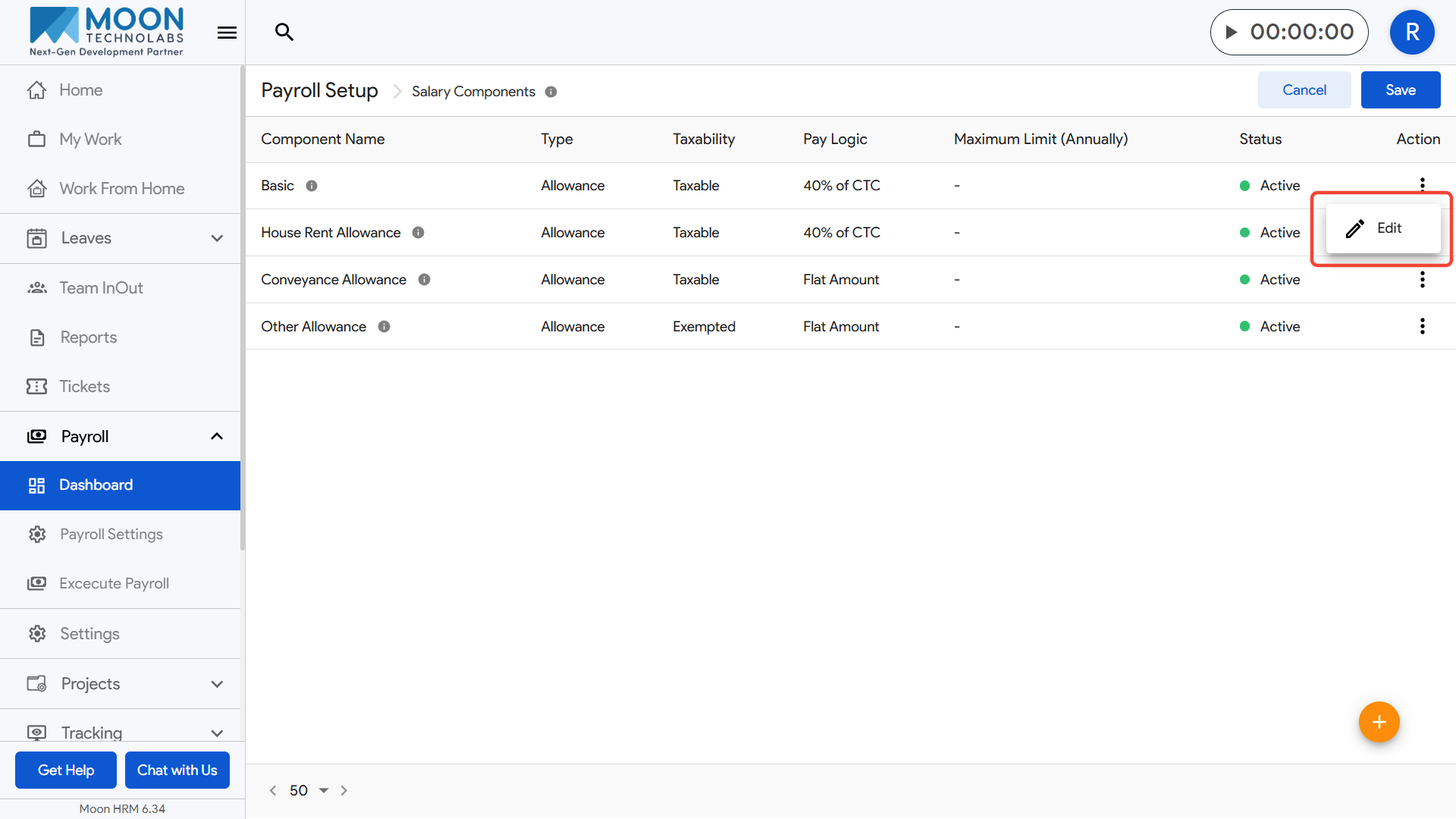
Finally, go to the Salary Components section and define all earning and deduction structures needed for payroll processing.
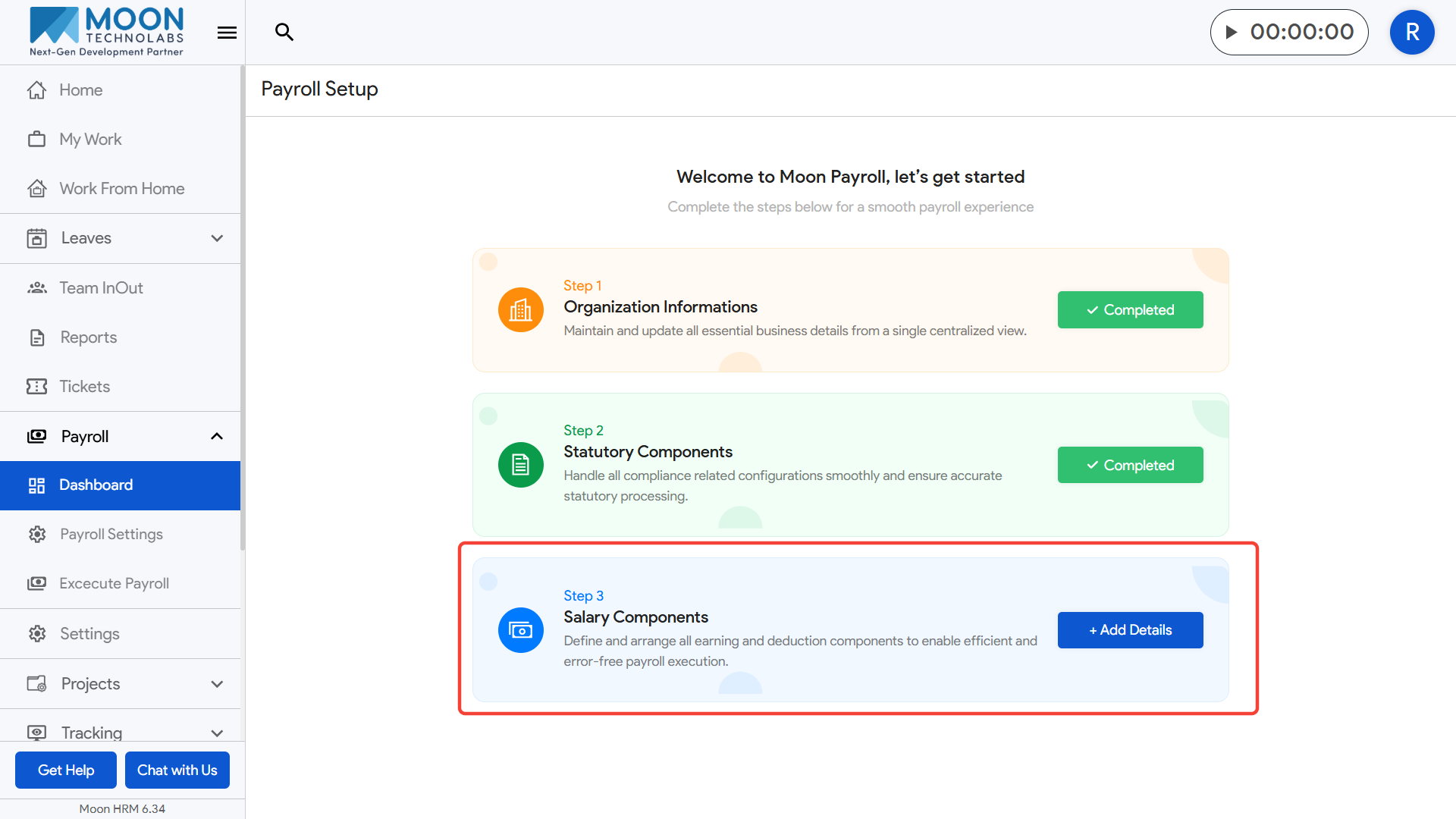
Here, you will see a list of all earning and deduction components used in payroll processing, such as Basic, House Rent Allowance, Conveyance Allowance, and Other Allowances.
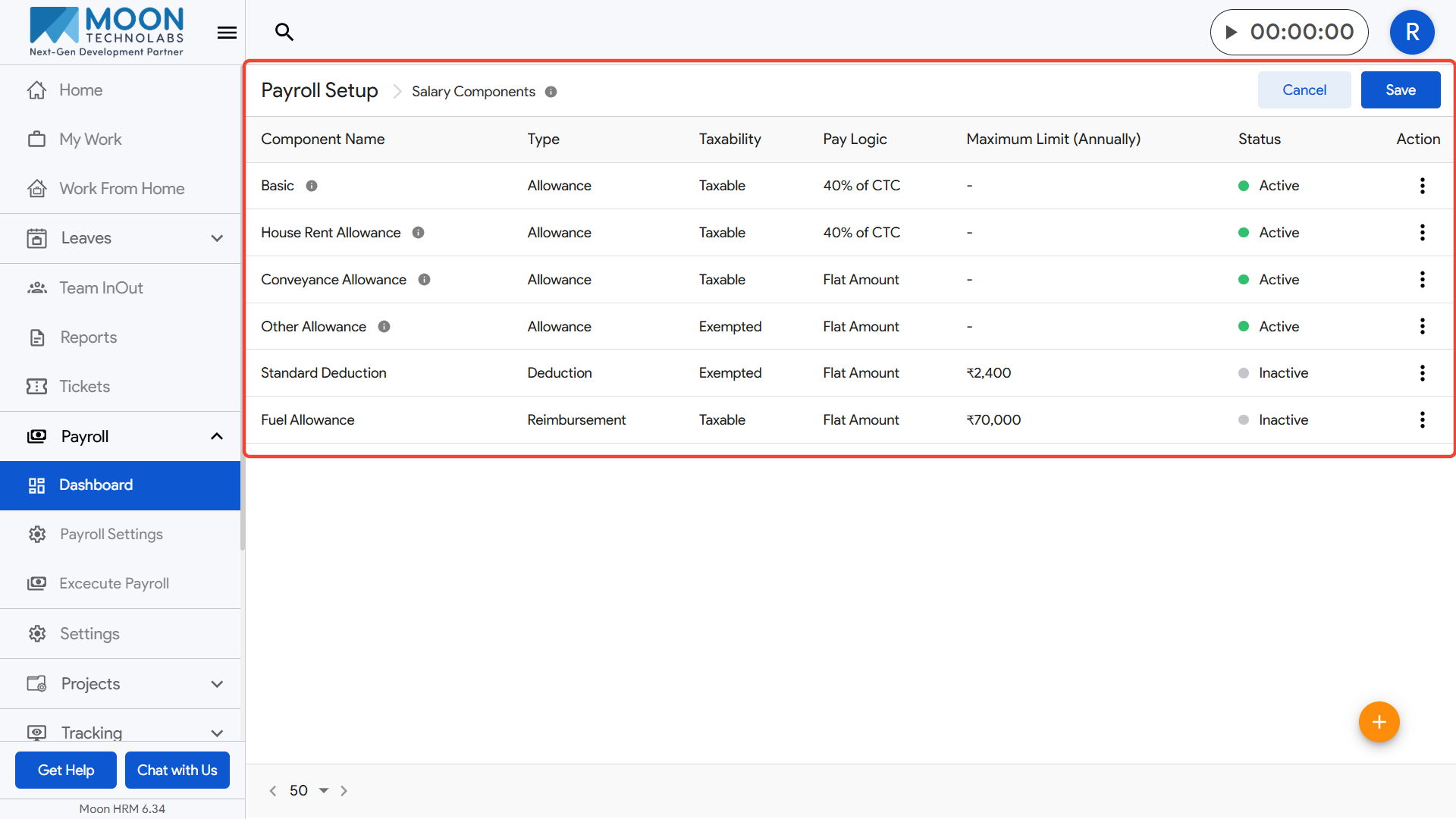
Each component displays key details including its type (Allowance, Deduction, etc.), taxability (Taxable or Exempted), pay logic (Flat Amount, Percentage of CTC, etc.), maximum annual limit if applicable, and its current status (Active/Inactive).
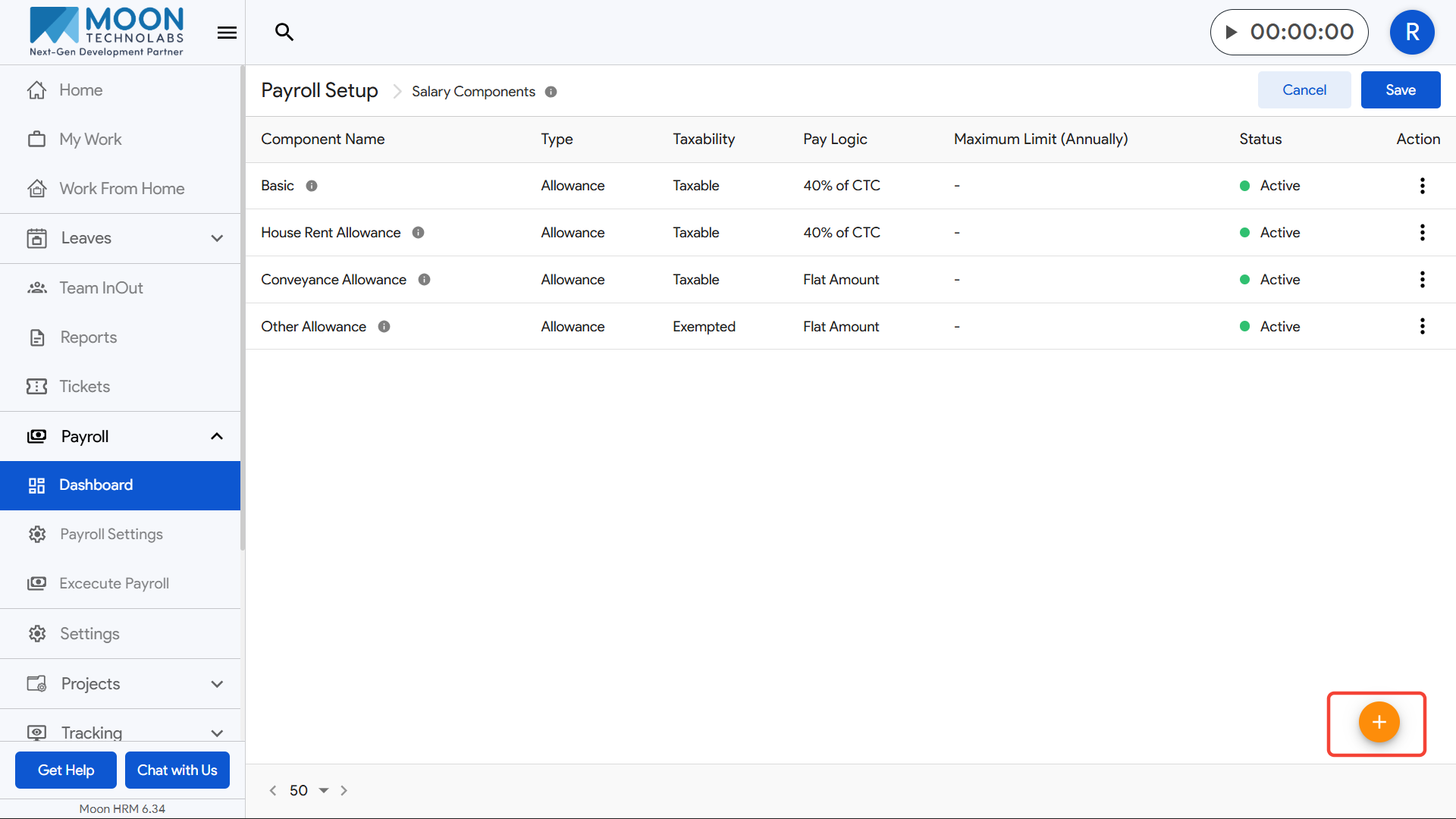
To add a new salary component, click on the plus (+) button at the bottom-right corner and fill in the required fields.
If you need to edit or update an existing component, click on the three-dot menu in the Action column and choose the appropriate option.
Make sure all components are configured accurately, as they directly affect payroll calculations.
Once your updates are complete, click Save to apply the changes to your salary structure.