

To configure probation rules for a leave type, open Payroll Settings, go to Leave Management.
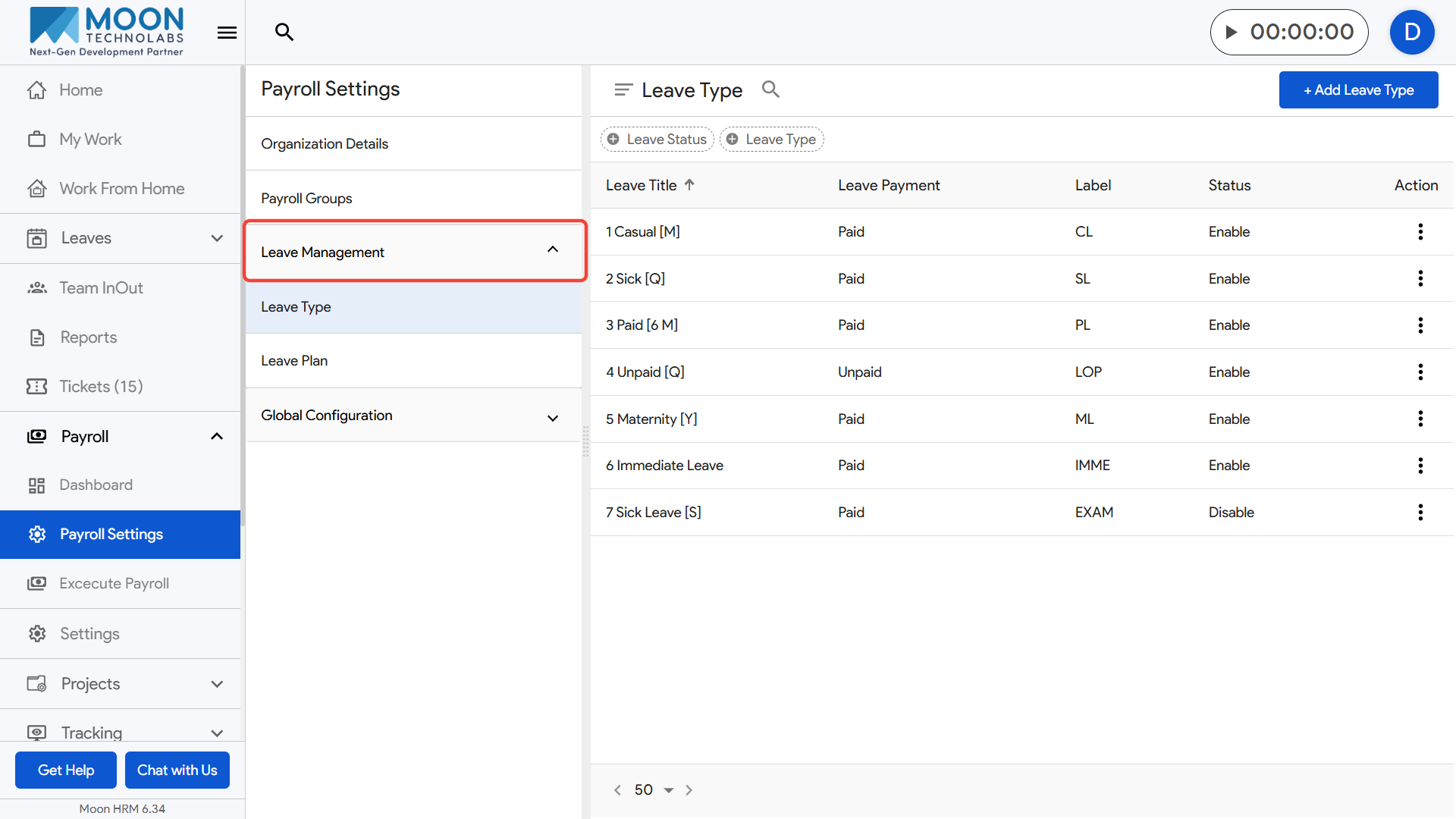
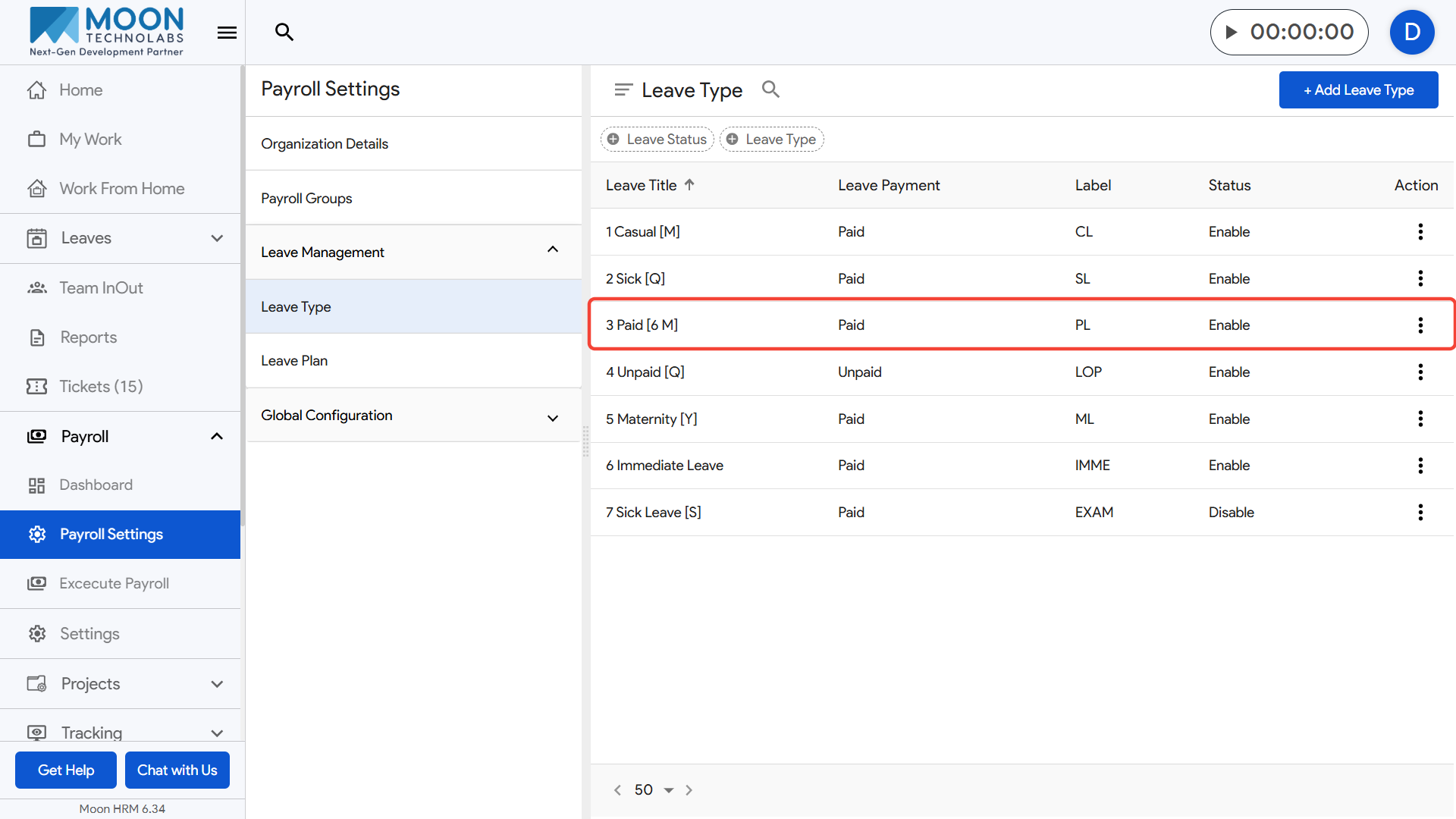
Select Leave Type, then choose the leave you want to update.
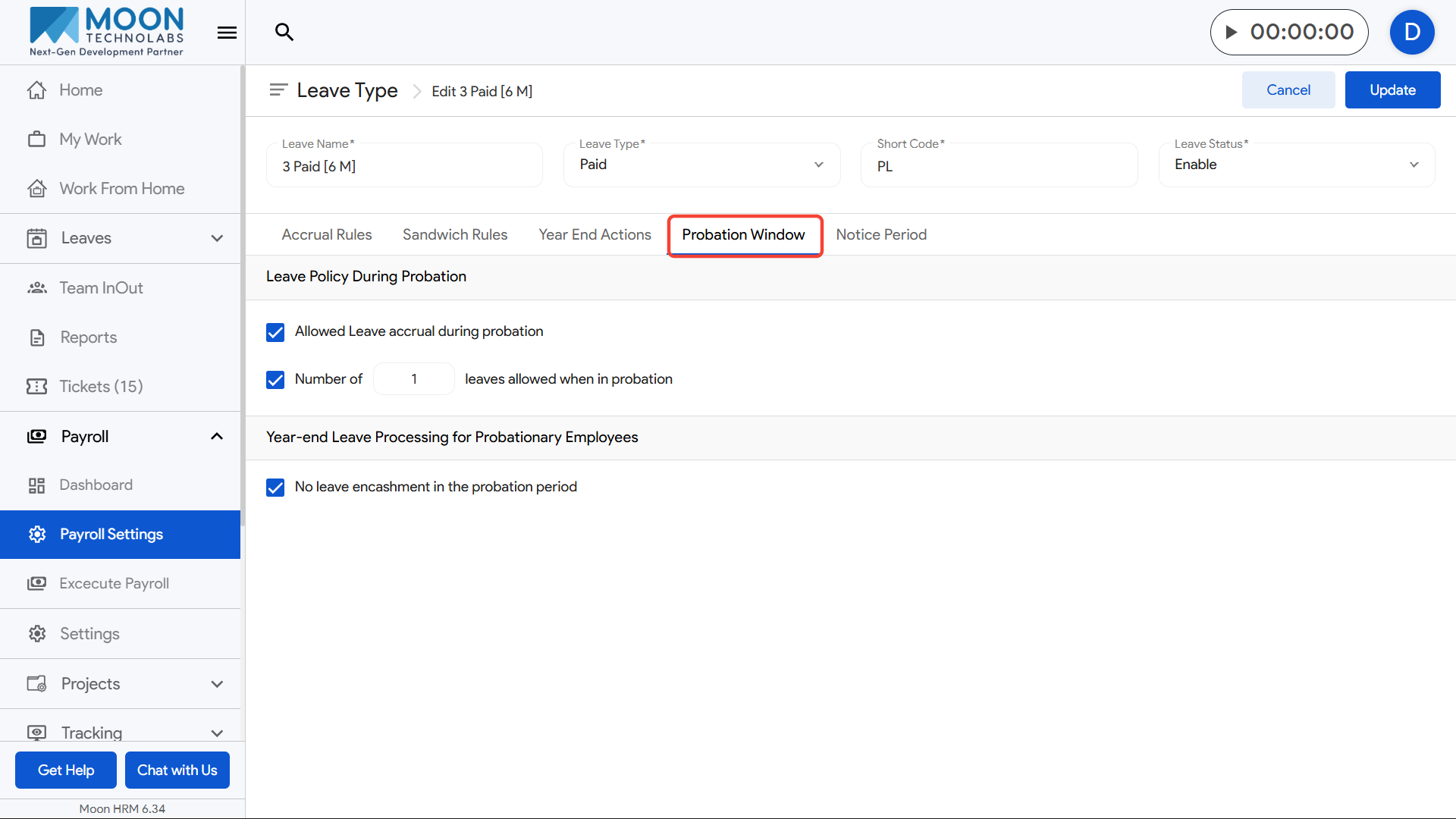
Click on the Probation Window tab where you can manage probation rule for a specific leave type.
Enable Allowed leave accrual during probation if employees should earn this leave while they are still in their probation period.
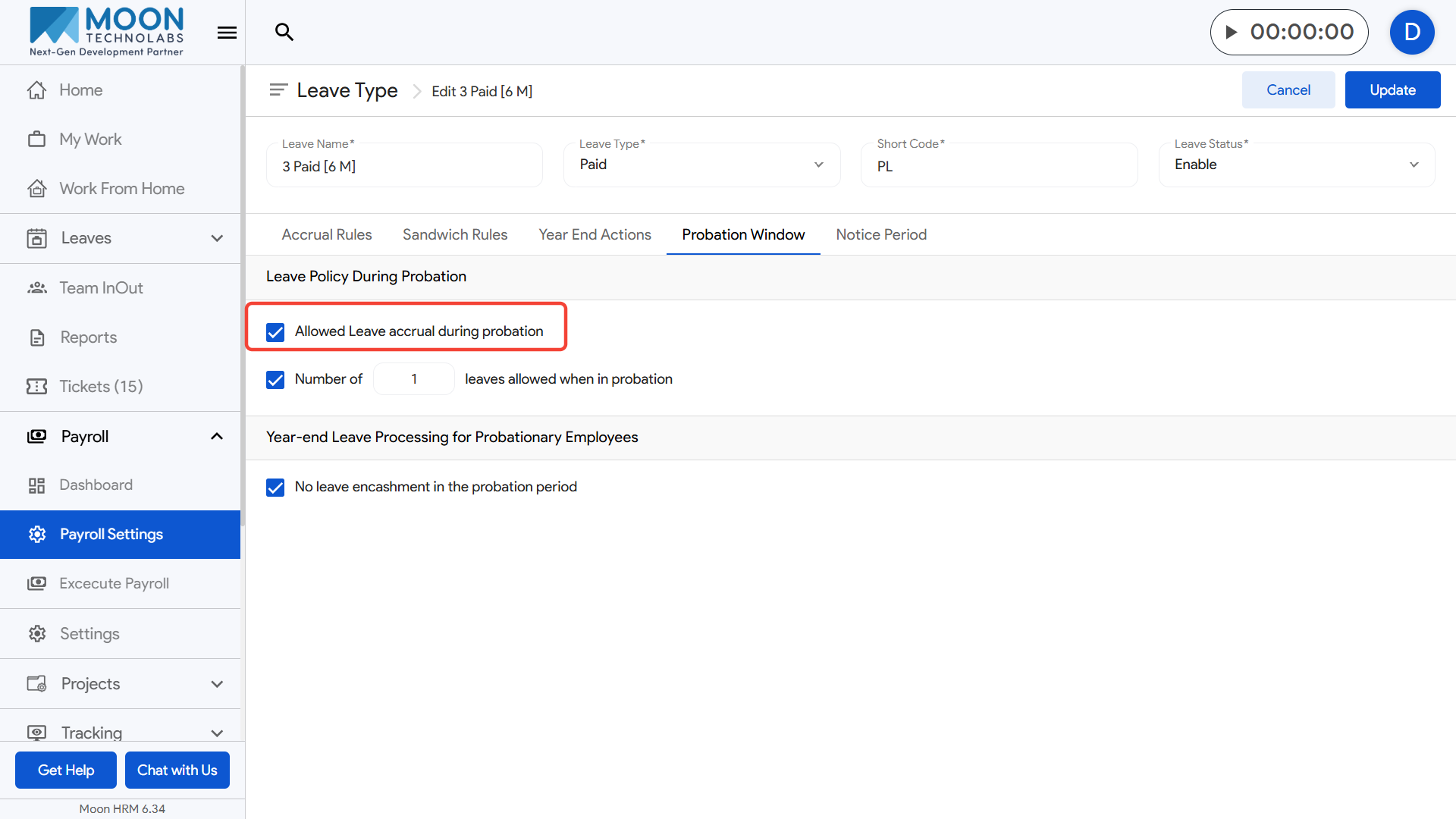
- Example: If accrual is monthly, a new employee in probation can still receive leave every month.
Set the Number of leaves allowed when in probation to limit how many days can be taken during the probation period.
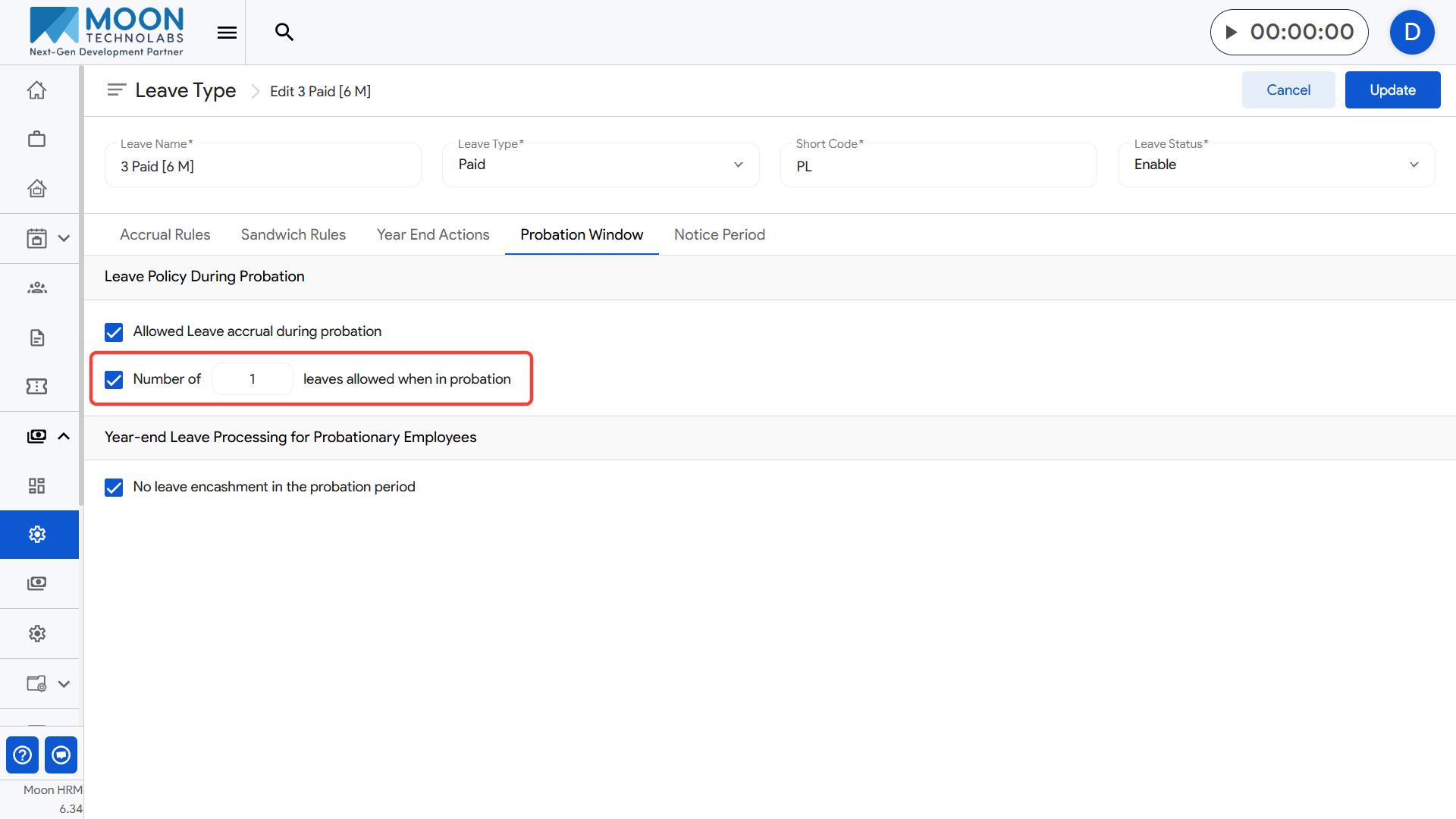
- Example: If set to 1, the employee can use only 1 day of this leave type while still in probation.
For year-end processing, enable No leave encashment in the probation period if probationary employees should not receive payout for unused leaves at year-end.
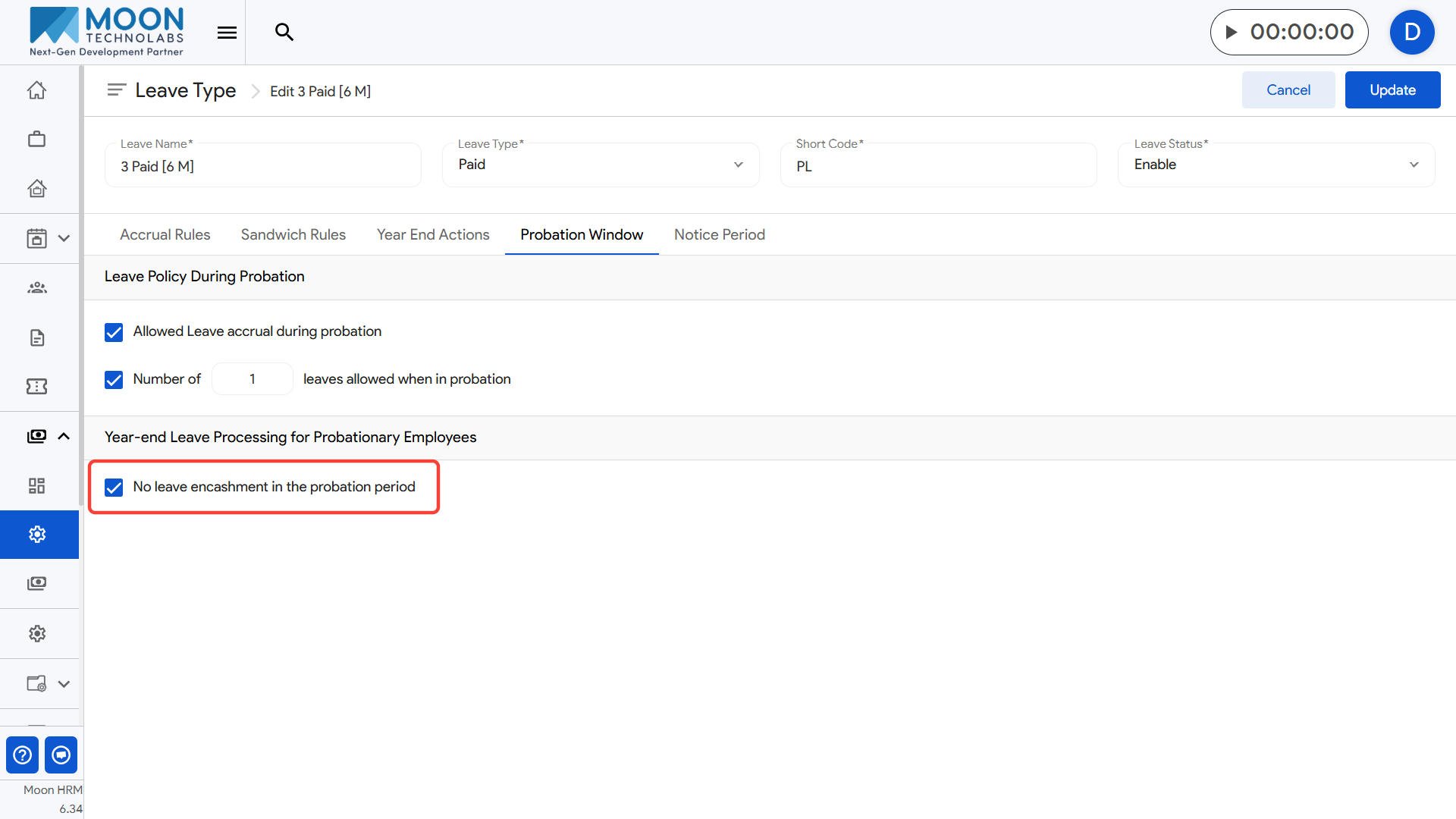
- Example: If an employee is still in probation on 31st December, their unused leave will not be eligible for encashment.
Click Update to save the probation rules for the selected leave type.