

To process Ad-hoc Compensation as part of payroll execution, click on Execute Payroll from the sidebar and select the payroll month you want to process.
How can I manage Ad-hoc Allowance during payroll execution?
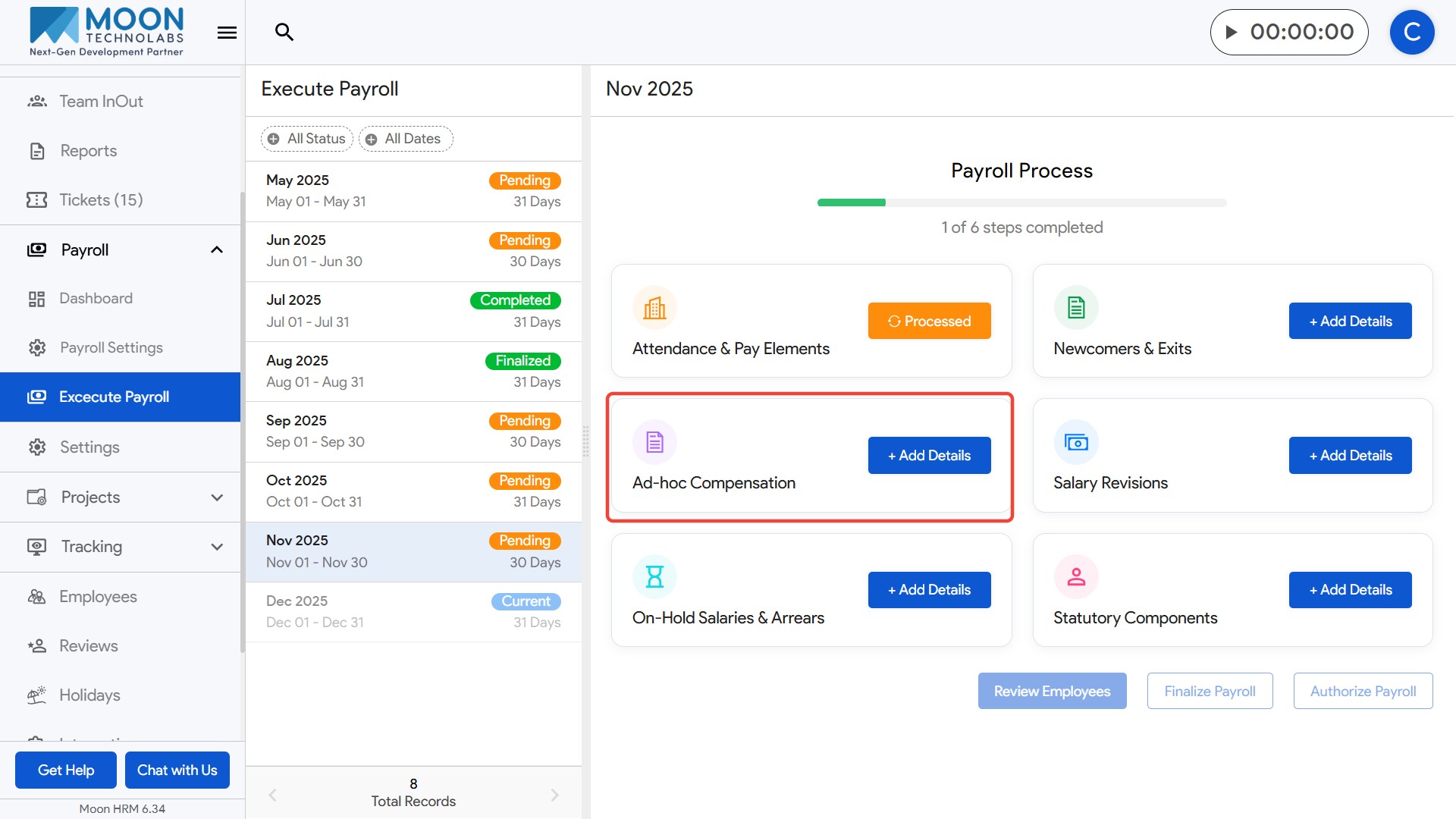
Open the Ad-hoc Compensation step, which appears after completing Newcomers and Exits.
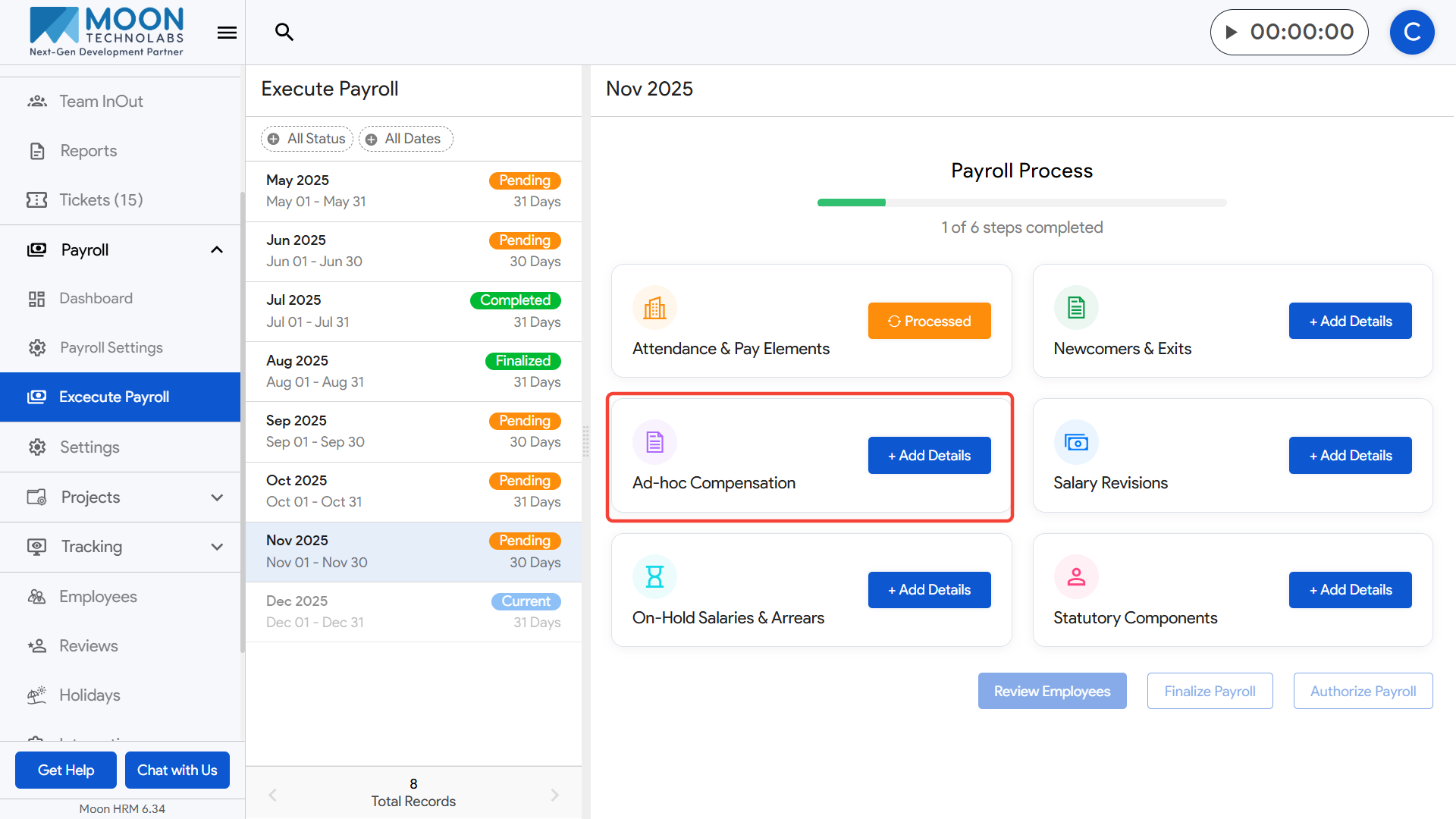
In this section, add any one-time payments such as allowances, bonuses, or special adjustments that should be included in the current month’s payroll.
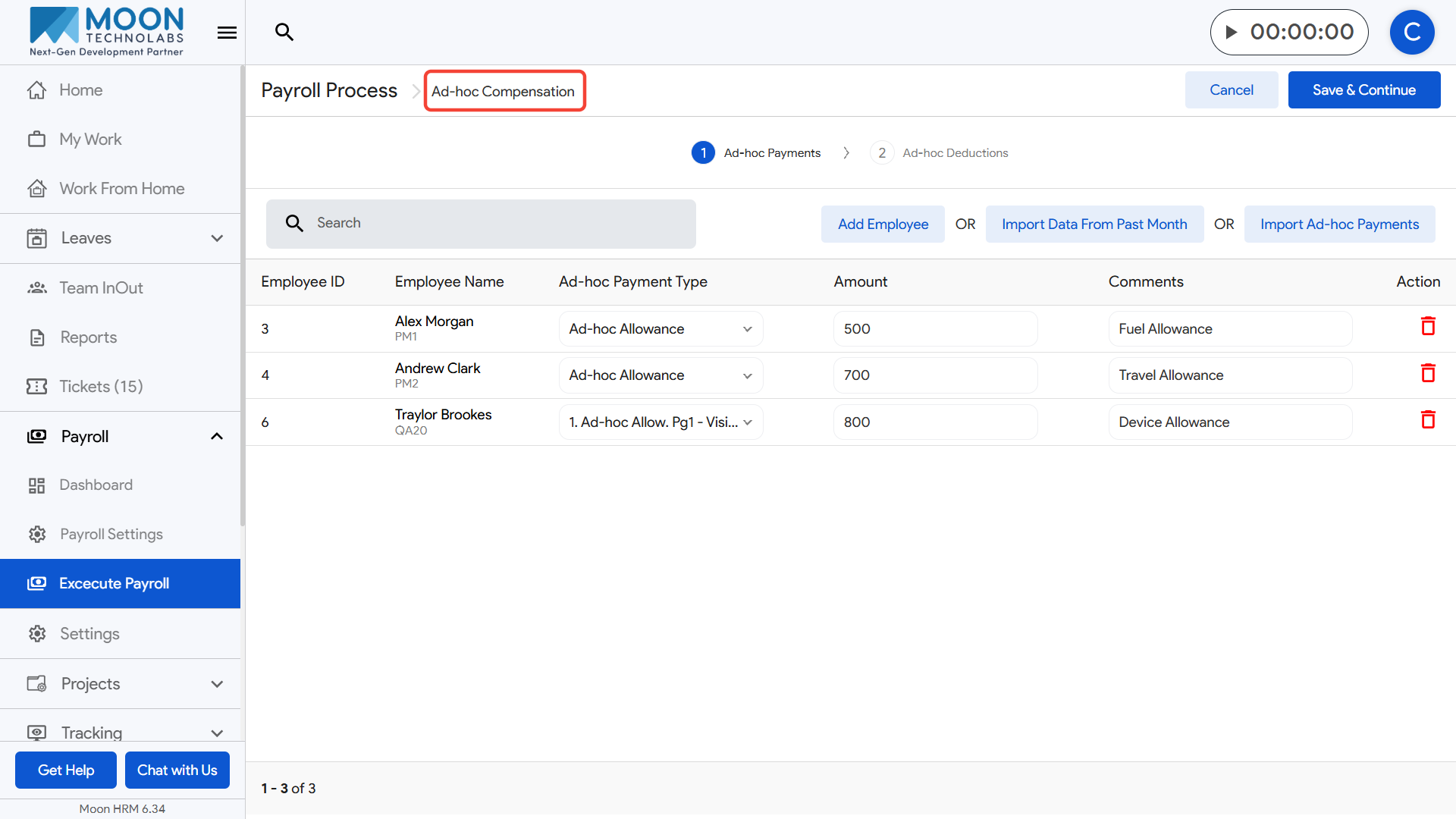
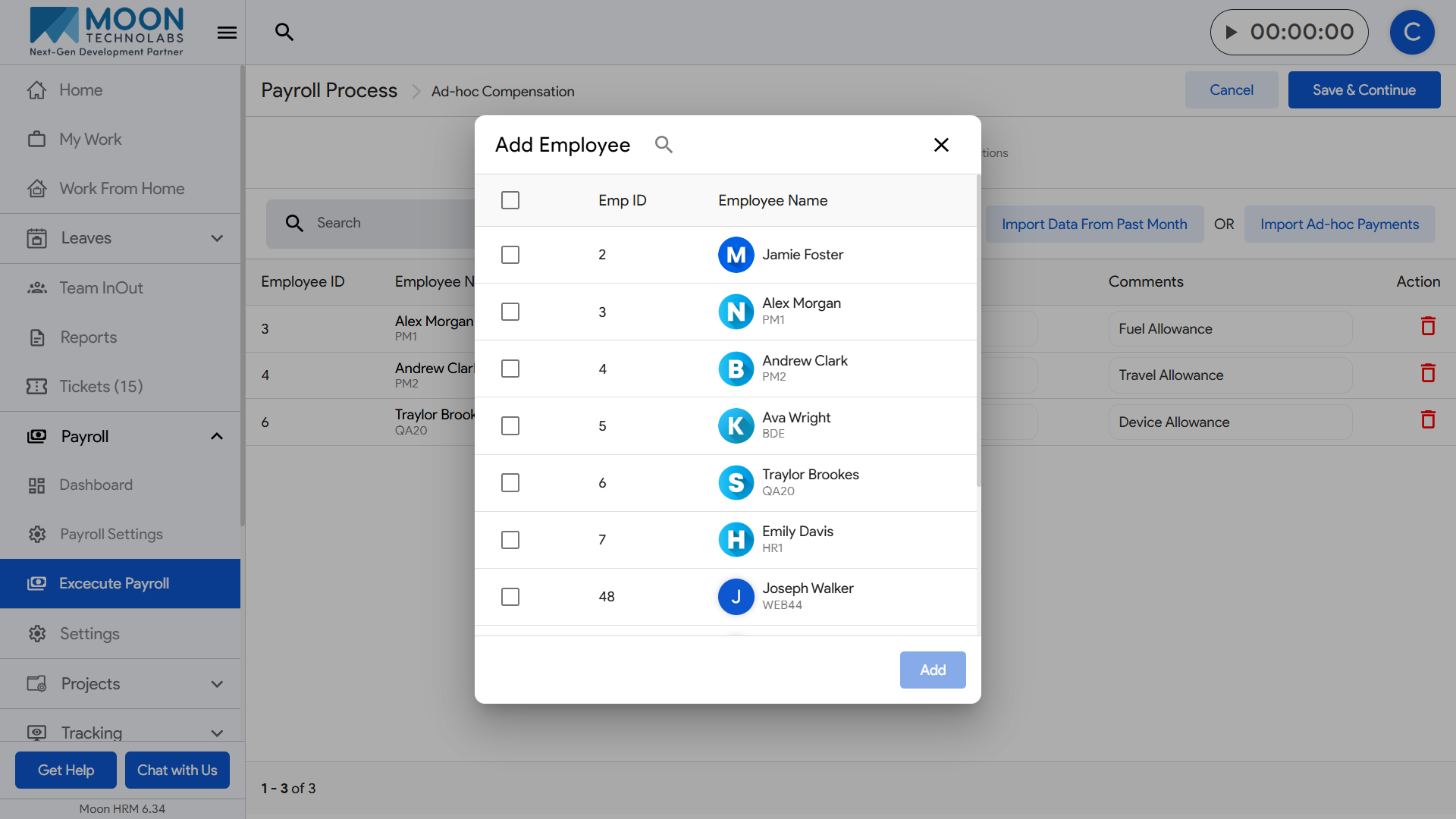
Click Add Employee to include an employee who needs an ad-hoc payment.
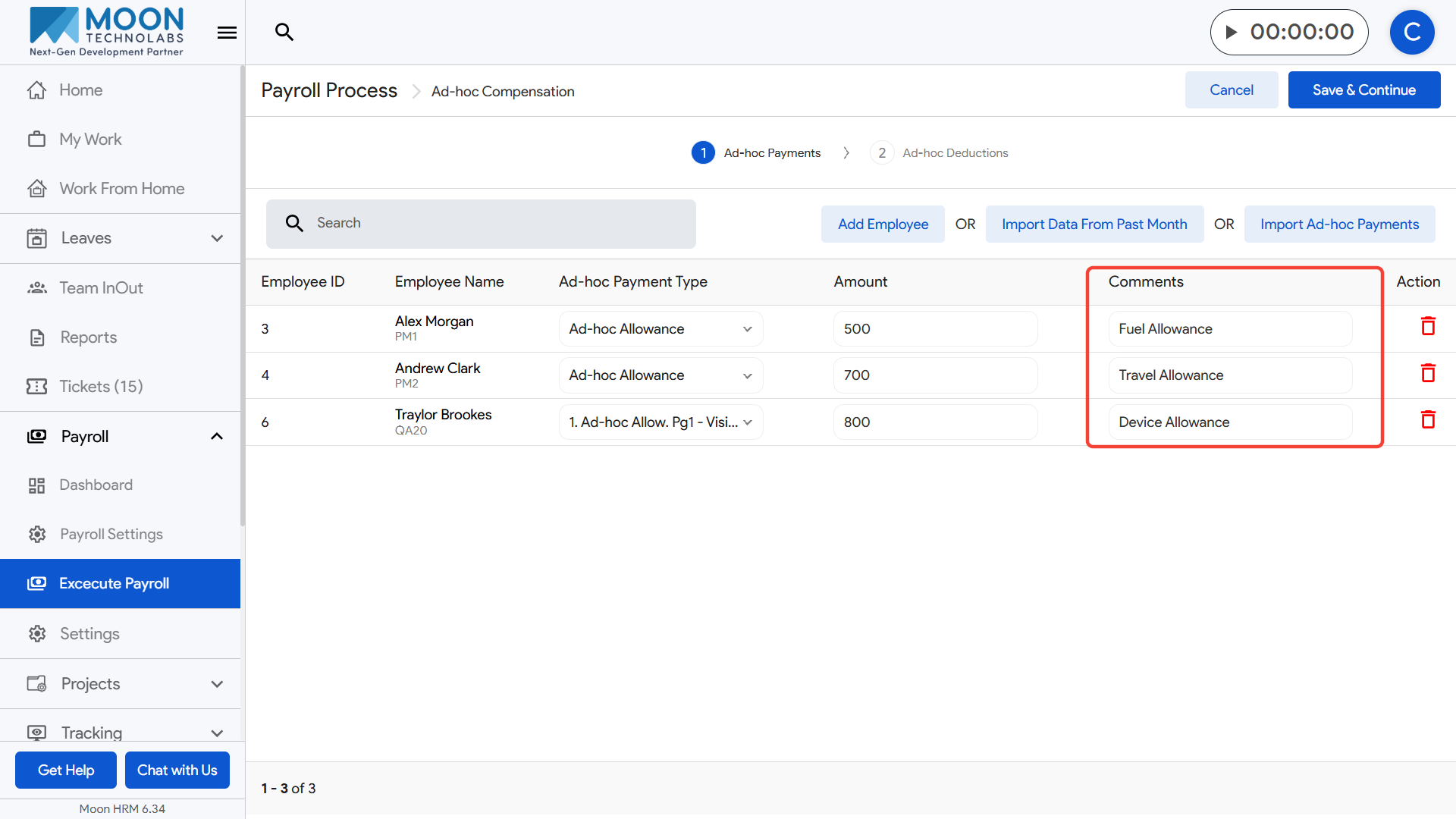
Choose the correct Ad-hoc Payment Type from the dropdown and enter the payment amount.
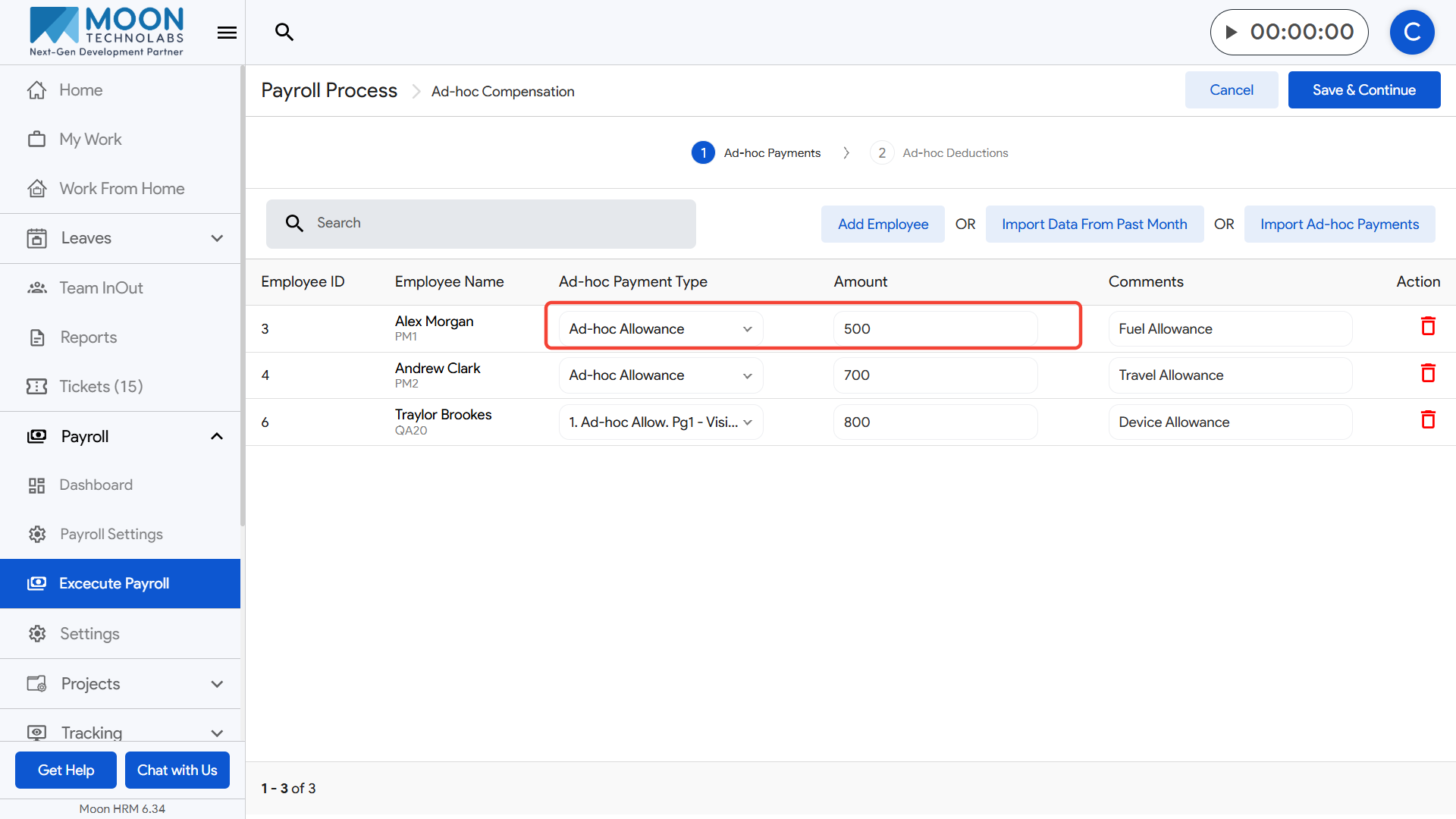
Add a comment to clearly mention the purpose of the payment, like fuel allowance, travel allowance, or device allowance.
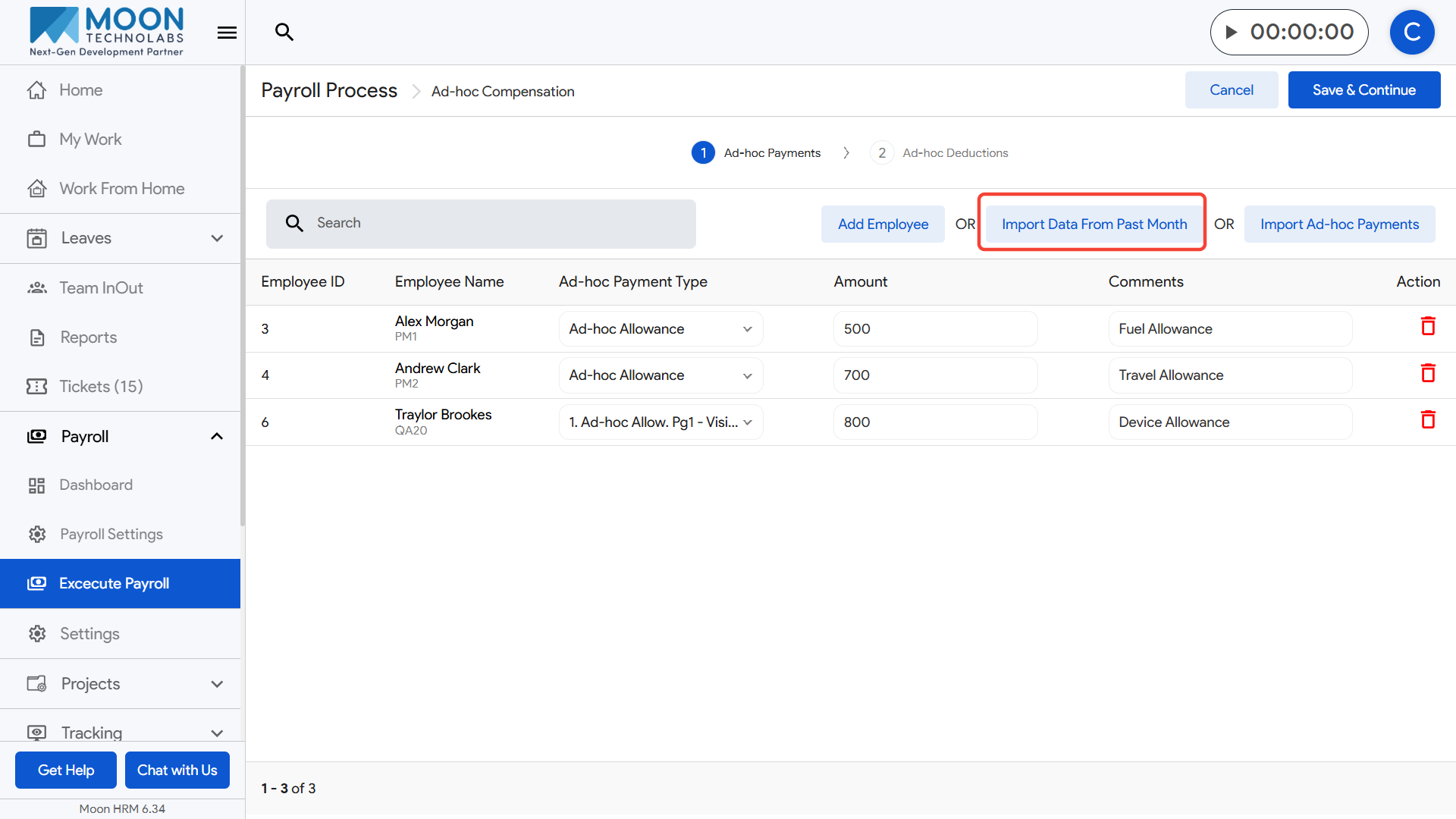
If you want to reuse previous entries, click Import Data From Past Month or use Import Ad-hoc Payments to bring in existing records.
Review all entries and remove any incorrect records using the delete icon.
Once everything is accurate, click Save & Continue to proceed to the next step of payroll execution.
How can I manage Ad-hoc Deduction during payroll execution?
To process Ad-hoc Deductions as part of payroll execution, click on Execute Payroll from the sidebar and select the payroll month you are working on.
After completing the Ad-hoc Payments step, switch to the Ad-hoc Deductions tab to continue the workflow.
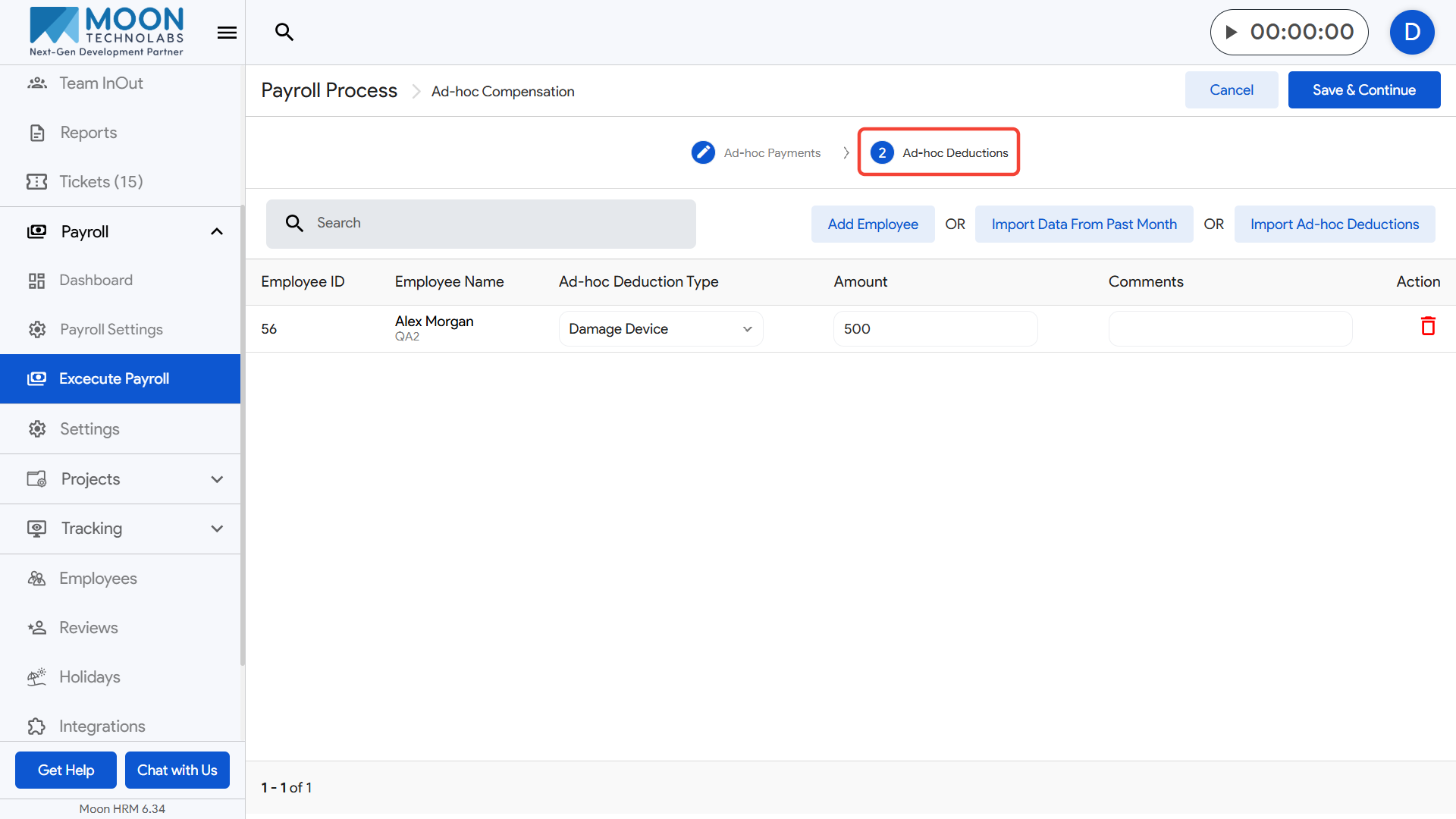
Here, you can add any one-time deductions that need to be applied for the current month, such as penalties, damaged assets, salary adjustments, or recovery amounts.
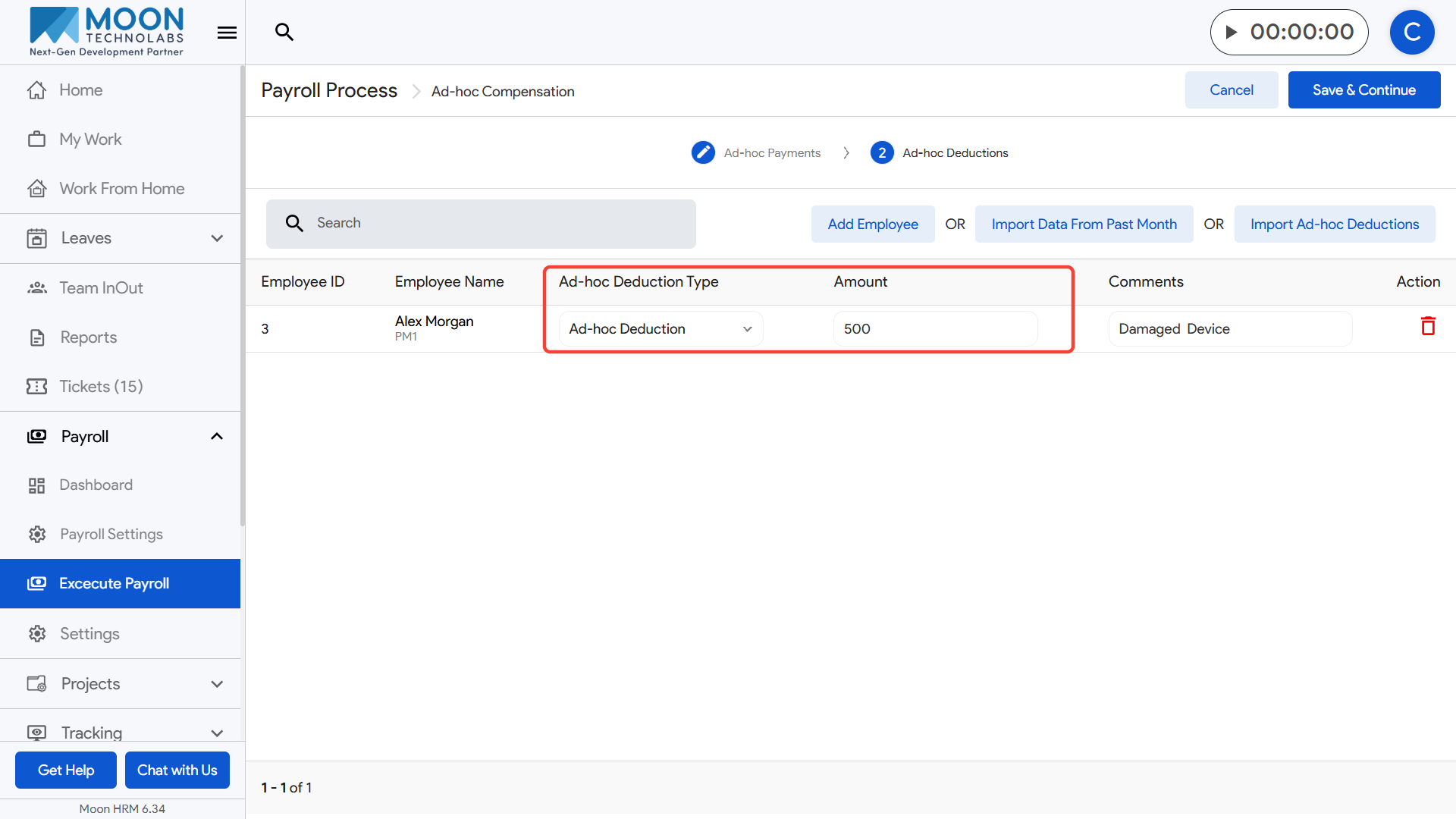
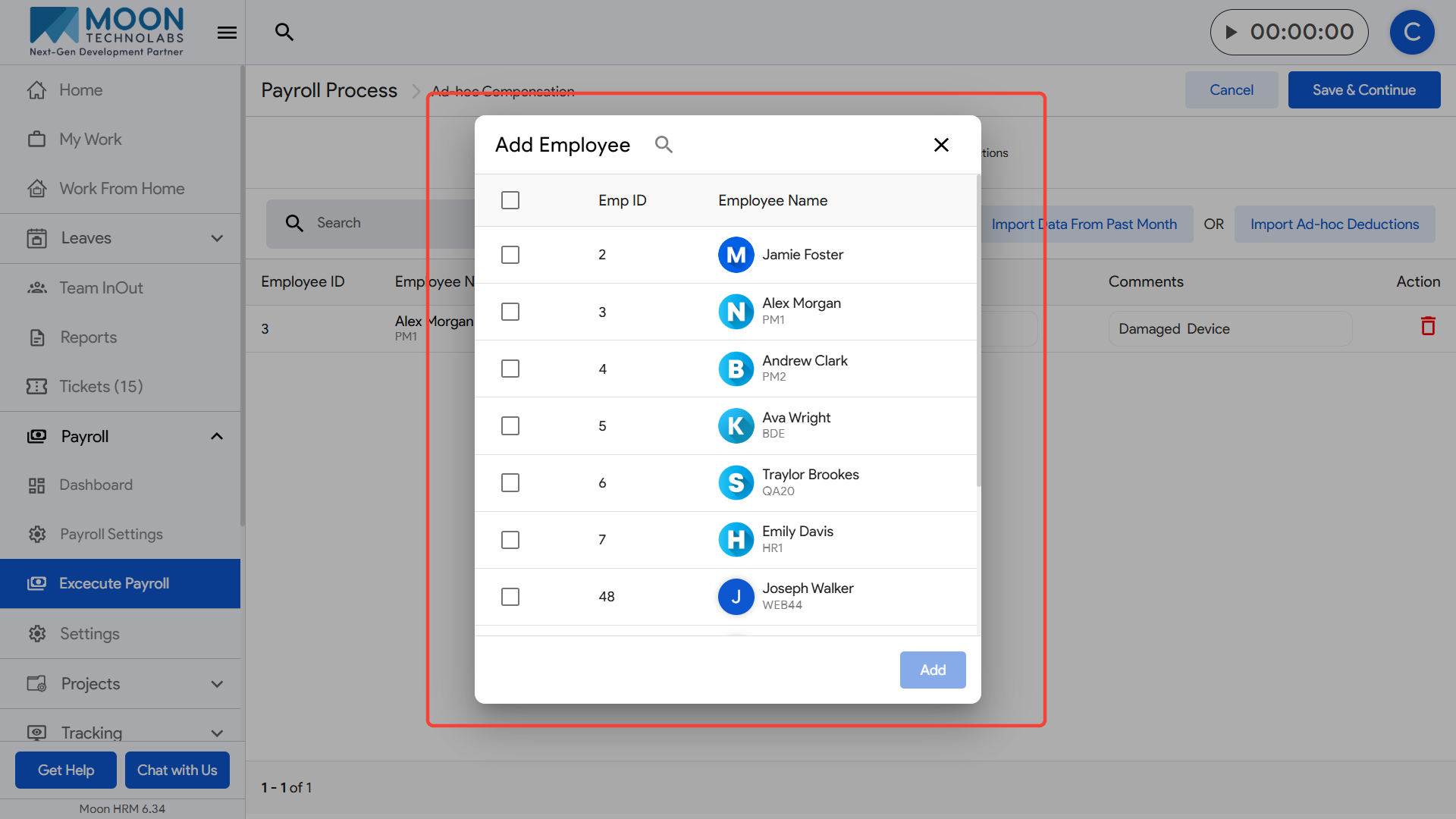
Click Add Employee to include an employee for whom a deduction must be applied.
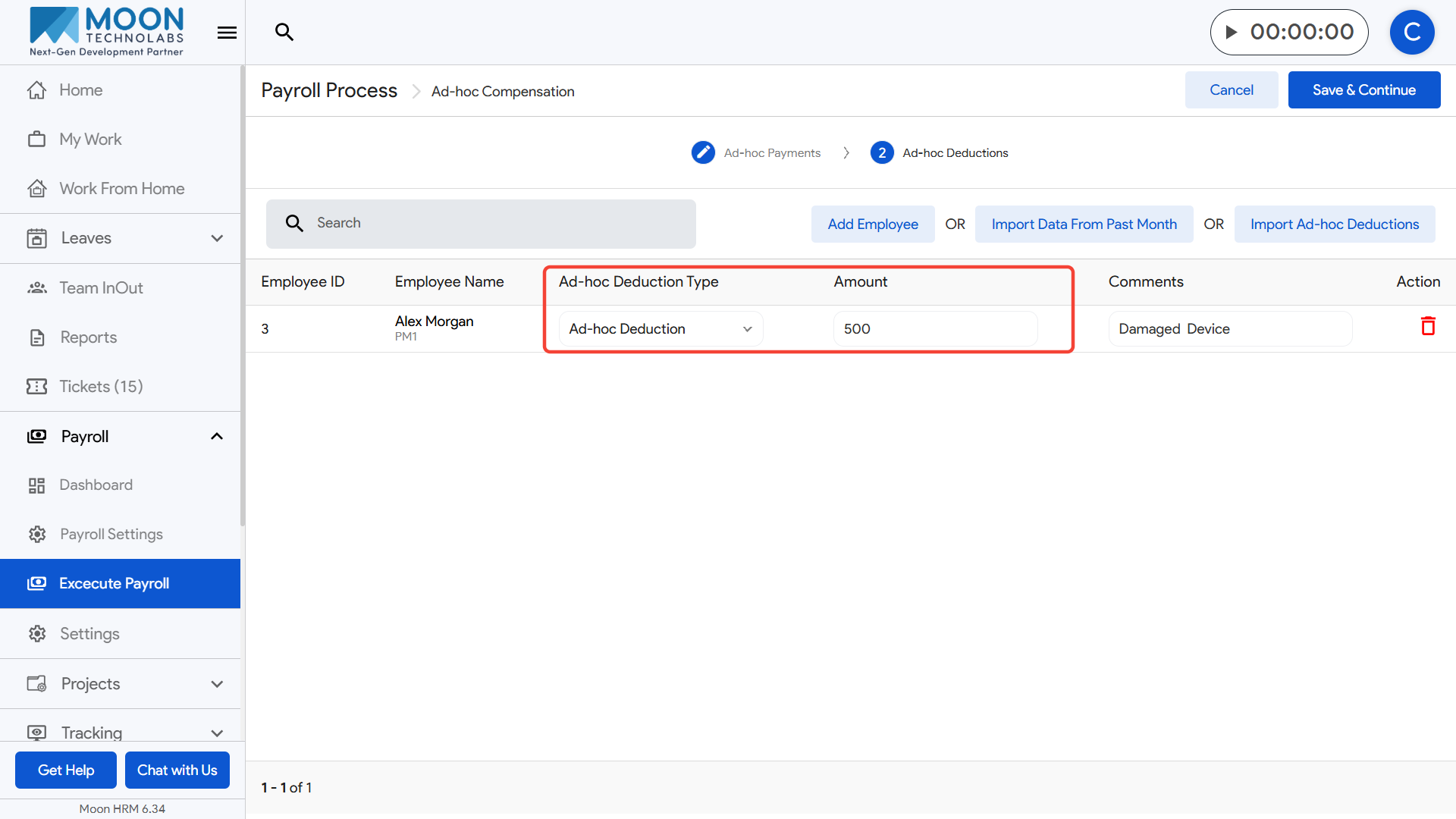
Select the appropriate Ad-hoc Deduction Type from the dropdown and enter the deduction amount.
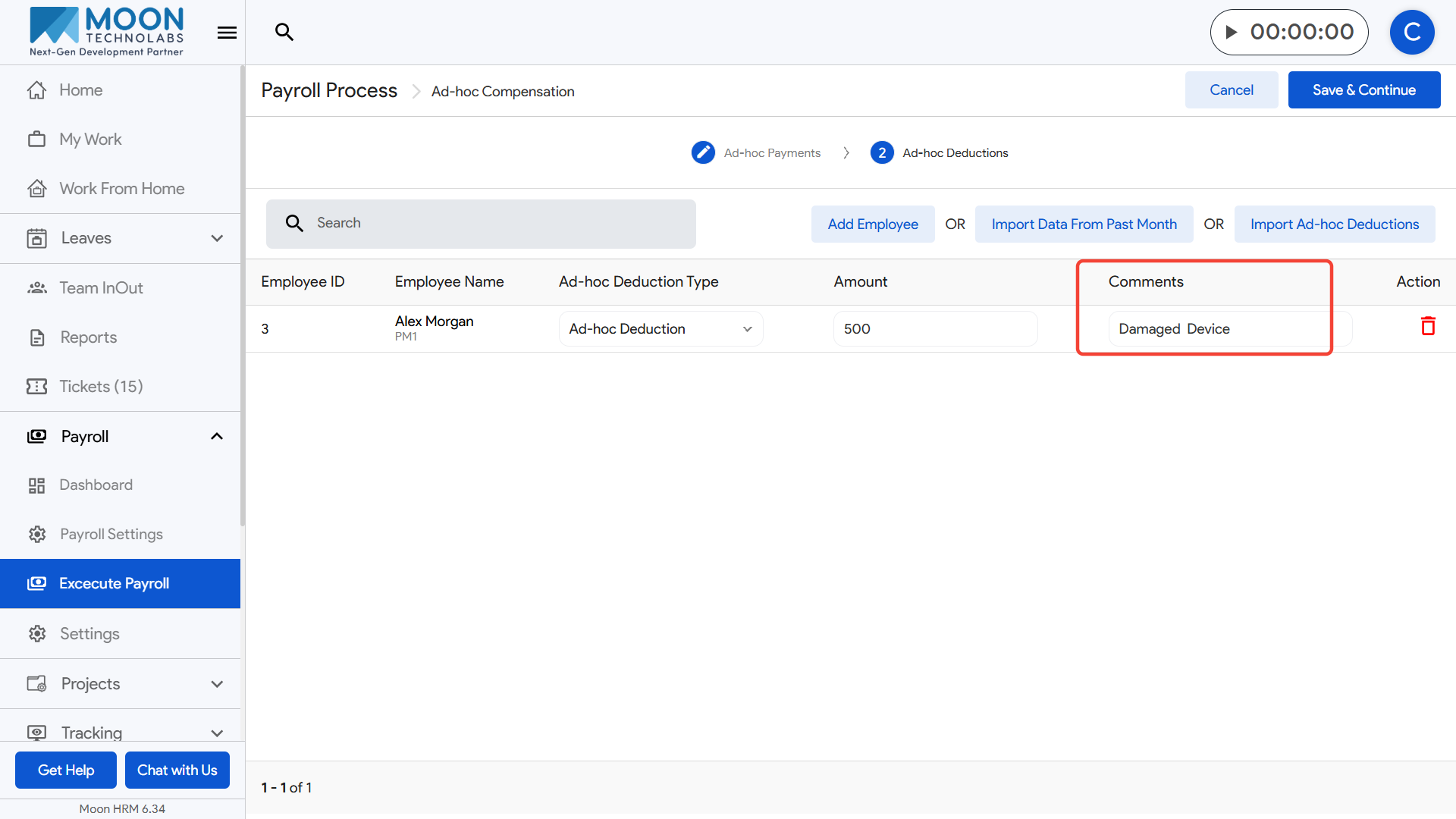
Add a comment to clearly explain the reason for the deduction, such as damaged device, advance recovery, or any other justification.
If you want to reuse last month’s deductions, click Import Data From Past Month, or use Import Ad-hoc Deductions to bring in previously configured items.
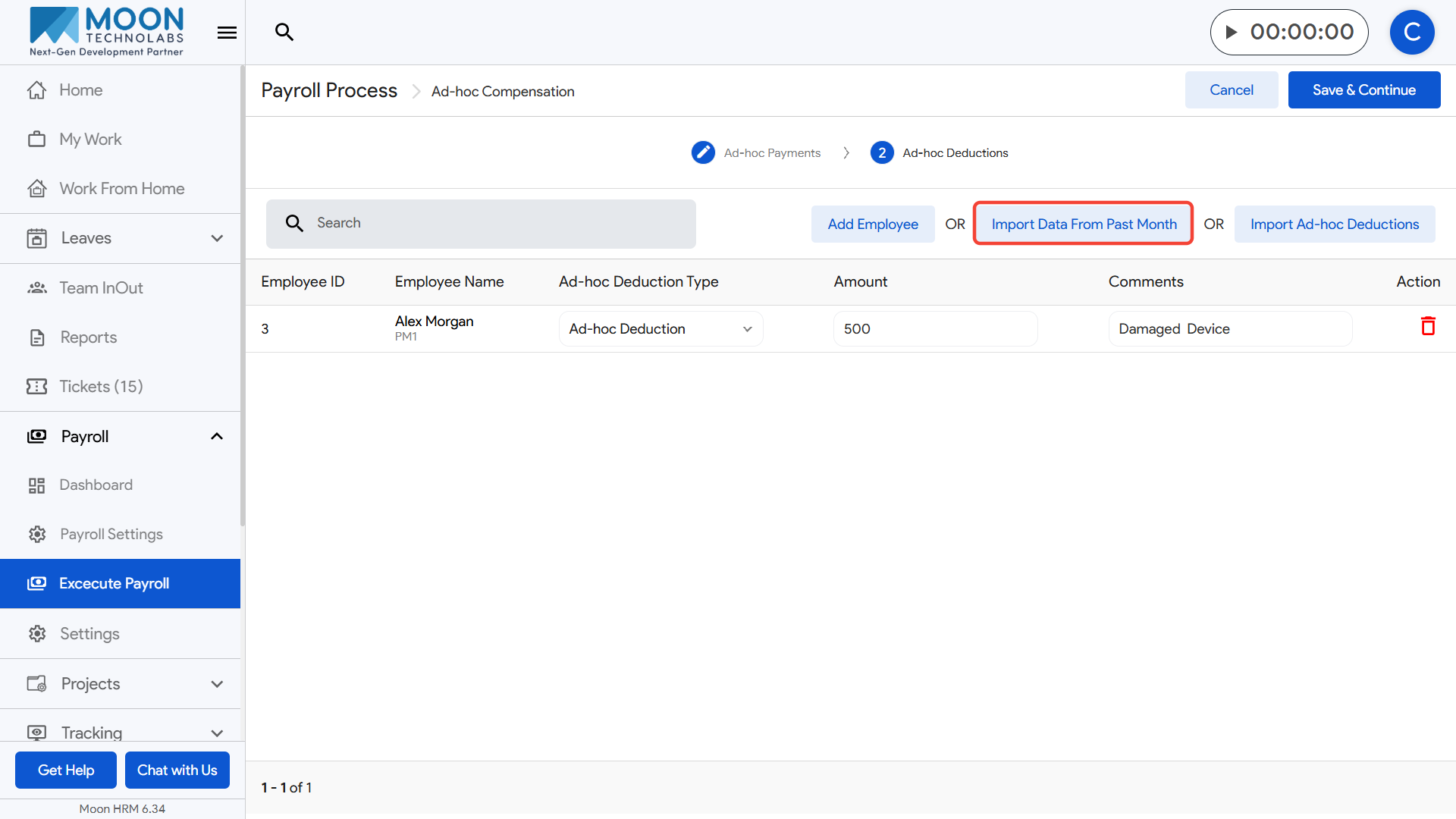
Review all deduction entries for accuracy and delete any incorrect records using the delete icon in the Action column.
Once all entries are properly added and reviewed, click Save & Continue to move ahead in the payroll execution process.