
You can add additional time for WFH employees in Moon HRM easily by following the steps below.
- Open the Moon HRM application on your device or tap on this link.
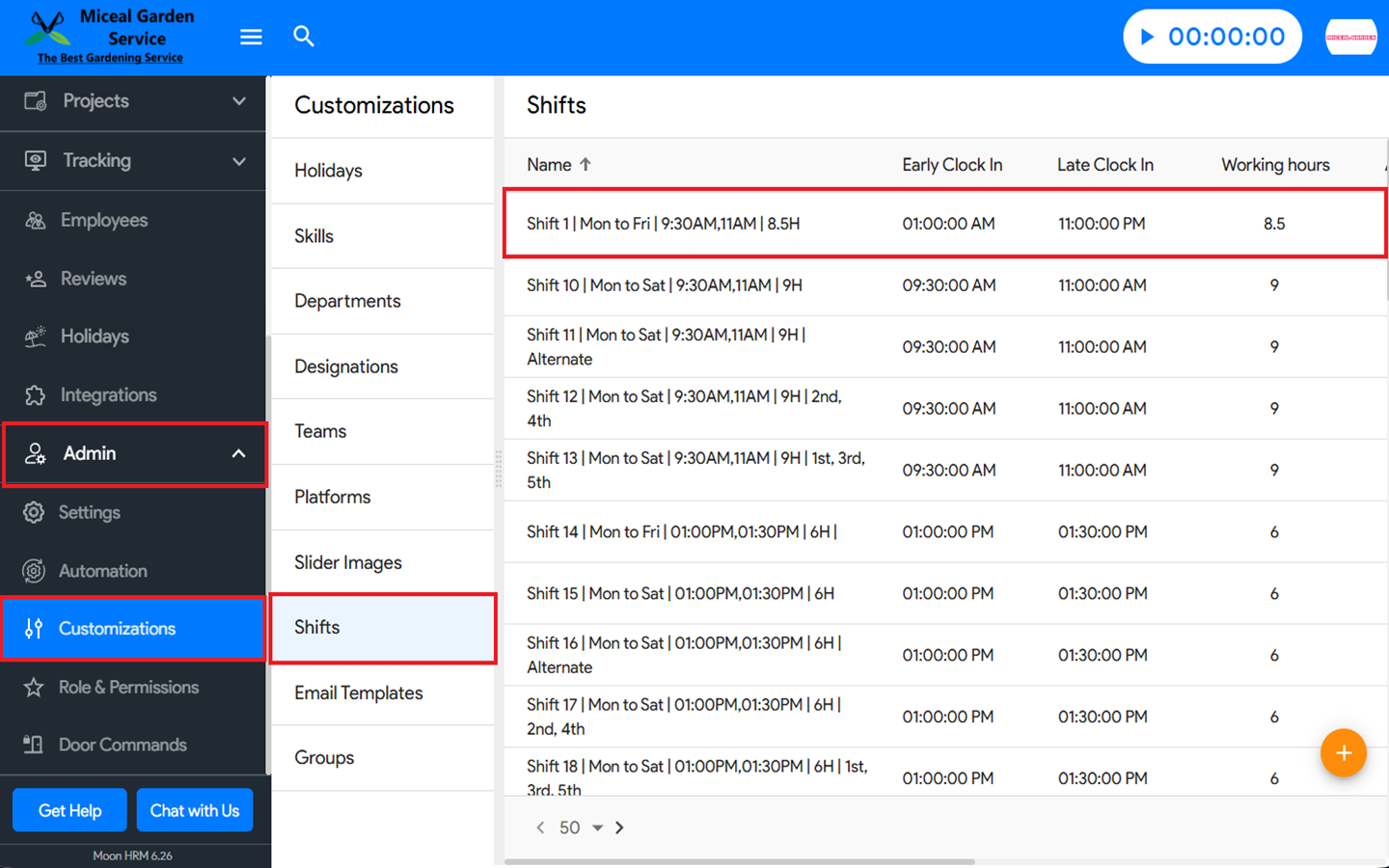
- From the main menu, navigate to Admin ➜ Customizations ➜ Shifts.
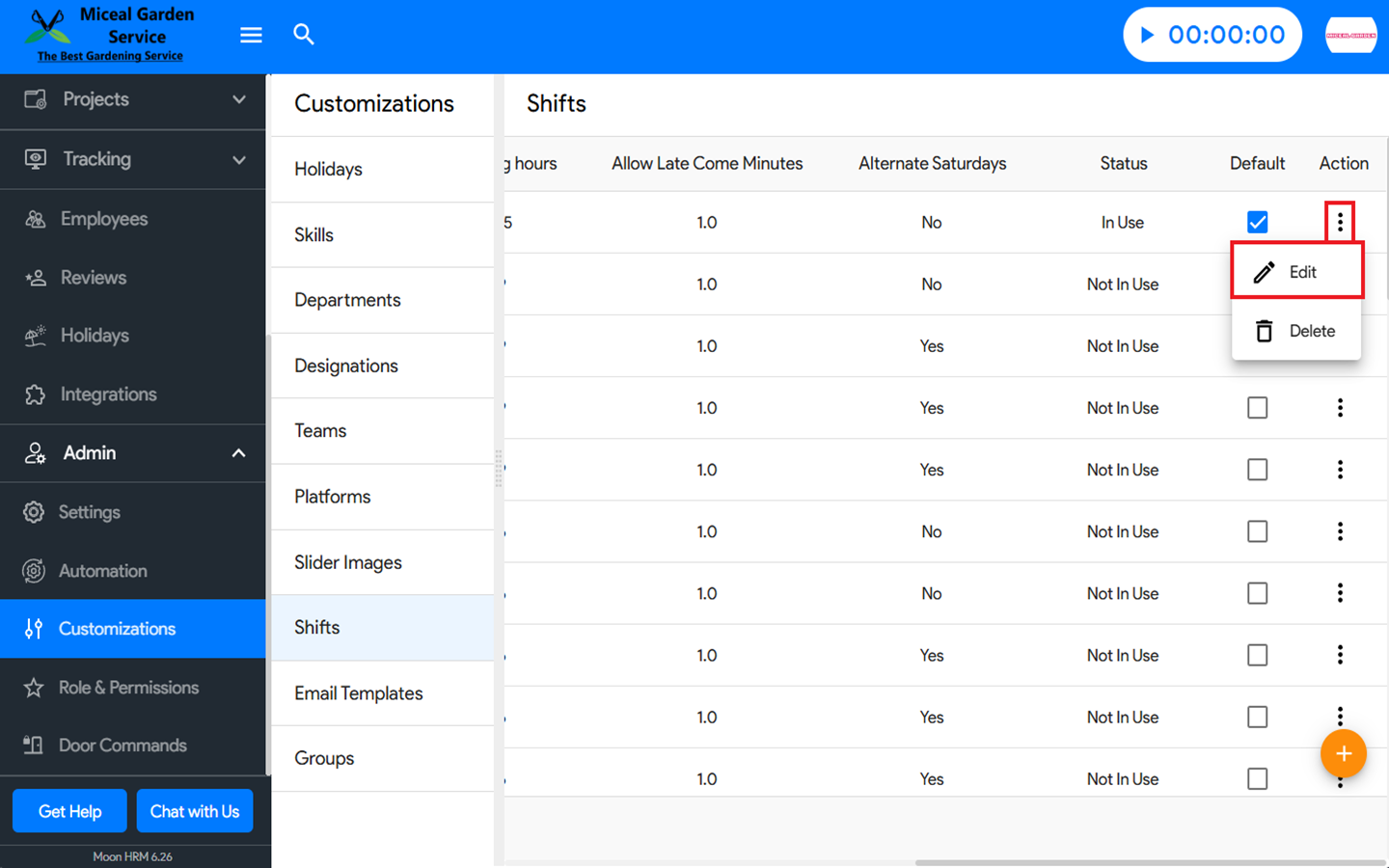
- Select any shift by clicking the three-dot icon (⋮) on the right-hand side, then choose Edit.
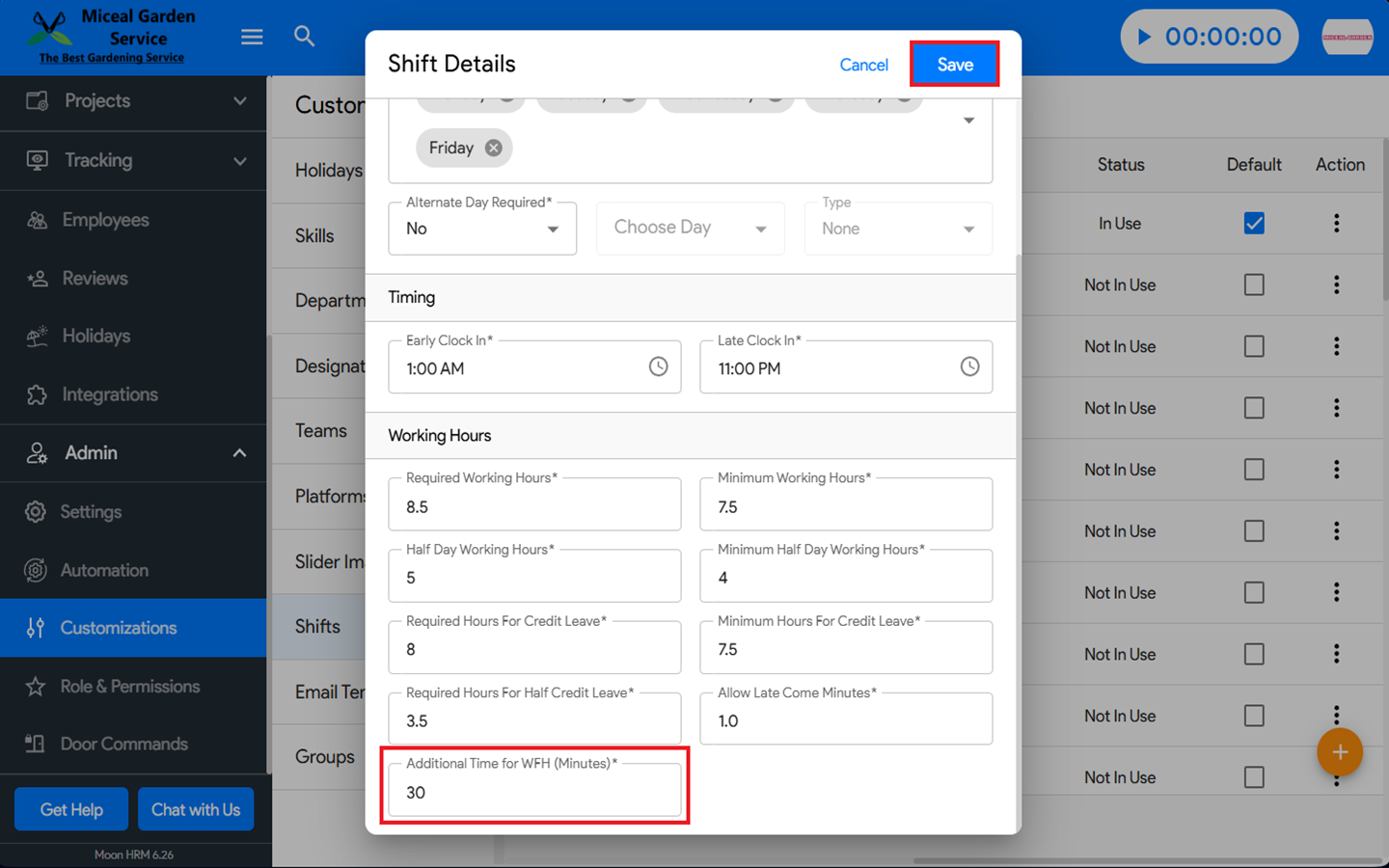
- Scroll down to the Additional Time for WFH (Minutes) section and enter a value between 1 and 59 minutes.
- Finally, click Save to apply the changes.

Note:- If an employee applies for either a full-day or half-day WFH, the additional WFH time will be added and reflected under Home > Required Hours.
- The additional WFH time will only be displayed on the day the employee is on WFH. For example, if the employee is on WFH on 10/10/2025 and checks on 09/10/2025, it will not be displayed.
- If the employee’s WFH request is approved and the In/Out entries are added through the In/Out register by the Admin, then 8.5 hours will be reflected in the Required Hours.
- If an employee’s WFH request is approved but the user WFO, the additional WFH time will still be added and shown in Required Hours. Once added, this time will not be removed.
- If an employee’s WFH request is approved but the employee WFO or cancels/deletes the approved WFH request, the additional WFH time will still be added and shown in Required Hours. Once added, this time will not be removed.
- If the employee does not complete the required hours as per the WFH additional time, the details will be updated in the Last Week Working Hours & Leave Report. The updated data will also be reflected in the Weekly Leave Report.