You can easily see the WFH activity in Moon HRM by following the steps below.
- Open the Moon HRM application on your device or tap on this link.
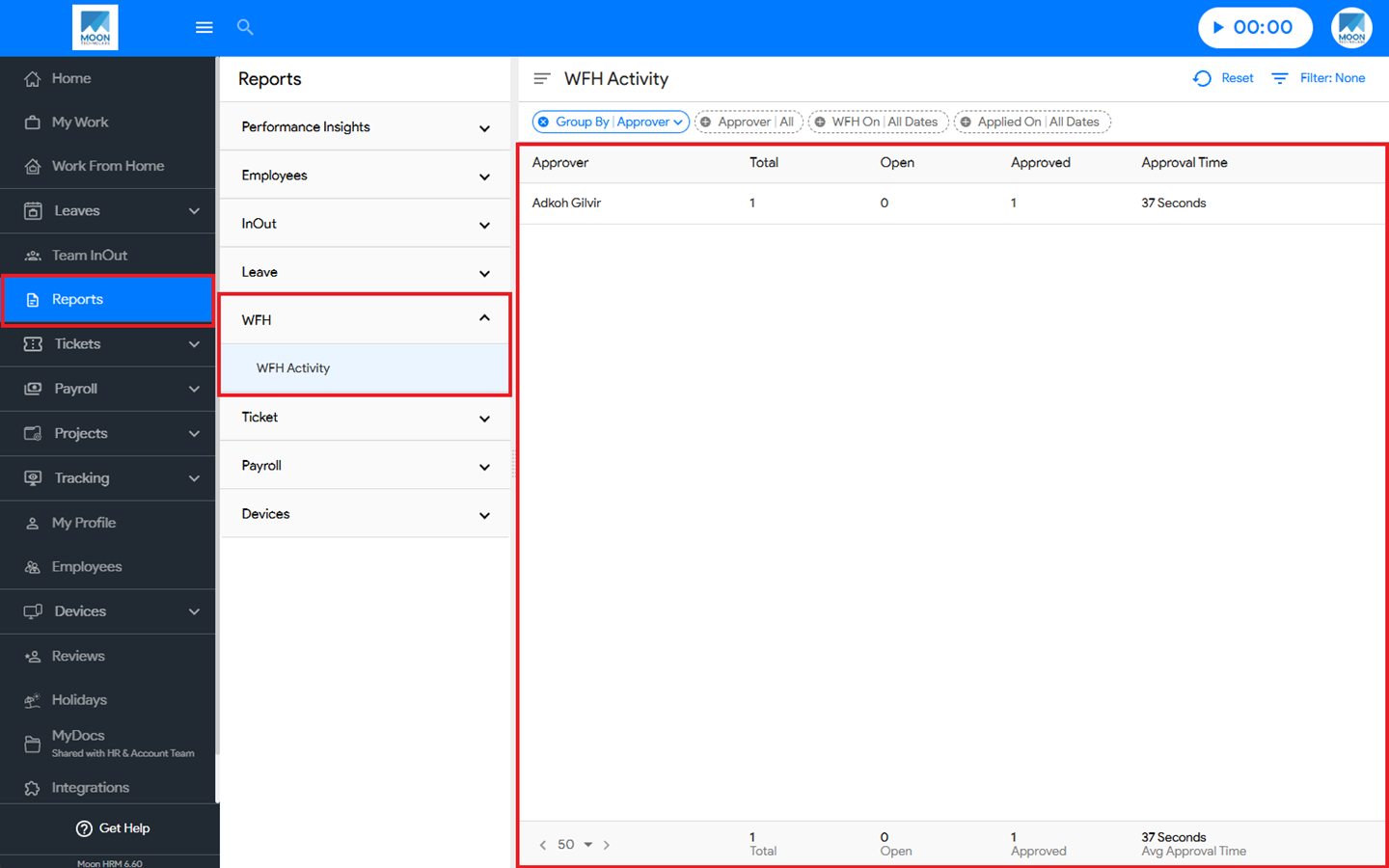
- At the Employee Level, navigate to Reports ➜ WFH from the main menu.
- Under WFH Activity, you’ll see all the details regarding the report.
Notes:
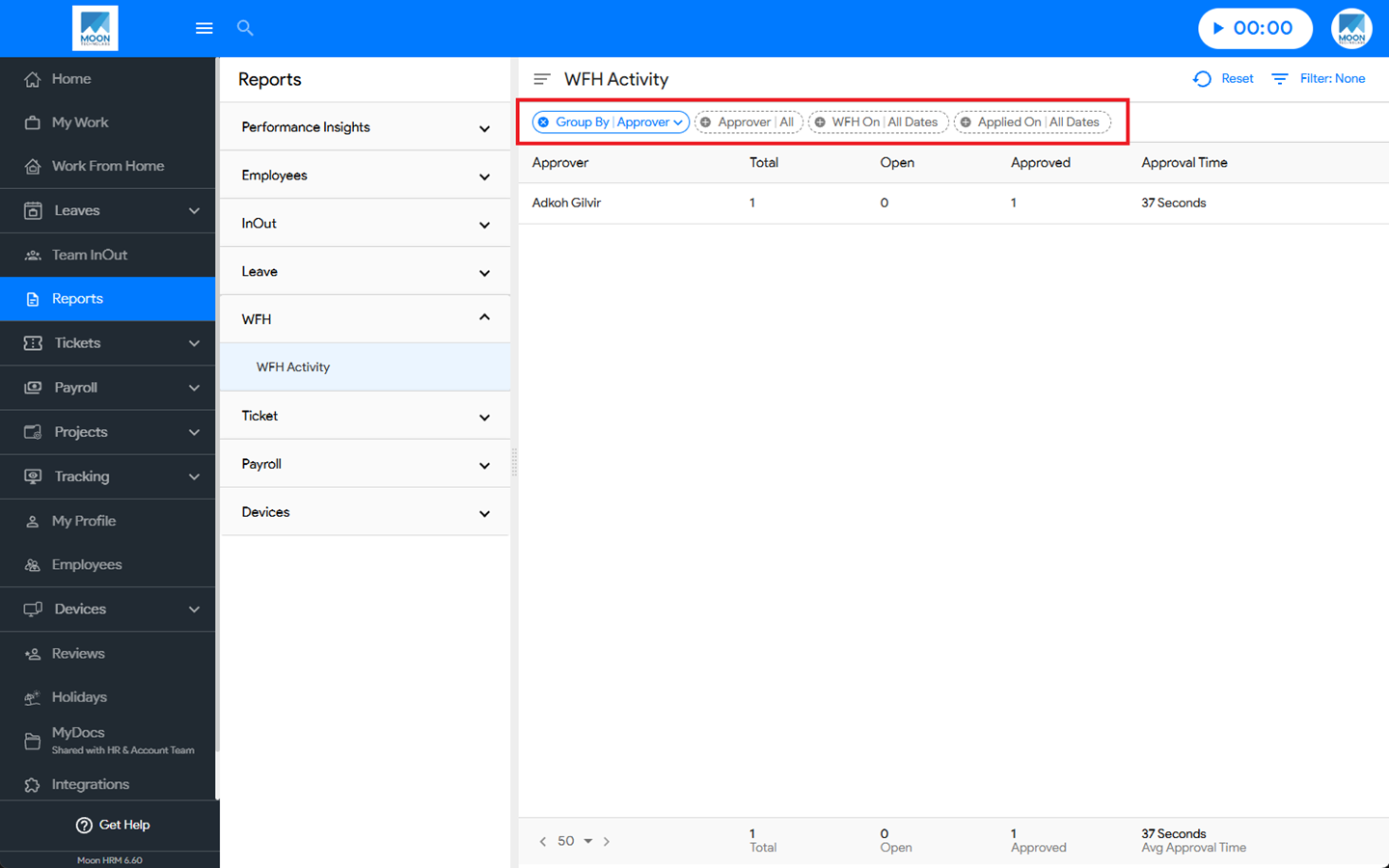
You can use the filter option to search for specific details in the WFH activity.
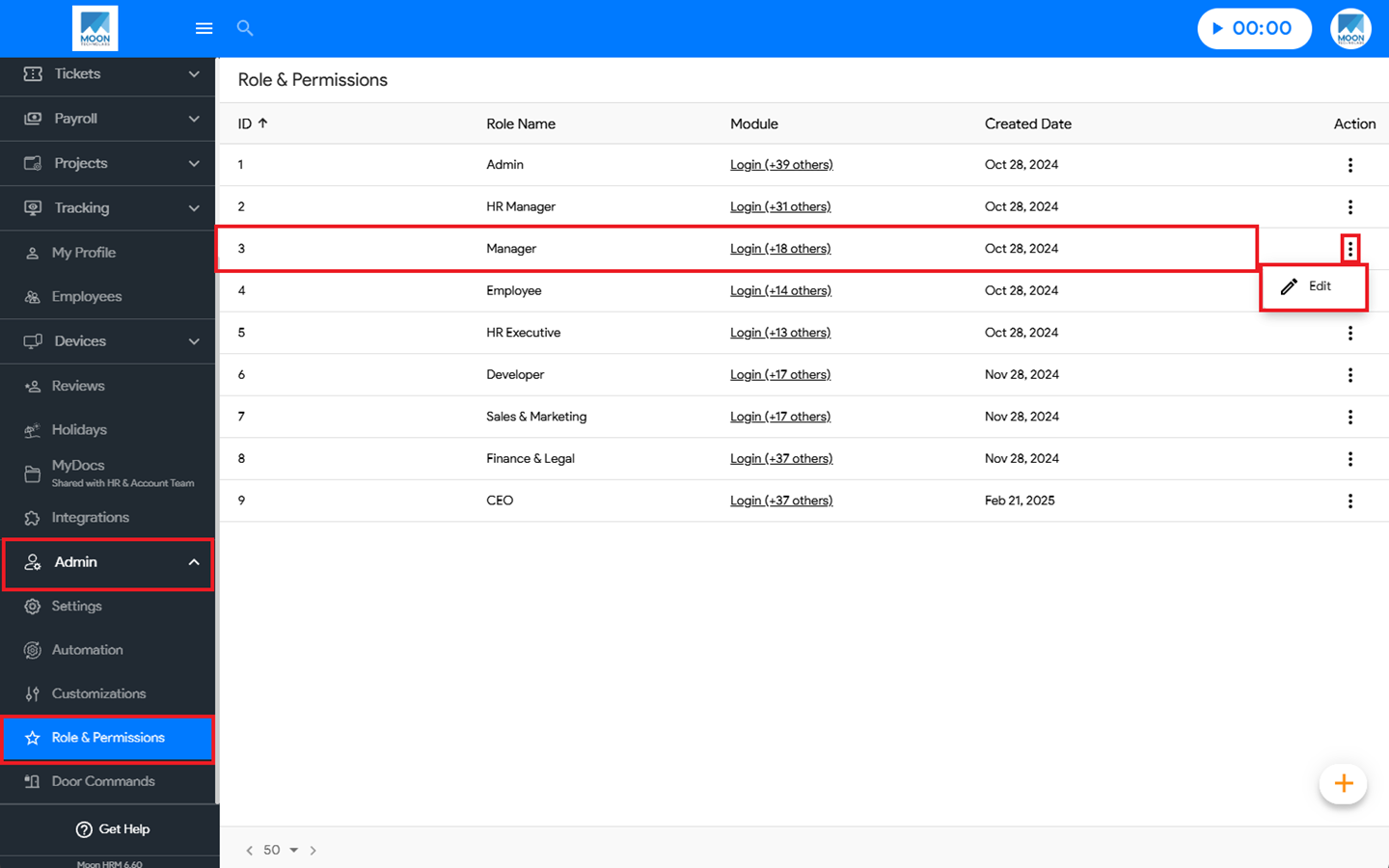
- At the Company Level, navigate to Admin ➜ Role & Permissions from the main menu.
- Select the desired role & permission, click the three-dot icon (⋮), and choose Edit.
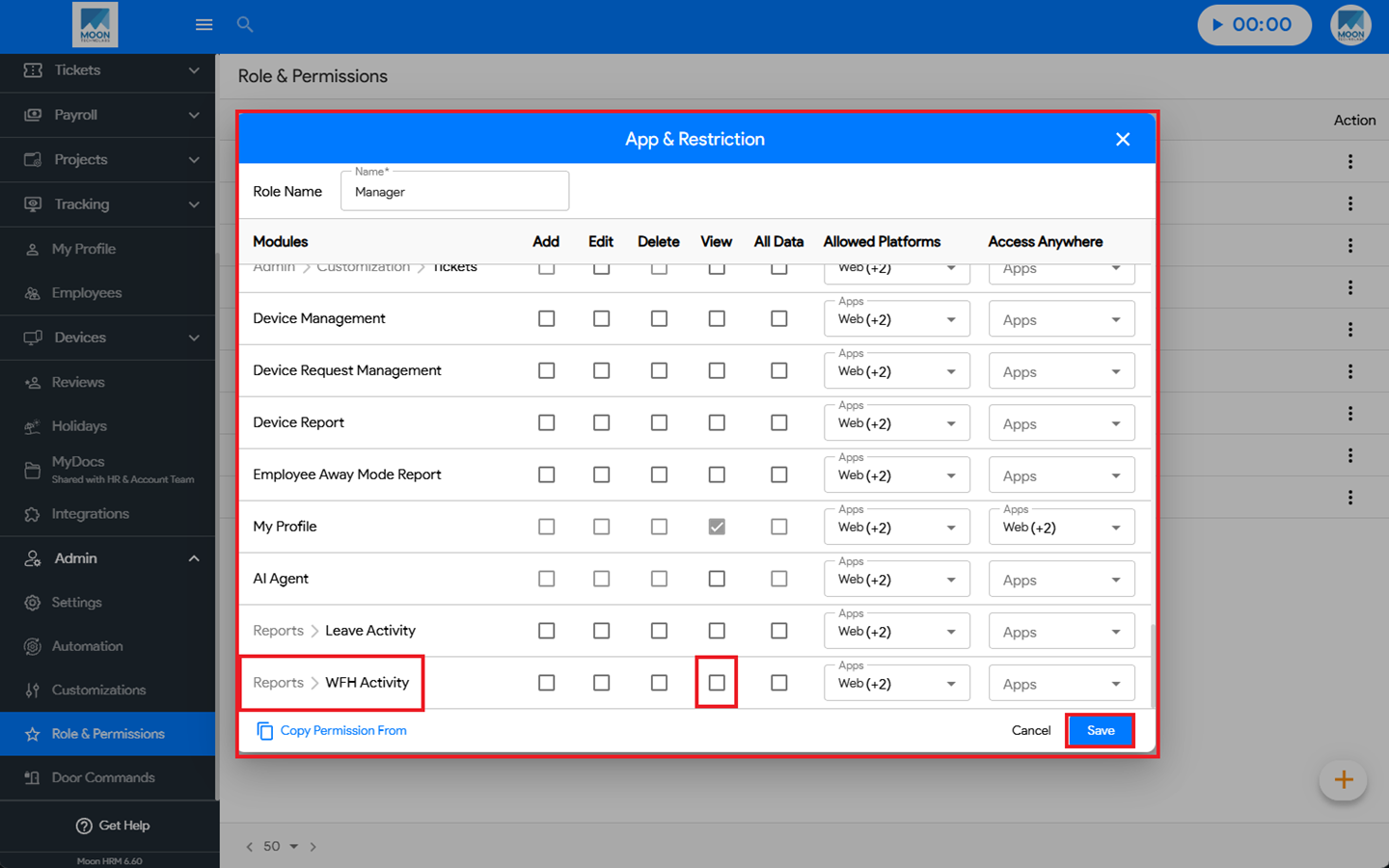
- Under App & Restriction ➜ Report > Work Report, you can choose the appropriate option.
- Finally, click Save to apply the changes.